You can follow the steps of this simple tutorial to simulate running an in-coming sales order XML file through LANSA Composer's transaction document processing framework and update the tutorial sales order database with the details contained in the transaction document.
This demonstration assumes that you have an understanding of the basics of how to navigate and use LANSA Composer's main features. You may wish to complete the LANSA Composer tutorials first.
In addition to the Trading Partner definition that you will create as a part of the demonstration and the supplied Activities used by the processing sequences, the following supplied LANSA Composer definitions are used. In order for the demonstration to succeed, these definitions should be in their supplied form and, where applicable, they must be Active status:
IDOC_ARCHIVE IDOC_PROCESS IDOC_RECEIVE | Trading Partner directory types defined in Code Maintenance. |
|---|---|
XML | Document type definition |
XML/TUTORDERS | Document standard definition |
ITUT_ORDERS | Transformation map definition |
TXDOC_DATABASE (*) | Database configuration |
TXDOC_INBOUND TXDOC_IXML010 TXDOC_RCV TXDOC_RCV_DEMO | Processing sequences |
When you are ready, follow these steps to complete the demonstration:
1. Create a new trading partner named iii_PARTNER1, where iii are your initials. Make sure you set the status to Active. In the Receive processing sequence field, type or select the supplied processing sequence TXDOC_RCV_DEMO.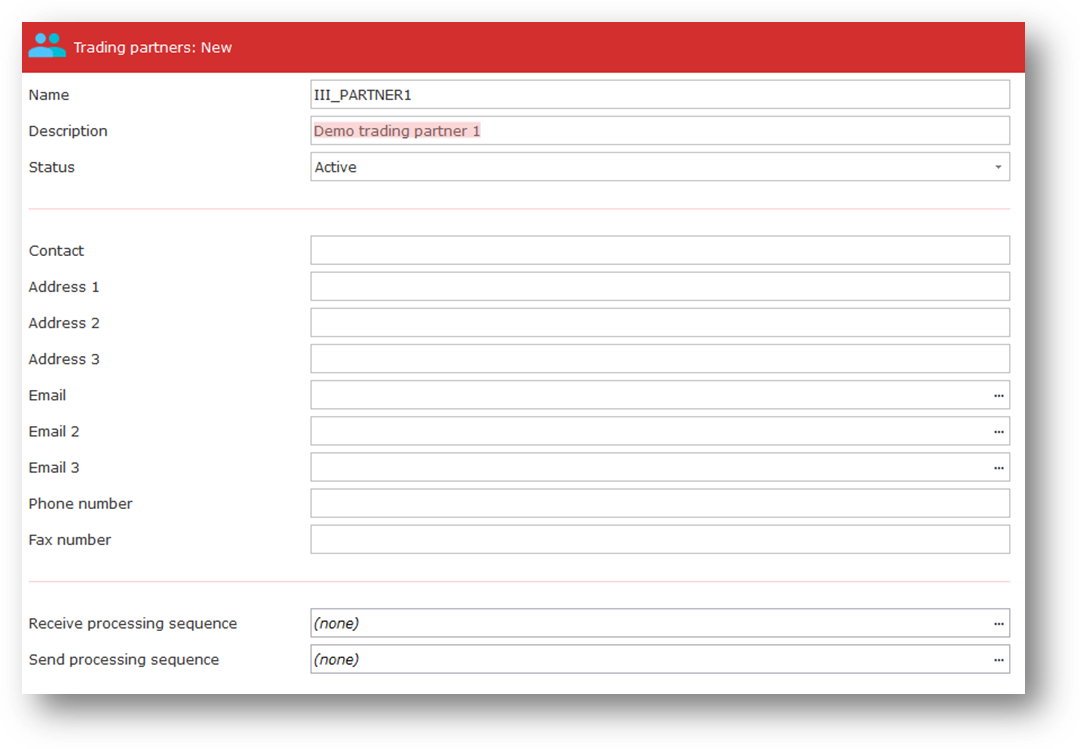
(The TXDOC_RCV_DEMO processing sequence that you have associated with this trading partner will "receive" transaction document files by copying the supplied tutorial sales order XML file (TUTorder.xml) from the tutorial files directory to the inbound receive directory for this trading partner.)
When prompted, let LANSA Composer create the linked directories for the Trading Partner. (Make sure the Create directories if they do not exist checkbox is checked.)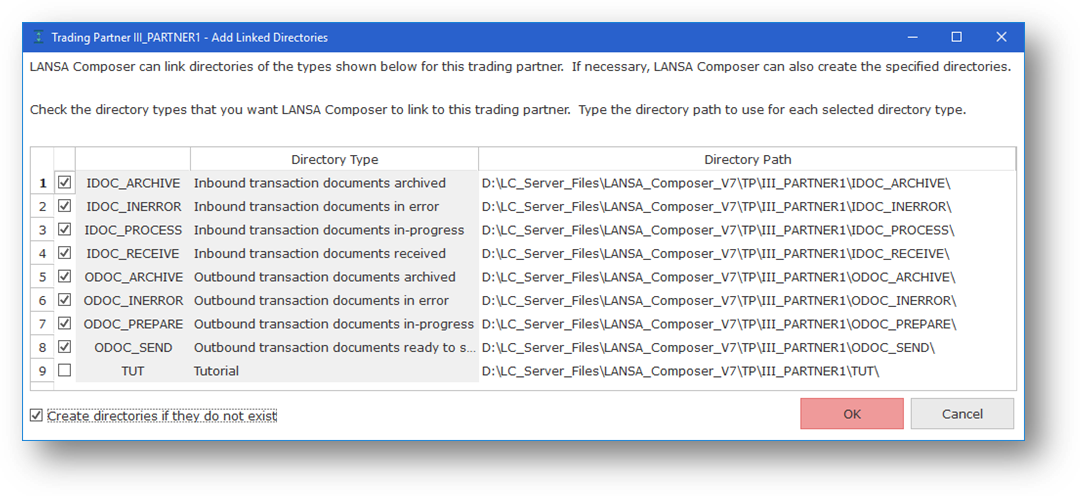
2. On the Linked Maps tab for the Trading Partner, add a link for the supplied ITUT_ORDERS transformation map.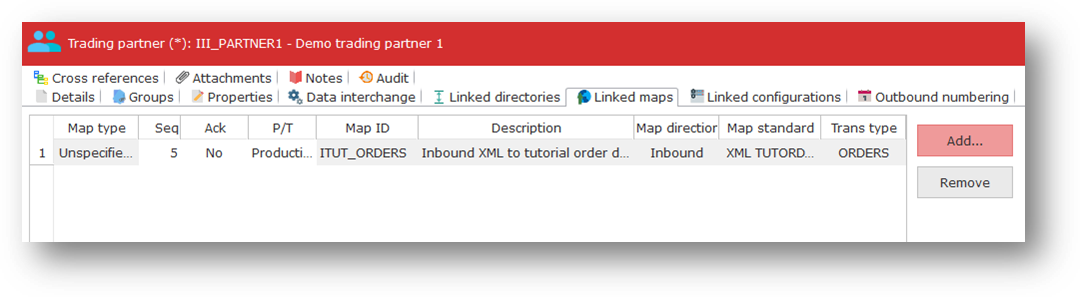
(This map reads a tutorial sales order XML file (as used in the LANSA Composer tutorial exercises) and writes the contents to LANSA Composer's tutorial orders database.)
3. Run the supplied inbound Processing Sequence, TXDOC_INBOUND, specifying your trading partner id in the first parameter: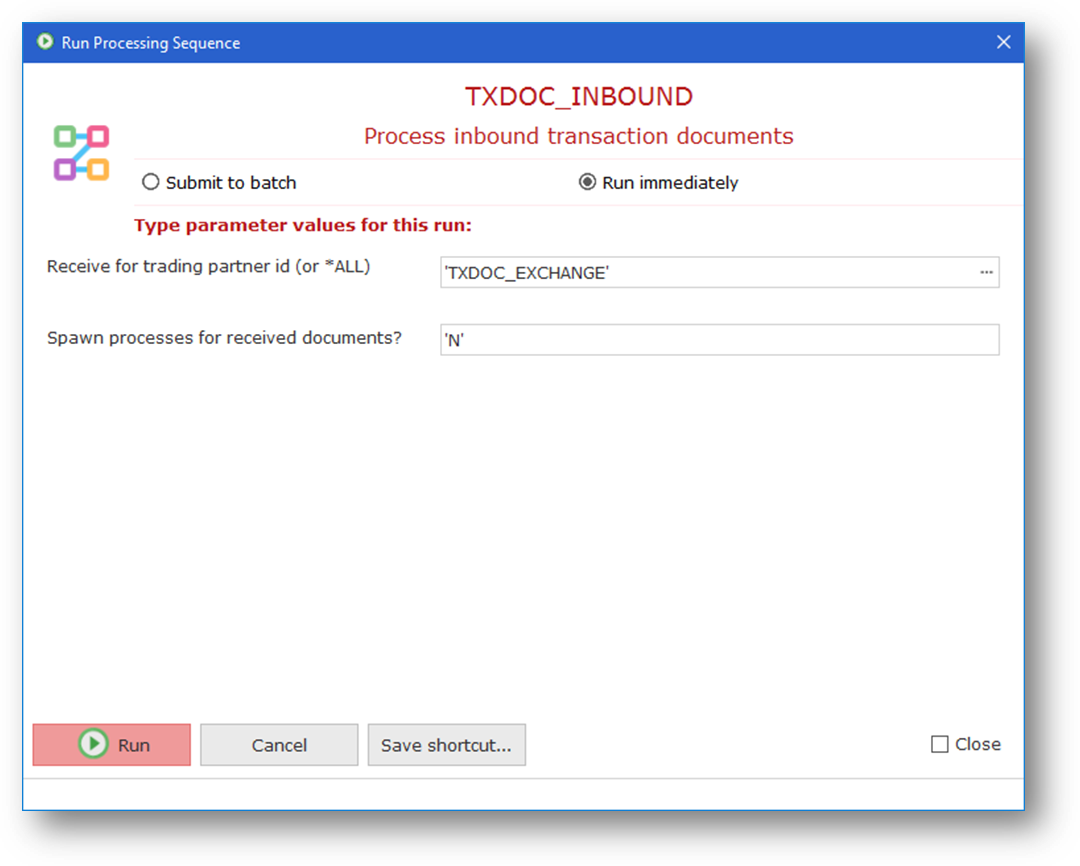
4. When the processing sequence has completed normally, amongst other things, you should be able to observe:
- That the inbound transaction document has been renamed and moved to the IDOC_ARCHIVE directory for the Trading Partner.
- That records have been added to LANSA Composer's tutorial database tables TUTORDH and TUTORDL containing the contents of the in-coming sales order from the TUTorder.xml file.
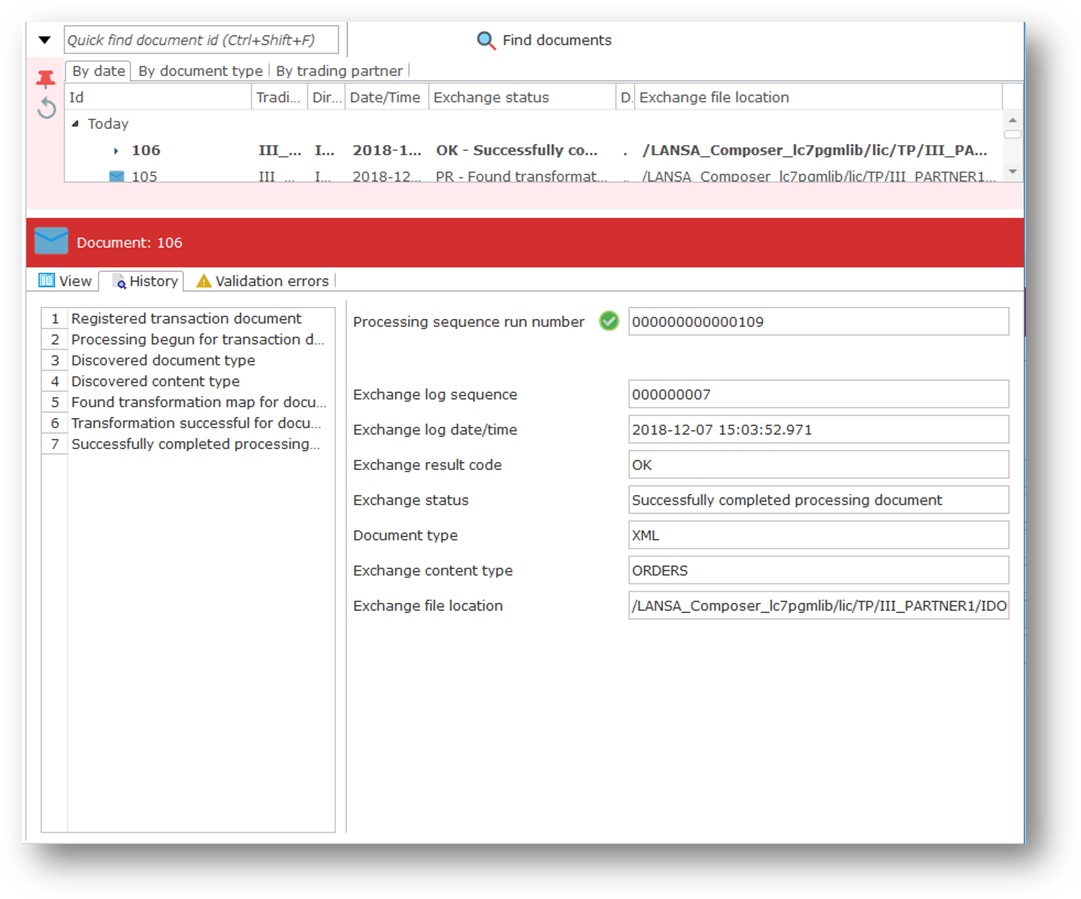
5. Start the LANSA Composer Document Manager application (you can use the option from the Tools menu in LANSA Composer or the installed program shortcut). Select the Documents option from the Navigator. Expand the Today entry in the By Date tab of the instance list to locate your transaction document and select it. Click the History tab to see the processing history for the transaction document.