1. Select the Source tab to return to your WAM's RDMLX code and add a new WebRoutine named Details.
This WebRoutine needs to:
- Receive a value for the EMPNO field from the browser.
- Retrieve the employee record using a FETCH command from the file PSLMST.
- Display values for EMPNO, GIVENAME, SURNAME, ADDRESS1, ADDRESS2, ADDRESS3, POSTCODE, PHONEHME, PHONEBUS, DEPTMENT, SECTION, SALARY, STARTDTE and TERMDATE. All these fields should be mapped for output, at this stage you are writing an enquiry WebRoutine.
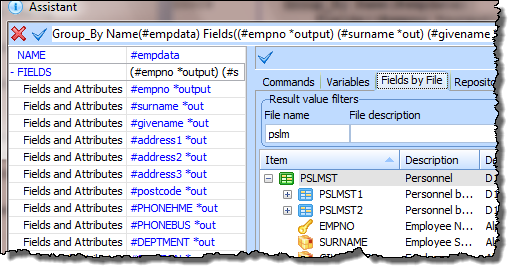
Your WAM code should now look like the following:
     Function Options(*DIRECT)
     Begin_Com Role(*EXTENDS #PRIM_WAM) Layoutweblet('iiilay01')
     Group_By Name(#empdata) Fields((#empno *output) (#surname *out) (#givename *out) (#address1 *out) (#address2 *out) (#address3 *out) (#postcode *out) (#PHONEHME *out) (#PHONEBUS *out) (#DEPTMENT *out) (#SECTION *out) (#SALARY *out) (#STARTDTE *out) (#TERMDATE *out))
     WebRoutine Name(begin)
     Web_Map For(*output) Fields(#empno)
     Endroutine
     Webroutine Name(details) Desc('Employee Details')
     Web_Map For(*output) Fields(#empdata)
     Fetch Fields(#empdata) From_File(pslmst) With_Key(#empno) Val_Error(*next)
     If_Status Is_Not(*OKAY)
     Message Msgtxt('Employee not found')
     Endif
     Endroutine
     End_Com
2. Compile your WAM. The changes you made to the "Begin" WebRoutine web page will be retained. XSL and XML will be built for your new WebRoutine only, as part of the compile.
3. To open the Design view for the Details WebRoutine, use the  icon in the source code. Your web page should look like the following: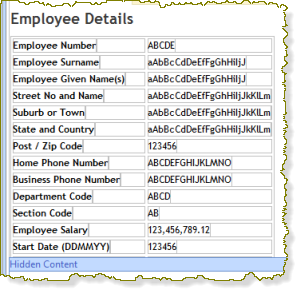
4. The fields DEPTMENT and SECTION may have a dropdown weblet visualization defined in the Repository. In this case their value will not be shown when they are output fields. You will be using field visualizations in a later exercise. If their value is not currently shown, select each in turn and use the context menu option Change to Output Field. This will display these fields as normal output fields.
Save your changes using the Save  button on the toolbar.
5. On the Design ribbon click on the Open WebRoutine button.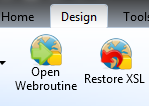
Select the Begin WebRoutine and click OK to display it in the Design view.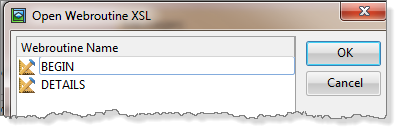
6. On the toolbar, click the  Execute icon to execute the WAM in the browser. Your web page should look like the following: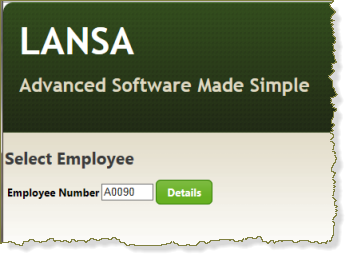
Enter an Employee number (for example, A0070, A0090 or A1234) and click the Details button.
The details web page should then be displayed.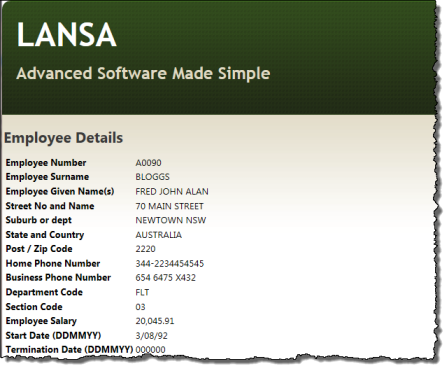
To select another employee, return to the Select Employee by using the browser back button. In later exercises, you will learn how you to add a Return button on the Details page to return to the Begin WebRoutine.
7. You have completed this exercise.