The WhereScape RED metadata can be restored from a prior backup. The Backup and Restore process uses PostgreSQL pg_dump and pg_restore respectively. The version of pg_dump and pg_restore installed with RED is at 12.4.
Changing the tools version
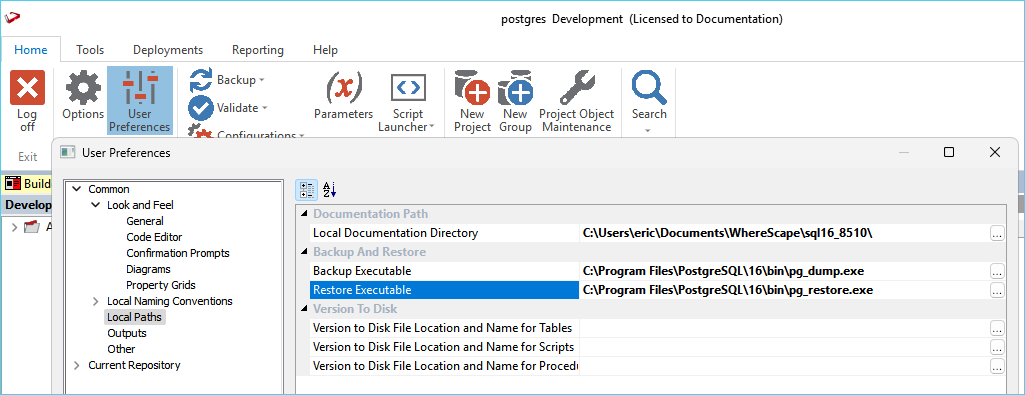
If you want to use another version of the backup and restore tools, you can set their locations from the User Preferences menu in RED.
To change the path to the executables, go to User Preferences > Common > Local Paths and set the path for each tool.
Restoring metadata
A metadata repository backup can be restored over the top of an existing repository. This action replaces the existing repository in its entirety. The restoration of repositories is covered in an earlier section, but it use in the promotion of code are discussed here. This restore process does not affect any existing database tables or any compiled procedures, so it can be used as a means of updating a metadata repository, albeit by replacing that repository. It is often a good method to choose when first establishing a new repository. For example, if we have a development repository and want to create a production environment the steps may be:
- Backup the development repository.
- Create a new repository using the RED Setup Wizard.
- Log on to the newly created repository.
- Restore the backup of the development repository to the new repository.
- Modify any connections, set any default values, and alter any table sizes or extents.
- Create the tables.
- Compile all procedures.
Restore from RED
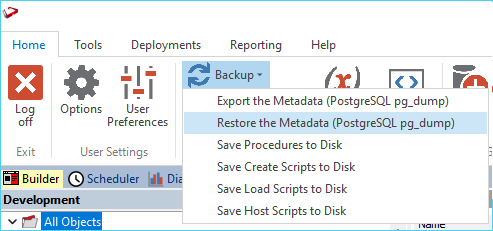
To restore the metadata from a backup, use the menu item Backup > Restore the Metadata (PostgreSQL pg_restore)
- This UI option allows you to restore over an existing RED repository from a pg_dump backup in the format described in the backup section.
- This option uses the --clean switch which will drop each object prior to restoring it.
Enter the required data and click OK.
After clicking OK, a new dialog box will appear asking for a selection of the export directory. Browse to the contents of the directory where the export is located. Once the export directory is selected, the import will begin.
A dialog box will appear to show the results of the import.
Restore from the Command Line
The example command shown below is what RED UI would execute if you used the menu option to restore.
- This restore command is designed to match the pg_dump backup in the format described in the Backup section.
- This option uses the --clean switch which will drop each object prior to restoring it. This command will produce ignorable drop errors if the target is an empty database, unless --if-exists is also specified.
Note: the below example is written as a batch script which could be executed as a RED Host Script so that the required environment variables are set. Replace the environment variables with the actual values if running outside of RED. Replace <PG_DUMP_FILE> with the full path to your backup file.
This will overwrite your existing metadata
setlocal EnableDelayedExpansion
SET PGPASSWORD=!WSL_META_PWD!
setlocal DisableDelayedExpansion
"C:\Program Files\PostgreSQL\16\bin\pg_restore.exe" --host=%WSL_META_SERVER% --port=%WSL_META_DBPORT% --dbname=%WSL_META_DB% --username=%WSL_META_USER% --no-password --no-owner --no-privileges --clean "<PG_DUMP_FILE>"