The WhereScape Migration tool allows you to migrate metadata repositories from WhereScape RED Classic to WhereScape RED 10+. The following sections provide information on how to install and use the WhereScape Migration tool.
Prerequisites For PostgreSQL Metadata
Before you begin the following prerequisites must be met:
- Create Database and ODBC DSN:
- Supported* version of PostgreSQL (PostgreSQL 12 or higher)
- A database to house the RED Metadata Repository.
- A database for the Range Table DB (Optional)
- A database to house scheduler (Optional)
- Software Installations
- WhereScape RED10 with valid license key entered and EULA accepted
- WhereScape Enablement Pack for target database version RED10
- Supported* version of PostgreSQL (PostgreSQL 12 or higher)
- Windows Powershell (64-bit) version 4 or higher
- To check the Windows Powershell Version:
- Run the below command in Windows Powershell
Get-Host|Select-Object Version
- Run the below command in Windows Powershell
- To check the Windows Powershell Version:
- Run the below command in the Command Prompt
powershell $psversiontable
- Run the below command in the Command Prompt
- Run the following command using PowerShell
- The security protocol TLS 1.0 and 1.1 used by PowerShell to communicate with the PowerShell gallery has been deprecated and TLS 1.2 has been made mandatory
[Net.ServicePointManager]::SecurityProtocol = [Net.ServicePointManager]::SecurityProtocol -bor [Net.SecurityProtocolType]::Tls12
Register-PSRepository -Default -Verbose
Set-PSRepository -Name "PSGallery" -InstallationPolicy Trusted
- The security protocol TLS 1.0 and 1.1 used by PowerShell to communicate with the PowerShell gallery has been deprecated and TLS 1.2 has been made mandatory
- Progress bar placeholder info line
Install-Module -Name PoshProgressBar -SkipPublisherCheck -Force
- Progress bar placeholder info line
- RED supports the following versions for the metadata repository: PostgreSQL 12 or higher
Installing the Migration Tool
- Launch the Install Wizard as administrator.
- Select Create a new repository.
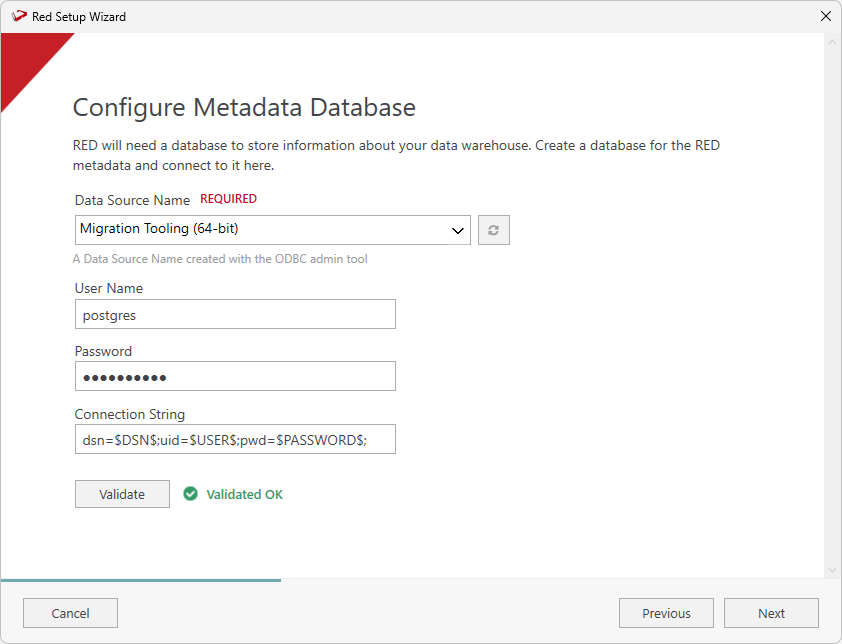
- Configure the metadata repository.
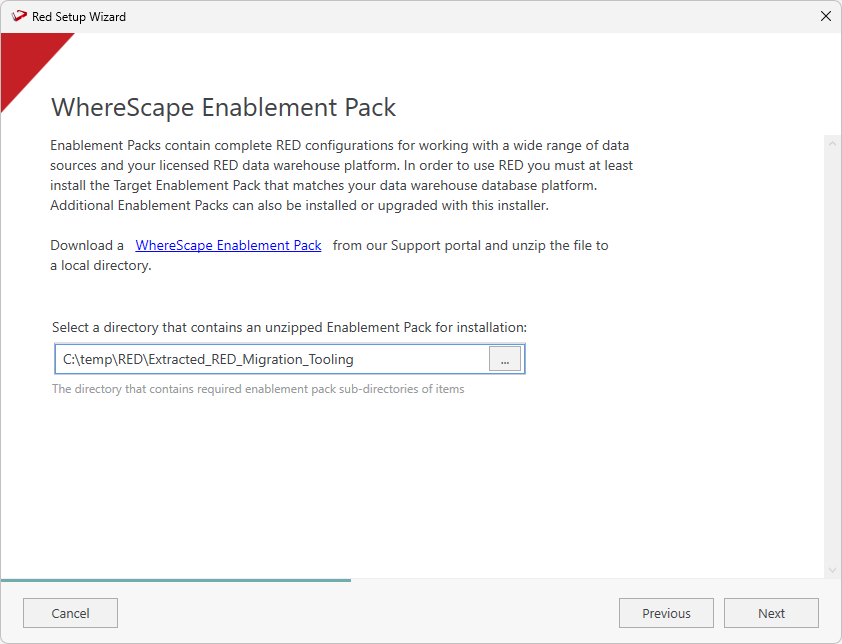
- Select the directory that contains the unzipped migration tool. Click Next.
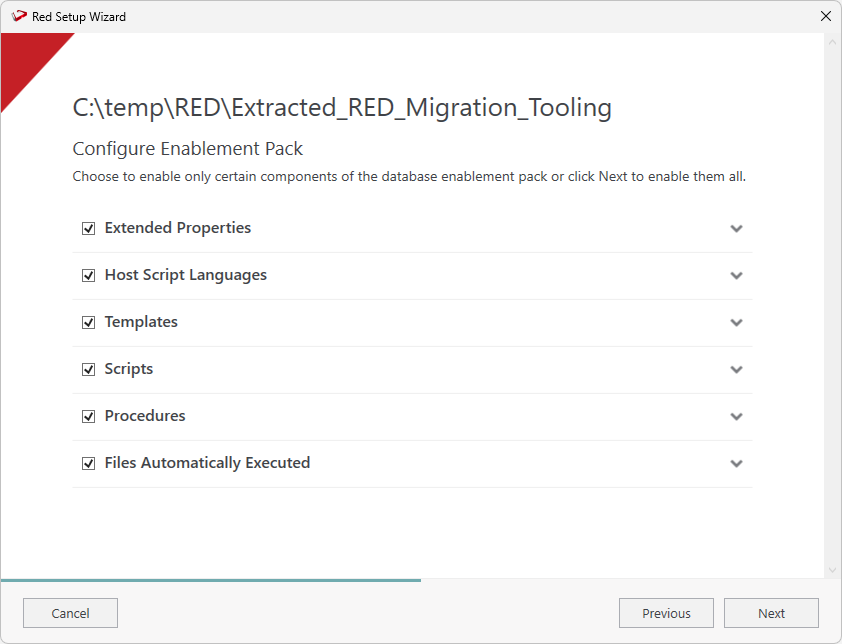
- Select the components that you want to install. Click Next.
Create Target Connections
You must create two PostgreSQL connections with the following characteristics:
| Name | Database Type | Target Name |
|---|---|---|
| Target | Custom* | red |
| Reports | Custom* | red |
*Custom will be your licensed Custom Database Target type which might have a different label in the UI than 'Custom', basically for these two connections we can't use the inbuilt SQL, Oracle or Teradata target types.
Adding the Target Connection
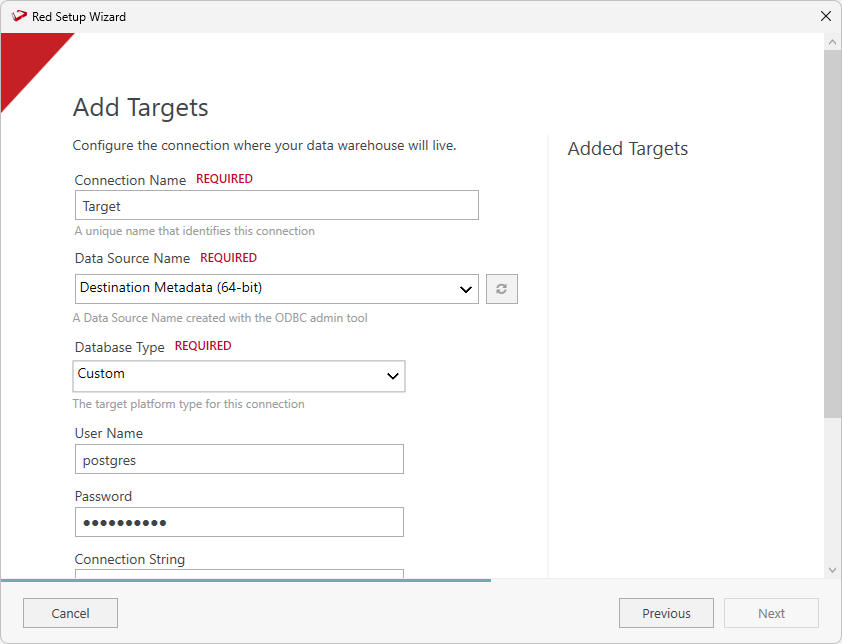
The connection named 'Target' will be your PostgreSQL connection to your database to house the migrated RED metadata repository.
- On the Connection Name field, ensure to enter 'Target' as a name. On the Target Storage Locations field, ensure to enter 'red'.
- Complete the other fields with the appropriate data, then click Validate to check your configurations.
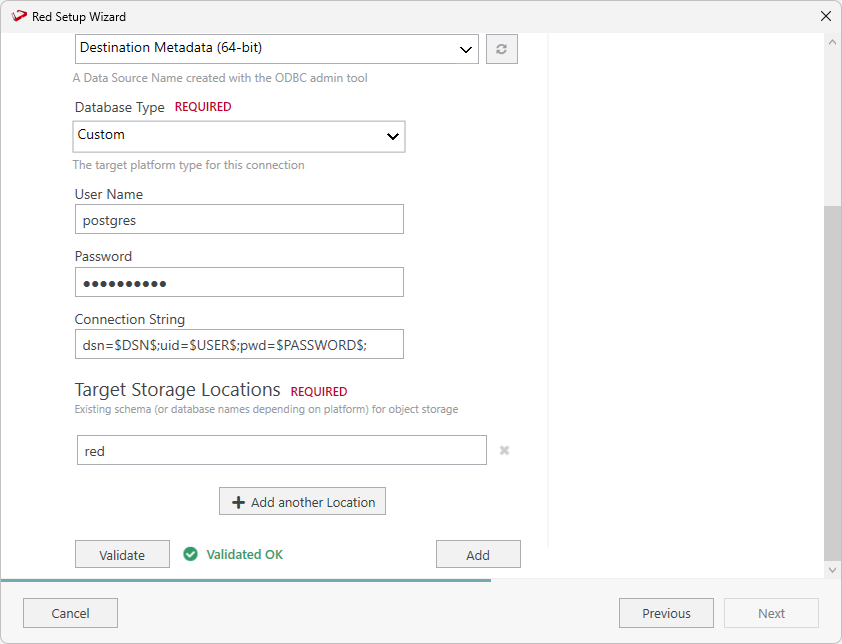
- Once you validate your configurations click Add.
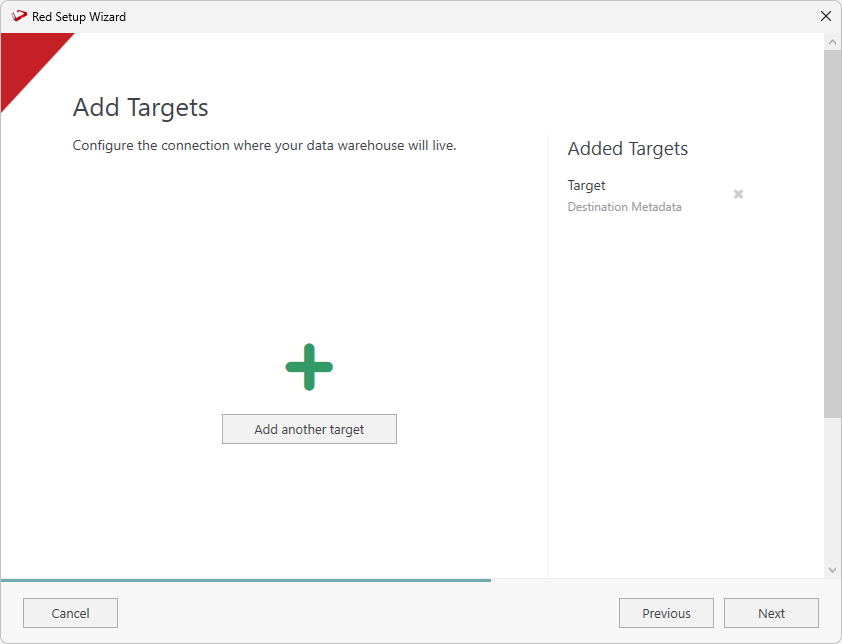
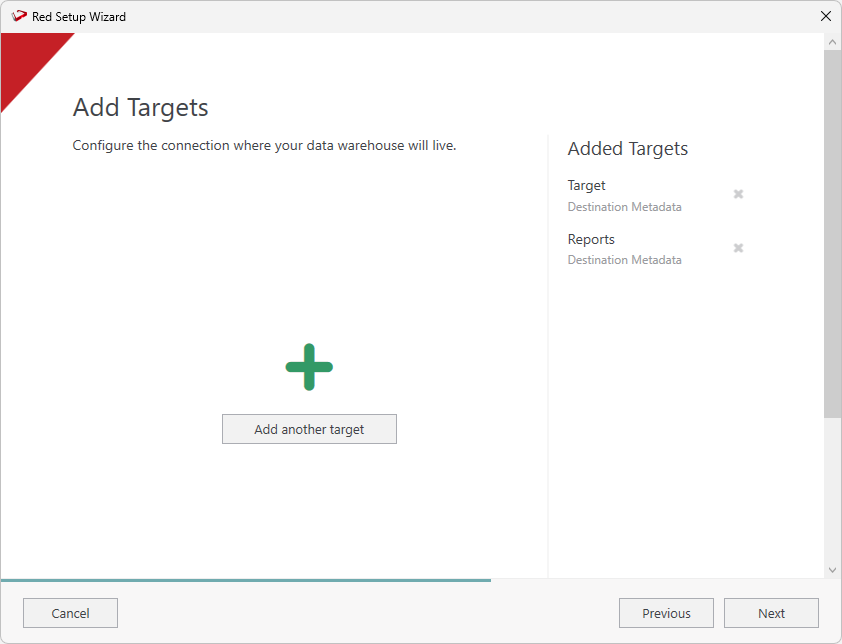
- On the Add Targets screen you will see the connection you just added. Click Add another target to add the Reports connection.
Adding the Reports Connection
The connection named 'Reports' will be your PostgreSQL connection to your Migration Tooling metadata repository, which allows us to add targets to the tooling metadata database for reporting.
- On the Connection Name field, ensure to enter 'Reports' as a name. On the Target Storage Locations field, ensure to enter 'red'.
- Complete the other fields with the appropriate data, then click Validate to check your configurations.
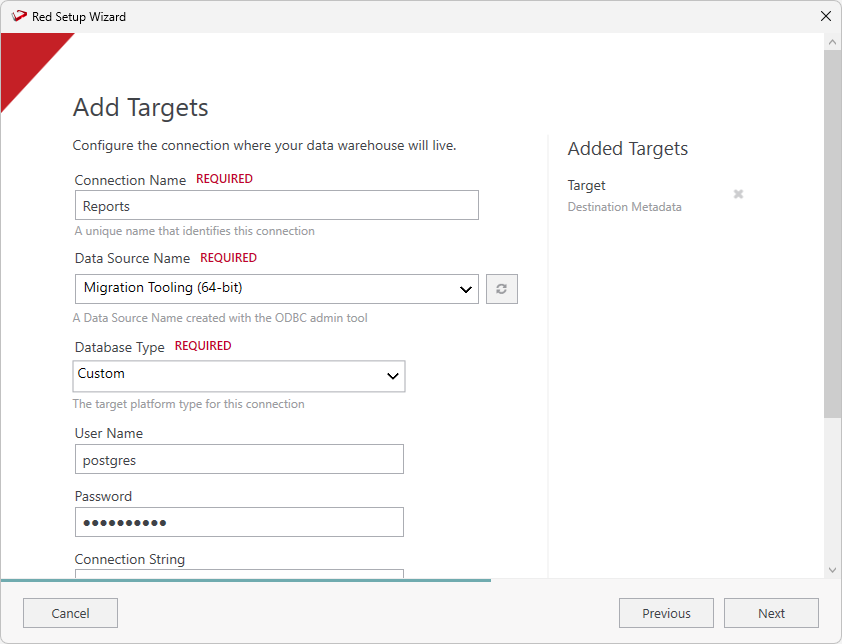
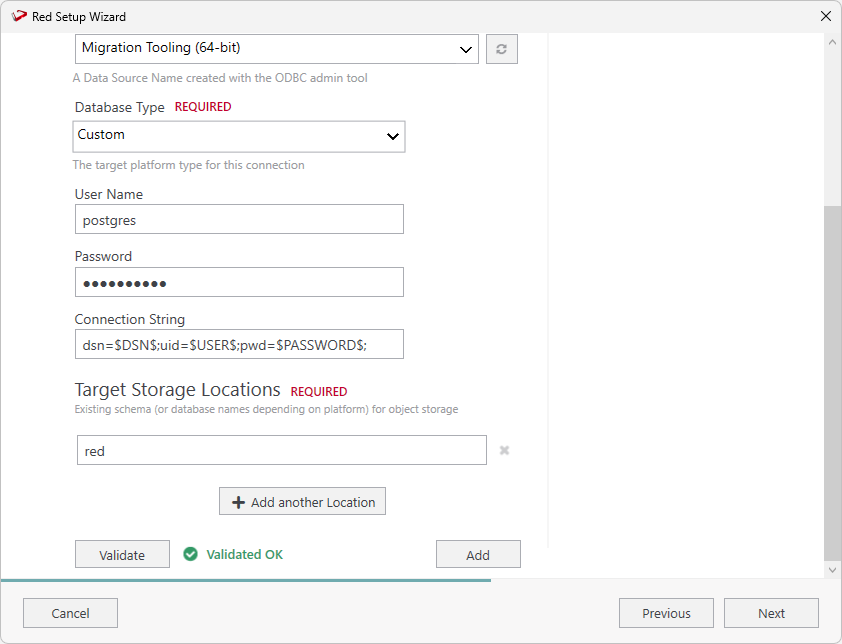
- Once you validate your configurations click Add.
- On the Add Targets screen you will see the two connections you just added. Click Next continue and add the source connection.
Adding the Source Connection
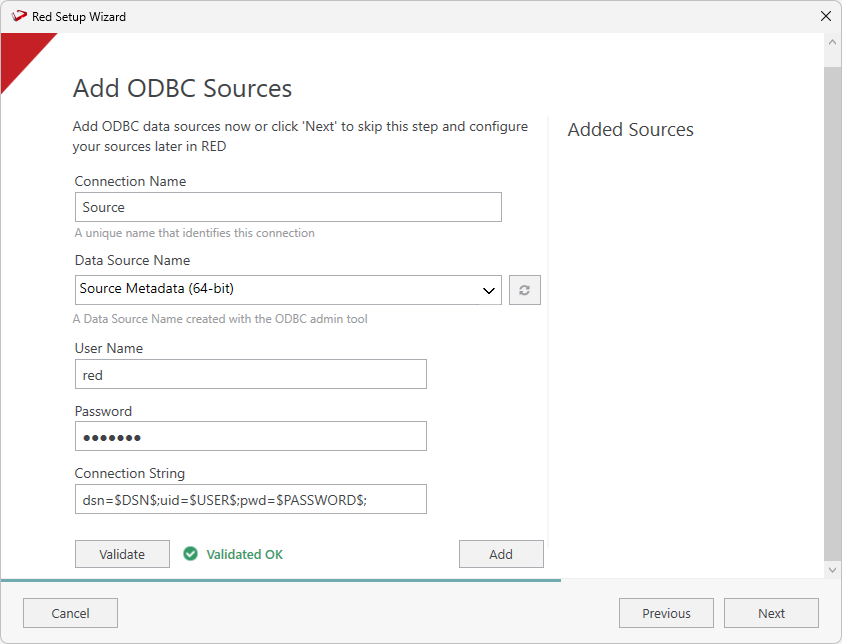
- On the Add ODBC Sources screen, configure the data source you want to migrate from RED Classic. Click Validate to check your configurations and then click Add.
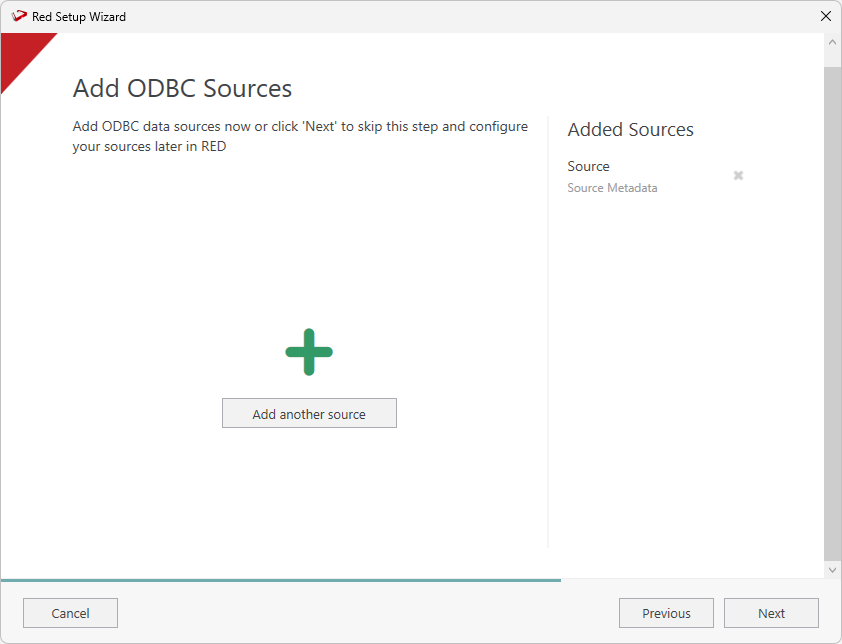
- The Add ODBC Sources screen will show the connection you just added. Click Next to continue or click Add another source to add more sources.
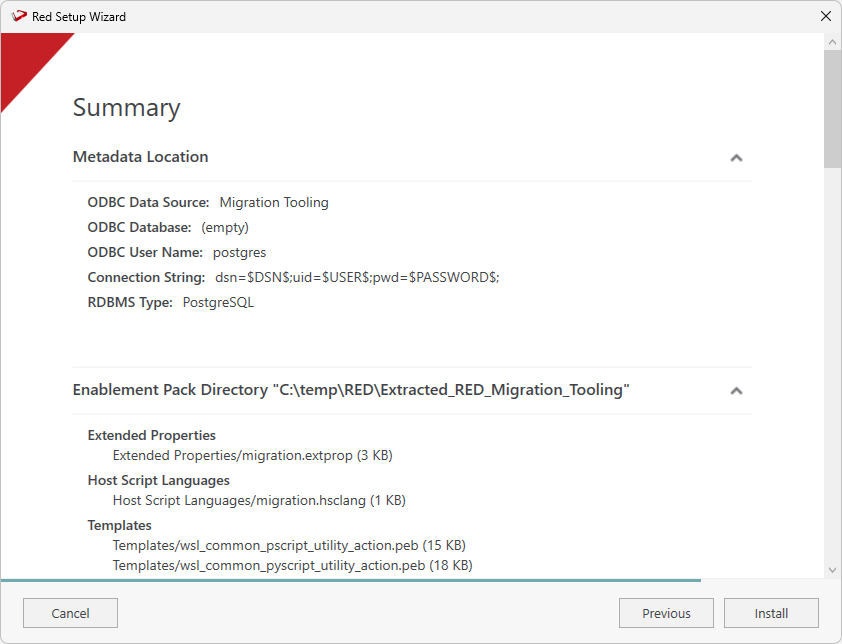
- On the Summary screen review your configurations are correct, you can click Previous to make changes or click Install to continue.