1. Create new field definitions in the Repository:
Name | Description | Type | Length | Input Attribute |
|---|---|---|---|---|
iiiDATE | Start Date | Date | 10 | |
iiiDTETME | Last Updated | DateTime | 25 | |
iiiNOTE | Comments | String | 512 | LC |
iiiGENDER | Gender | Alphanumeric | 1 | |
iiiTIME | Create Time | Time | 8 | |
iiiCUREMP | Current Employee | Alphanumeric | 1 |
Use the New Field dialog, to open each field in the Editor and for the dialog to remain open. Fields will be automatically flagged as RDMLX when a type such as Date is selected: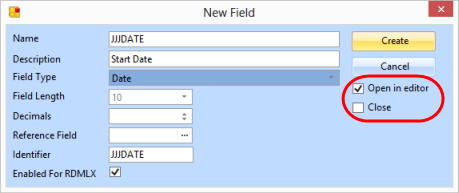
2. Review the Field Visualization for the fields iiiDATE, iiiDTETME, iiiTIME and iiiNOTE. They each have been given a suitable weblet visualization.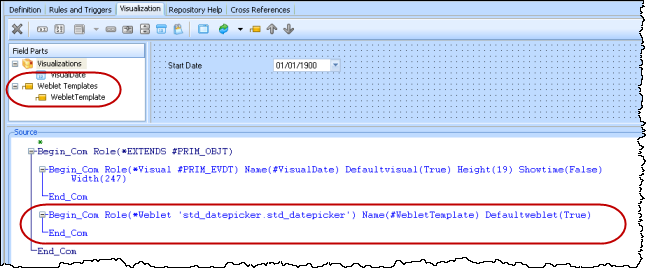
3. Ensure that the Input attribute of field iiiNOTE allows lower case: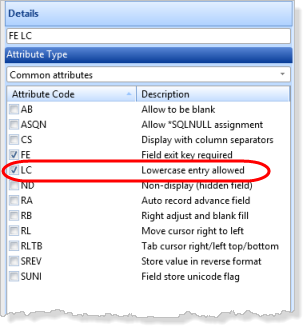
4. Switch to the Field Visualization definition for field iiiGENDER. Add a Static Picklist using the toolbar button: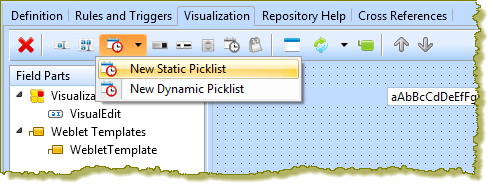
5. Define the static picklist with two entries as shown: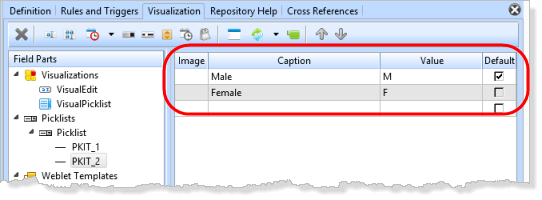
6. Open the Repository Find dialog using the  insert Weblet Template toolbar button.
a. If necessary, in the Repository Find dialog, select Standard Weblets in the dropdown.
b. Add a Radio Group weblet.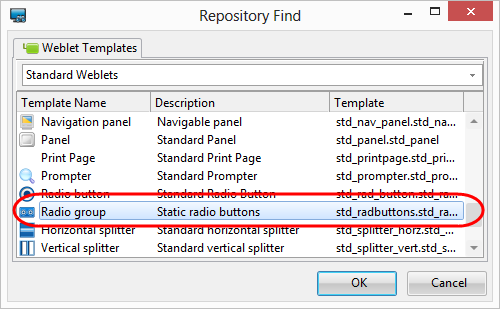
7. Save the field definition.
8. Switch to the Visualization tab for field iiiCUREMP. Use the  toolbar button to add a Checkbox weblet visualization.
The Checkbox weblet will return, by default, values of Y and N which are correct values for field iiiCUREMP. In this case a static picklist is not required.
9. Save the field definition.