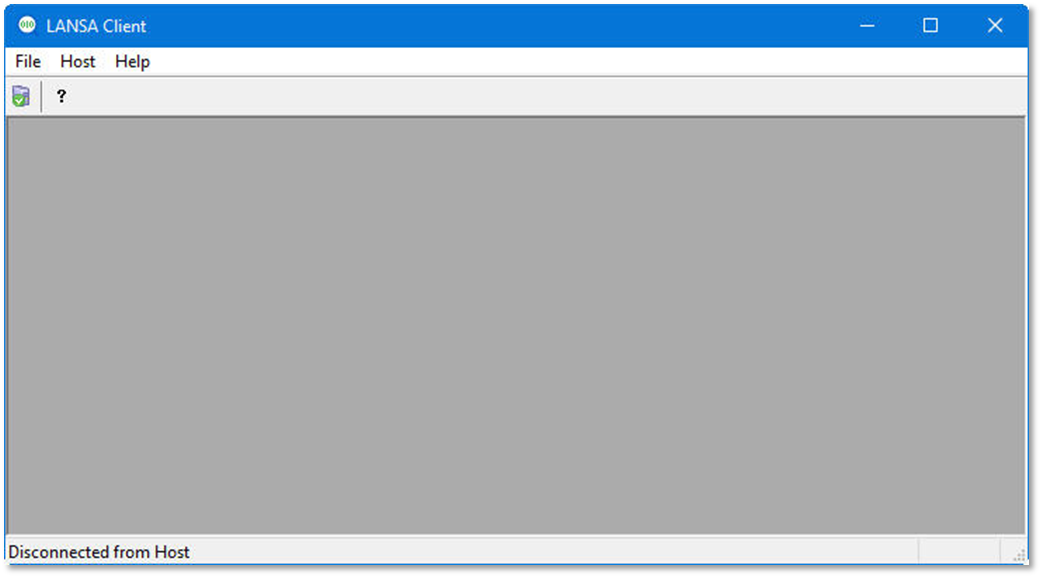
- Select a host from the list if prompted.
For this exercise, select LANSA Client Tutorial (DEM) from the list, otherwise check with your administrator what the correct name for the host is. - Click the OK button.
Alternatively, you could simply double-click on a host from the list.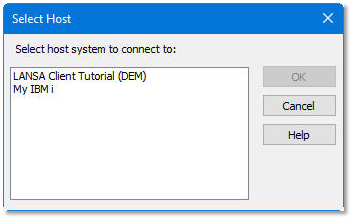
Tips & Techniques
- If you can connect to more than one host system, the Select Host dialog box will be displayed. If you only have one host system to connect to, this selection step will be bypassed.
About the LANSA Client Main Window
Start all LANSA Client functions, such as to create a query, run a query and so on, from the LANSA Client main window.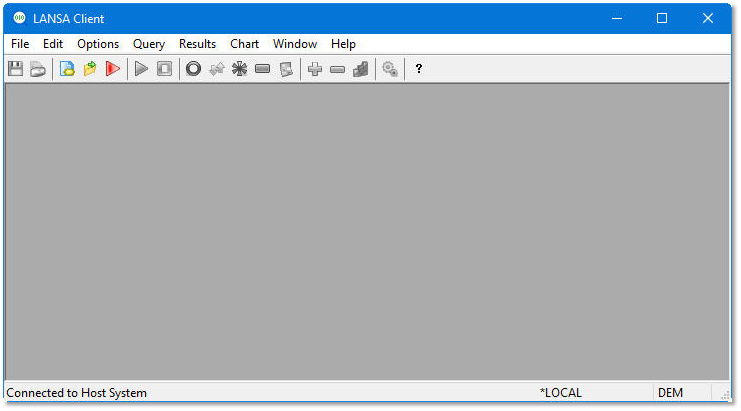
The LANSA Client main window, as with all other LANSA Client windows, has standard Windows facilities which include:
- Maximize and minimize buttons in the top right corner.
- The system menu icon in the top left corner.
- A title bar across the top of the window.
- A menu bar just below the title bar.
- A tool bar just below the menu bar.
- A status bar at the bottom of the window. The status bar is used to display:
- Information about the file you have selected.
- The host system and partition you are currently connected too.
- The status of your query, when it is running.
About the LANSA Client Alternate Window
If a connection cannot be established to the host, the LANSA Client alternate window is displayed. In this case, you will need to restart the signing on process, after you have investigated the reason for not connecting to the host.