While defining a Transformation Map using the mapping tool, you will select the Database option from the Insert menu (or use the corresponding toolbar button) to insert a database component.
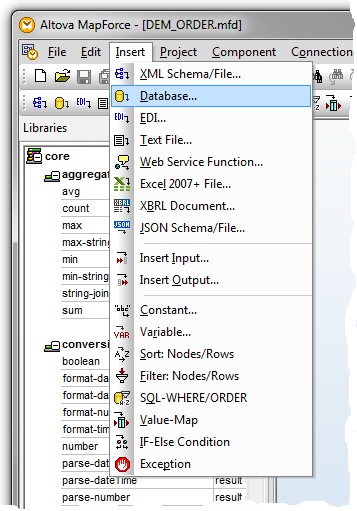
The dialogs you have to complete depend on the type of database connection you insert and on choices you have made in previous sessions in the mapping tool. The following steps describe some of the most common and important dialogs and choices: The actual windows you will see and have to complete in order to establish your database connection will vary according to the type of database, driver, previous database selections and other factors. What follows is an example sequence of windows for establishing a new connection to IBM i DB2 running on an IBM i server.
1. On the first panel of the Connection Wizard , choose IBM DB2 as the database type and click Next .
(If the Connection Wizard is not shown, click the Connection Wizard button to display it)

2. When prompted to select database drivers, choose the IBM i Access ODBC Driver or an equivalent driver that provides access to your IBM i database.
The IBM i Access OR IBM i Access Client Solutions (ACS) ODBC Driver needs to be installed on the PC that runs the LANSA Composer client and Altova MapForce to enable access to IBM i DB2 database tables.
For IBM i Access, the driver is typically installed as part of the IBM i Access installation.
But for IBM i Access Client Solutions (ACS) the base package does not include the ODBC drivers which need to be separately downloaded and installed as they are part of an Optional Package.
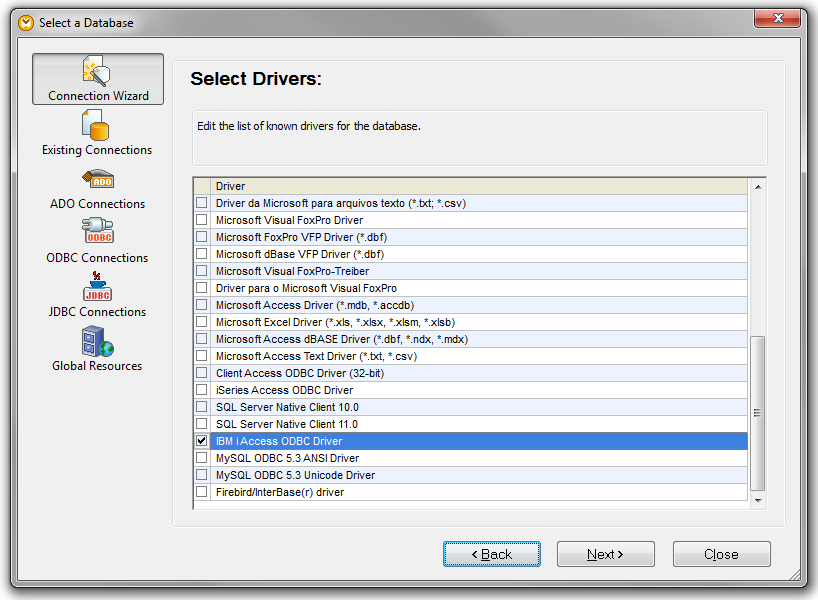
Normally you see this screen only on the first occasion that you choose the IBM DB2 option on the previous wizard panel. It associates specific drivers on your computer with the IBM DB2 option in the mapping tool. If you need to add or change drivers later, you can click the Edit Drivers button at the Configure: IBM DB2 panel shown in the next step.
3. When prompted to configure IBM DB2, if you have previously defined a data source name (DSN) for use with LANSA Composer, choose it and click Next . Otherwise, click Create a new Data Source Name (DSN) and click Next .
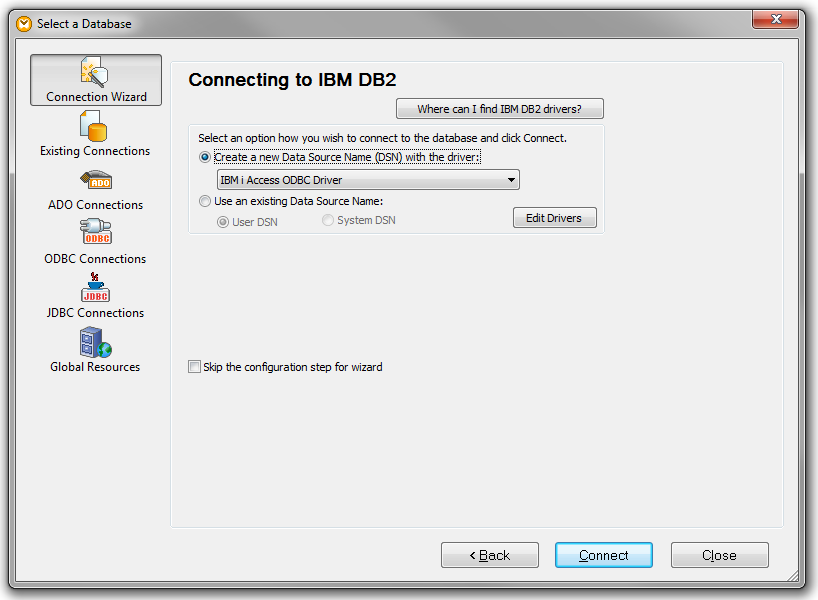
4. If you chose the option to Create a new Data Source Name (DSN) , you will now be prompted for details of the new DSN. The specific panels shown will vary according to the ODBC driver you chose. If you are connecting to IBM i DB2 using the IBM i Access ODBC Driver, you will see a screen similar to this that prompts you for a name, description and other details for the new DSN:
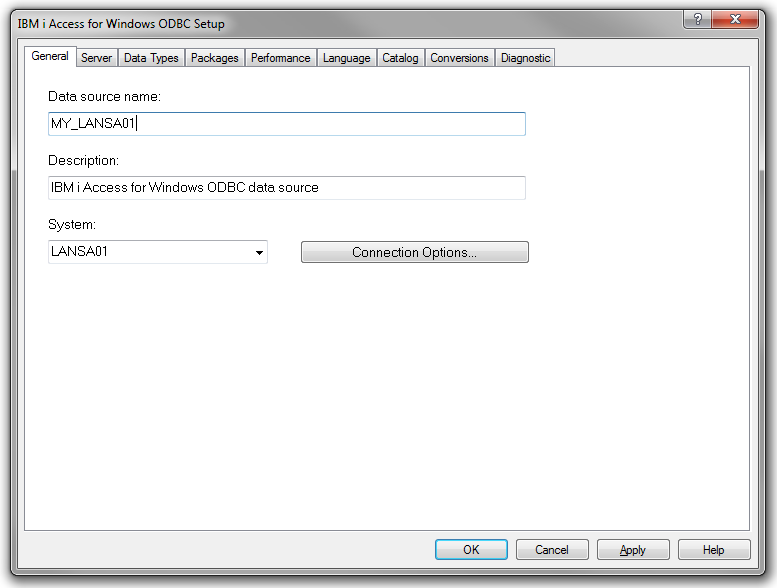
Complete the details as required for your database and server. If in doubt, ask your system or database administrator for instructions.
If you are connecting to IBM i DB2 using the IBM i Access ODBC Driver, in the simplest case you will need only to enter a data source name, description and select or specify the System to which you wish to connect. For example:
Data Source Name | iiiSRV400 This could be any meaningful name. It is the DSN name for this ODBC connection. |
|---|---|
Description | IBM i Access for Windows ODBC Source |
System | Specify the IBM i server system name (for example, the system name EARTH is used in many of these examples)) |
However, for more IBM i DB2 considerations regarding the DSN, refer to Library names in the DSN.
However, depending on your specific system and database configuration you may need to complete or change settings on other pages of the IBM i Access for Windows ODBC Setup screen.
5. Depending on the ODBC driver you chose and the configuration options specified in the DSN, you may be prompted for login information. If so, complete the login information to connect to the database and continue with designing your transformation map.
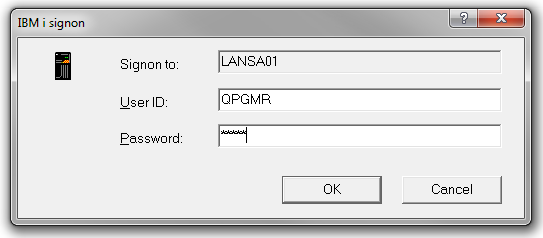
The mapping tool may attempt to connect more than once to the database. This may result in you being prompted repeatedly for login information. You can avoid the multiple logins by changing the connection properties for the IBM i server in IBM i Access for Windows such that IBM i Access will prompt you for a password only for the first connection.
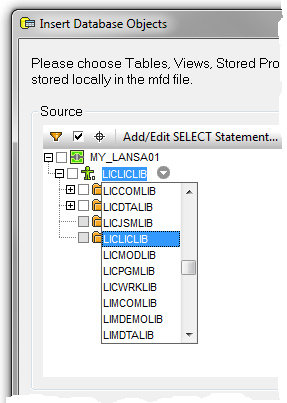
6. When your ODBC connection has been successfully established, the mapping tool allows you to choose the particular tables you wish to use in your transformation map. First click the small arrow next to the schema (library) name to choose the required IBM i library namefrom the drop-down list:
7. Then select the database tables you wish to use and click OK.
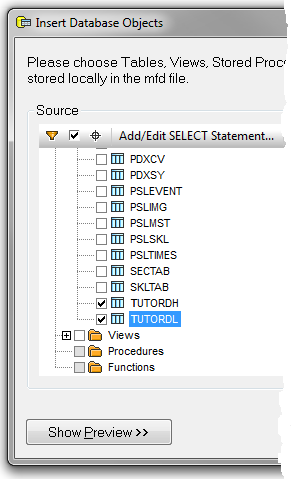
8. A database component representing the selected tables is inserted in the workspace for the map.
When used to access IBM i DB2 database tables, the library from which you select the files is used only for the purpose of defining the transformation map.
For maps prepared to execute as Java executable files (.JAR), LANSA Composer will remove the library qualifier from the generated Java code when you prepare the transformation map. You must setup your database configuration such that the required files can be found in the desired library at run-time - this is described in Defining the database configuration for IBM i DB2.
For maps prepared to execute as MapForce Server execution files (.MFX), we recommend using MapForce's Global Resources feature to enable the map to be run against different instances of the database. Refer to the Prepare and execute as MapForce Server executable section of System Settings.