This section shows you how to create an application used to maintain fields in a file. The application consists of a list of employees and fields showing employee details. You can limit the entries in the list by entering a partial surname. You can use the application to view and maintain the details of existing employees, to add new employees and to delete employee information.
You can also choose to create the application using templates as described in 2.6 Create Applications Using Templates.
In this instance, it is created manually to show you what is involved.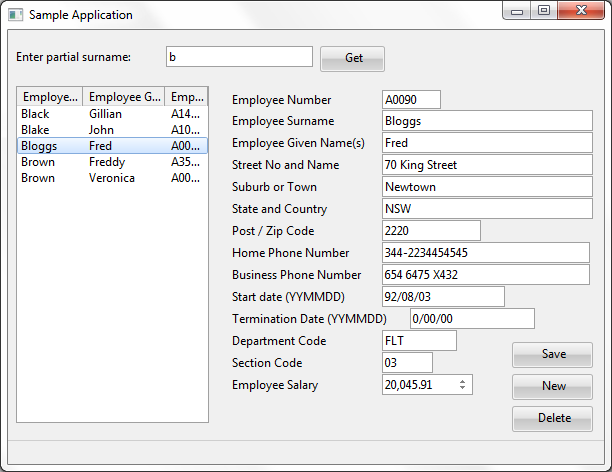
The application uses data from the Personnel System Demonstration PSLMST file which is part of the LANSA DEM partition.
Note: The Personnel Demonstration System, used in these examples, has been upgraded. You can use the replacement details (field names generally commence with 'x' with these instructions.
Before you can create this application, you must have a LANSA development license. If you don't have a license you could download a LANSA Trial version which comes with a 60-day license.
To create this application yourself, you need to create field PARTNAME which uses SURNAME as the reference field. The application is created in these steps:
Step 4. Compile and run the Program
You start creating an application by creating a form or a dialog. The dialog will become your application's window when it is running.
To create a form select New from the File tab, then select Dialog from the New list.
The New Dialog is displayed. Enter the name and the description:
Name: DEMCOM01.
Description: Sample Application
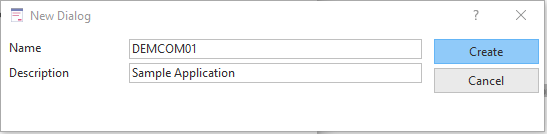
Click the Create button.
View the Source Code
If you now bring up the Source view, you will notice that the component definition statement for the form has been created automatically.
     Begin_Com Role(*EXTENDS #PRIM_DLG)

     End_Com
A Visual LANSA application always starts with a FUNCTION statement followed by a BEGIN_COM statement defining the form.
The END_COM statement ends the component definition. It is always the last statement in a Visual LANSA application.
Note that if the standard form (STD_FORM) definition on your system has been modified, you may see other statements as well. For more information, refer to Modify Default Component Behavior in 2.4 Work with Components.
Step 2. Create the Interface
In Visual LANSA you create the interface of the application before you write the code.
2a. Set the Form's Properties
| To view the form's properties, select it on the desktop or in the Outline tab. Bring the Details tab topmost. It consists of a list of properties and a list of events for of the form. The list of properties shows the name of the property on the left and its value on the right. You can change the value of any of the properties except the name of the form. You do this by selecting a property and then specifying its value. You can either type in values, or if they are predefined, you can select them from a list. |
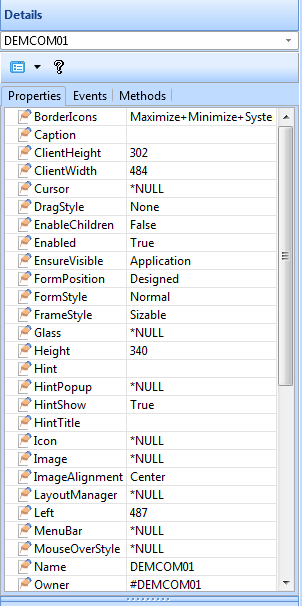
Write the Caption
The first property you need to change is the form's Caption property to create a title for your window:
1. Click on the Caption property.
2. Type Employee. As you type it, the new caption is displayed in the title bar of the form.
Size the Form
Next make the form a bit larger than the default size:
1. Select it and move the cursor towards its edge.
2. When the cursor changes to a double-arrow, drag the edges with the left mouse button pressed down.
3. Alternatively, you can change the Height and Width properties of the form.
You can keep resizing the form as required as you add controls and fields on it.
2b. Add Fields and Controls
This section shows you how to add the required fields and controls to the form.
#Partname field and a button
First add the #PARTNAME field which uses #SURNAME as the reference field.
To add the PARTNAME field:
1. Start by locating it in the Repository.
2. Drag the PARTNAME field to the form or double-click it.
3. Bring up the Details tab and make its LabelType property Caption.
4. Type 'Enter partial surname:' in its Caption property
Command Buttons
In addition to the Get command button used with the partial surname field, you need these command buttons to work with the employee details: