In this step, you will begin to complete your web page logic, firstly by adding logic to initialize the web page. This will include:
- a method routine to populate the SearchType dropdown
- a method routine to populate the Departments dropdown
- an ItemGotSelection event routine for the SearchTypes dropdown which displays the required search criteria.
1. Copy and paste each of the Group_By and Working list definitions from the Server Modules for files xEmployee and xDepartments and paste them into the Using List Components web page.
2. Create a method routine, named LoadSearchType to perform the following:
Populate the SearchType dropdown with three values, Surname, Given Name and Department.
Position the SearchType dropdown to the first entry and set focus.
Set the SearchName edit box to be visible.
Hide the Departments dropdown.
Your code should look like the following.
Mthroutine Name(LoadSearchType) Clr_List Named(#SearchType) #STD_NAME := 'Surname' Add_Entry To_List(#SearchType) #std_name := 'Given Name' Add_Entry To_List(#SearchType) #std_name := 'Department' Add_Entry To_List(#SearchType) Get_Entry Number(1) From_List(#SearchType) #SearchType.currentItem.focus := true #SearchName.visible := true #Departments.visible := false Endroutine
3. Create a CreateInstance event routine for the web page, and add code to invoke the LoadSearchTypes method routine.
Evtroutine Handling(#Com_owner.CreateInstance) #com_self.loadSearchType Endroutine
4. Complete the ItemGotSelection event routine for the SearchType dropdown, which you created earlier, to display the required input control.
The dropdown SearchType has one column, based on field STD_NAME.
Define a CASE loop for field STD_NAME
Define a When clauses for value 'Surname', 'Given Name' and 'Department'
Within each When clause, make the require control visible and set the other control to Visible=False.
Your code should look like the following:
Evtroutine Handling(#SearchType.ItemGotSelection) Case Of_Field(#std_name) When (= 'Surname') #SearchName.visible := true #Departments.visible := false When (= 'Given Name') #SearchName.visible := True #Departments.visible := false When (= 'Department') #Departments.visible := true #SearchName.visible := false Endcase Endroutine
5. Create a method routine named LoadDepartments.
Note: Using the AutoComplete prompt as you create the code, lists the srvroutines in a Server Module. For example:
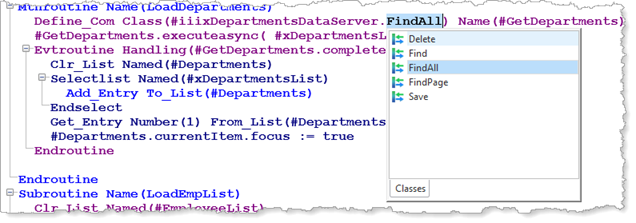
Your routine should perform the following:
Define a component for the xDepartmentsDataServer server module, srvroutine FindAll, named GetDepartments.
Execute GetDepartments asynchronously with parameter list xDepartmentsList.
Within an event routine for GetDepartments.Completed
Selectlist all xDepartmentsList entries
Add each entry to the list component Departments
End Select
Retrieve the first entry in list Departments
Set focus for currentitem
Your code should look like the following:
Mthroutine Name(LoadDepartments) Define_Com Class(#iiixDepartmentsDataServer.FindAll) Name(#GetDepartments) #GetDepartments.executeasync(#xDepartmentsList) Evtroutine Handling(#GetDepartments.completed) Clr_List Named(#Departments) Selectlist Named(#xDepartmentsList) Add_Entry To_List(#Departments) Endselect Get_Entry Number(1) From_List(#Departments) #Departments.currentItem.focus := true Endroutine Endroutine
6. In the CreateInstance routine for the web page, add code to invoke the LoadDepartments method routine.
Your code should look like the following:
Evtroutine Handling(#Com_owner.CreateInstance) #com_self.LoadSearchTypes #com_self.LoadDepartments Endroutine
7. Compile your web page.
8. Test your web page.
Select Search Type from the first dropdown. You should then see an edit box for Surname or Given Name search, or a dropdown populated with department descriptions for Departments. There is no other functionality at this stage.