In this step, you learn how to classify screens.
Note that:
- You can classify screens which have been identified.
- You can classify a screen immediately after saving a named screen.
RAMP screens are classified mostly as Junctions and Destinations, and a very small number as Specials.
Special screens are screens which appear unpredictably.
If you are signed in the RAMP session, sign out.
Start at the MainLogin screen.
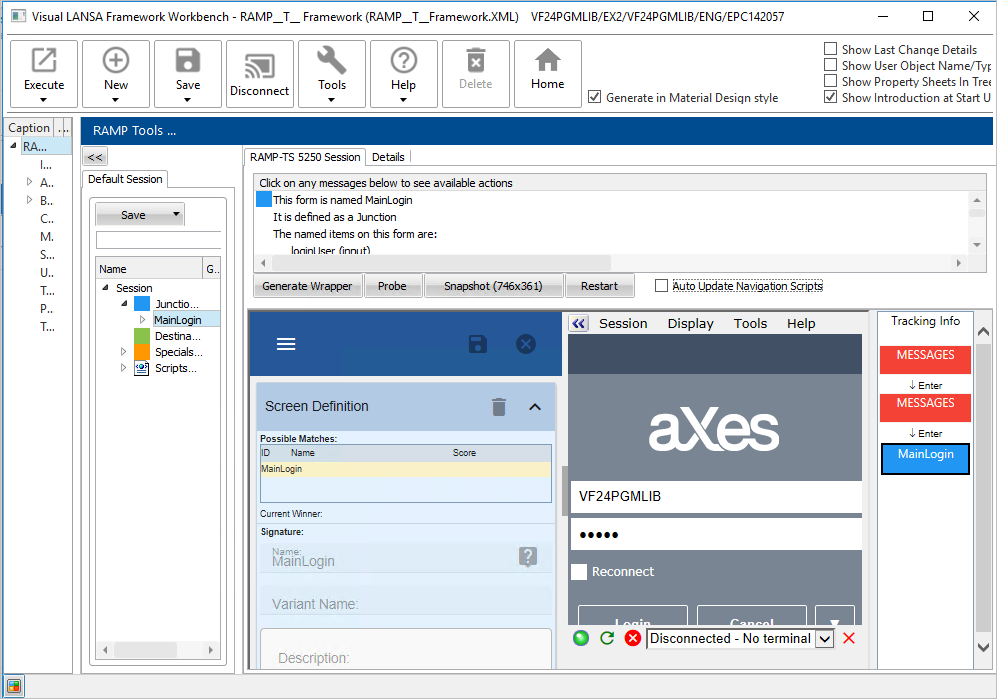
Make sure you are still logged on to another 5250-emulation session using the same user profile.
Log in to the RAMP designer session.
If you get this message during the classification step, ignore it.
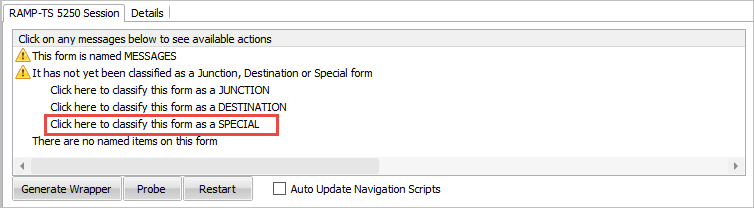
The Display Program Messages arrives and is recognized.
Look at the RAMP-TS 5250 session tab.
Click on the line Click here to classify this form as a SPECIAL to classify this form as a special screen.
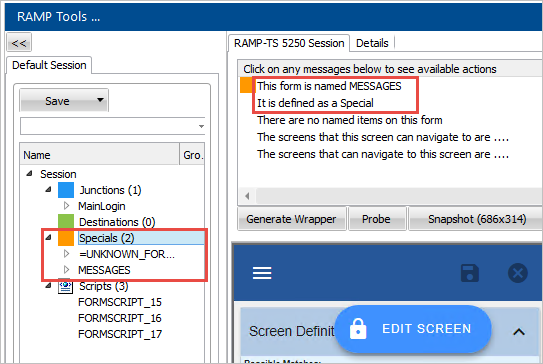
The screen will now look like this:
Press Enter or F3 to exit this screen.
The IBM i Main Menu screen arrives.
The main menu is a typical Junction. It would be unusual for a menu screen to be classified as something other than a Junction.
Click on the line to classify this form as a JUNCTION.
The screen now looks something like this:
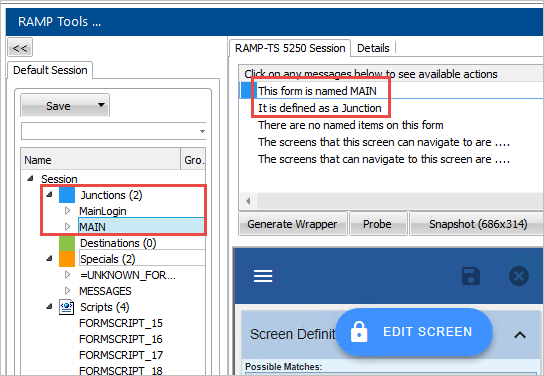
We know that in this screen we must type something in the command line. RAMP will record what we type, save it in a script and play it at execution time.
To record what we type in fields, RAMP requires the field to be named.
In the Fields list, locate the command line field and name it COMMAND:
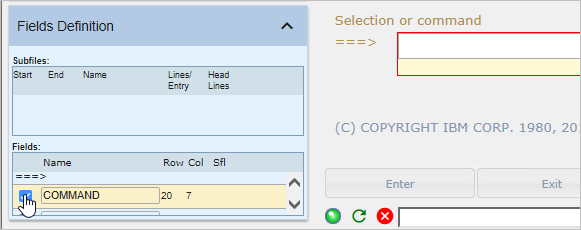
Save the screen.
The information area now looks like this:
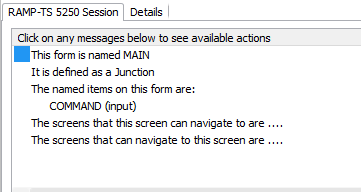
In the COMMAND field, type wrkactjob and press Enter.
The Work with Active Jobs screen arrives. This screen is used for various purposes. Whether to check CPU usage, to look a job's status, to kill a job, etc. It is a screen where a user would want the navigation to stop.
Click on the line to classify this form as a DESTINATION.
The screen should look something like this:
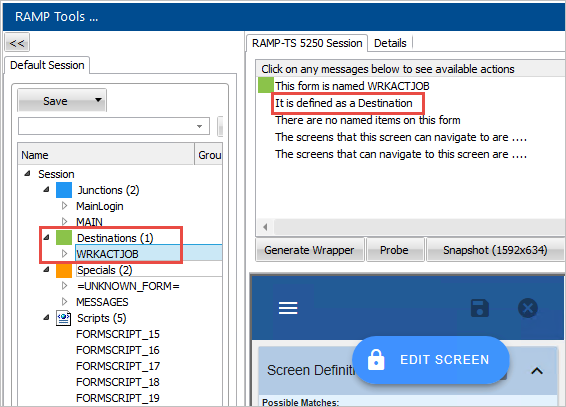
Save the framework.