The Processing sequence editor visualizes the Processing Sequence as a tree of Activities, Transformation Maps and Processing Sequence Directives. You can add comments by using the Comment Processing Sequence Directive.
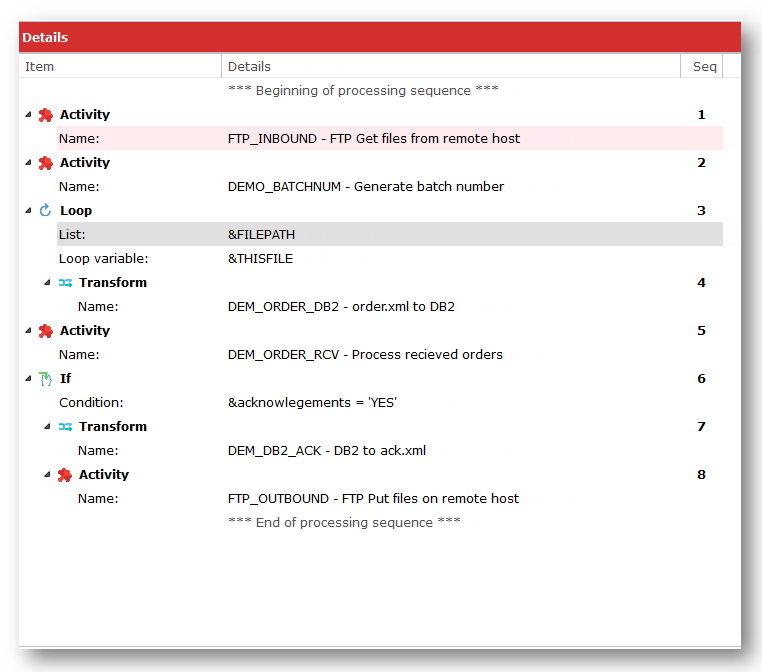
The relationships in the tree represent the relationships between the items. For example, items that are indented beneath a Loop item are the items that will be executed for each iteration of the loop.
Using the Processing sequence editor, you can:
- Add Items to the Processing Sequence
- Delete Items from the Processing Sequence
- Cut, Copy and Paste Items in the Processing Sequence
- Find Items in the Processing Sequence
- Re-arrange Items in the Processing Sequence
- Enable or Disable Items
- Review or Revise Item Details
- Customize the view in the Processing Sequence Editor
Add Items to the Processing Sequence
You add items to the Processing Sequence by dragging them from the Palette, Activities, Processing Sequences, Transformations or Configurations tabs. Alternatively, you can double click items on those tabs to add them to the Processing Sequence or select an option from the Insert menu.
You may then need to complete details for the item in the Detailer window.
For more information on adding items to the Processing Sequence, refer to:
Delete Items from the Processing Sequence
To delete an item from the Processing Sequence:
- Select the item or items to be deleted.
- Click the Delete button on the toolbar or select Delete from the Edit menu.
- Confirm the deletion by clicking Yes in the message box.
Cut, Copy and Paste Items in the Processing Sequence
You can cut, copy and paste items in the Processing Sequence using the Cut, Copy and Paste buttons on the toolbar or by selecting the corresponding commands from the Edit menu.
When you cut or copy an item or items to the clipboard, the entire item definitions are copied, including any details specified in the detailer window. The item definitions remains available on the clipboard indefinitely, until this or some other application copies something else to the clipboard. You can paste copied or cut items into the Processing Sequence Editor for this or another Processing Sequence.
Find Items in the Processing Sequence
To find items in the Processing Sequence:
- Type a search term in the Find box in the toolbar. (Press Ctrl+F to move the focus to the Find box.)
- Press Enter. LANSA Composer will display the first item (relative to the currently selected item) containing the specified search term. The search is case insensitive.
- To find further items containing the search term, press F3 to find the next (relative to the currently selected item) or press Shift+F3 to find the previous item.
When you perform a find operation on the Details or Parameters tabs, each found item may contain the specified search term, possibly more than once in a number of parts of its definition – for example in one or more parameter names, variables or values. Nevertheless each such item is only "found" once. Searching again from that item will find the next (or previous) item containing the specified search term.
Note that LANSA Composer searches the content of the current editor tab – that is, the Details, Parameters or Notes tabs. If you wish to search in a different tab, click the required tab and repeat the search.
Re-arrange Items in the Processing Sequence
You can re-arrange items by moving them up or down the Processing Sequence or by promoting or demoting them:
Move Items Up or Down
Moving items up or down in the Processing Sequence changes the order of items in the Processing Sequence and, therefore, the order in which they will be executed when the Processing Sequence is run.
To move an item up or down the Processing Sequence:
- Select the item to be moved
- Click the Move Up
 or Move Down
  button on the toolbar (or select the corresponding command from the Edit menu) until the item is in the desired position.
OR you can also use Alt+Up Arrow and Alt+Down Arrow keyboard shortcuts.
OR, you can hold the mouse button down and drag the selected item(s) to the desired position.
Promote or Demote Items
Promoting or demoting items changes their parent item – that is, the item to which they belong and upon which their execution is dependent. The visible effect of this is to change their indentation level.
To promote or demote an item:
- Select the item to be promoted or demoted.
- Click the Promote
 or Demote
  button on the toolbar (or select the corresponding command from the Edit menu) until the item is at the desired level. You can also use Alt+Left Arrow and Alt+Right Arrow keyboard shortcuts.
Enable or Disable Items
Enabling or disabling items leaves the definition of the item in the Processing Sequence but prevents it from being executed if the Processing Sequence is run. This is sometimes useful for temporary changes or during design and testing of a Processing Sequence.
Disable items are shown with a greyed icon and text in the processing sequence editor.
To enable or disable an item:
- Select the item to be enabled or disabled.
- Select Enable from the Edit menu.