In this step, you will add a Lookup rule to the Employee table. This rule will specify that the Department field which is being inserted into the Employee table must exist in the Department Table.
1. Open table iiiEmployees in the Editor. Select the Rules and Triggers tab.
2. On the Home ribbon, expand the Views menu in the Rules and Triggers group, and select the Simple rules list.
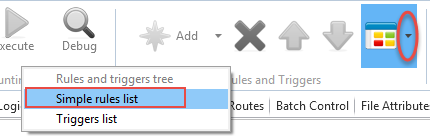
The simple rules list gives you an overview of all the rules in the table and indicates their type and whether a rule is defined for the field or in the table definition.
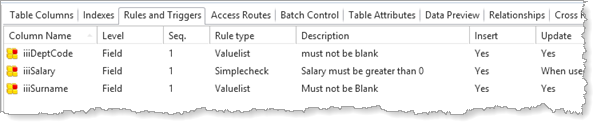
3. Select the iiiDeptCode field in the list of rules.
4. In the Rules and Triggers group on the Home ribbon, expand the Add menu to select Add Lookup Check to add the rule to the iiiDeptCode field.
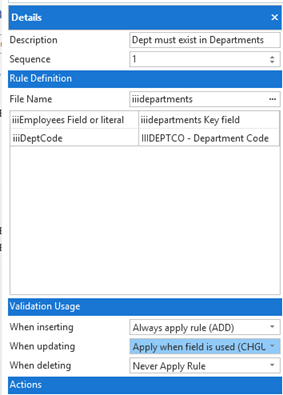
5. In the Details tab, create the rule as follows:
Description | Dept must exist in Departments |
Sequence | 1 |
Table name | iiiDepartments |
When Inserting | Always apply rule (ADD) |
When Updating | Apply when field is used (CHGUSE) |
When Deleting | Never apply rule |
Your Details tab should now look like this:
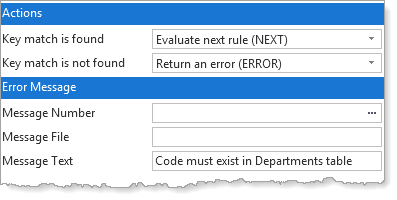
6. Complete the Actions section, to define the actions to set the field in error if the value is not found:
If a "key match" is found in target table | Evaluate next rule (NEXT) |
If a "key match" is NOT found in target table | Set field in error (ERROR) |
Message file | (delete the entry in this field) |
Message Number | (delete the entry in this field) |
Message text | Code must exist in Department Table |
Your Details tab should now look like this:
7. Save the table definition