- Decide where you want the new item to appear on the menu bar. A new item will be inserted directly before whatever item you highlight in the Menu list.
- Press the Add button. A new entry with no name will be inserted into the Menu box list in the position you have selected.
- Enter the name to appear in the menu bar in up to 30 characters in the Menu Text box.
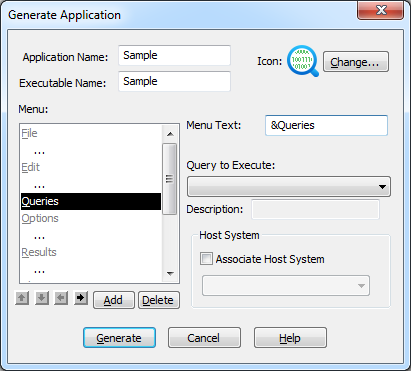
To create a short cut key for this item, insert an ampersand (&) immediately to the left of the character you would like to use. For example, &Queries will cause the keys <Alt> and <Q> to be used as short cut keys for this menu and Queries to be displayed on the menu bar. If you entered, instead, Queries, the shortcut keys would be <Alt> and <U>.
Repeat these steps to add another menu name to the menu bar if you wish, otherwise continue to the next step, which is 6.3.3 Select a Query and Add Commands.