Step | Activity | How to Do It | OK |
|---|
Licensing requirements for the target system | None |
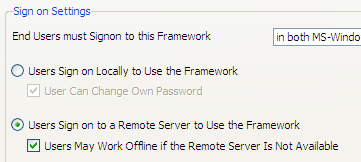
On the development system set up the Framework so that users sign on to remote server | Set the Framework to require users to sign on to remote server. | Display the Framework properties and choose the User Administration tab. In Sign On Settings, specify the option End users must sign on to this Framework and then choose the option Users sign on to a Remote Server to Use the Framework. | |
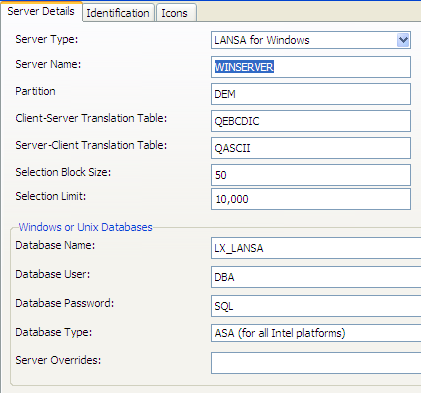
Define the server to which the Framework will be connecting when deployed. | Your Framework definition will need to include a definition of the server to which the client application will connect. If you want to change the server settings on the target machine after you have installed the package, you need to deploy and execute the UF_ADMIN form. See: Deploying Server Definitions in the Framework guide. Note that if the server is a Windows server, you need to specify the details of the database the client application will be connecting to. | Choose the Servers option in the Administration menu and ensure there is a definition for the server. | |
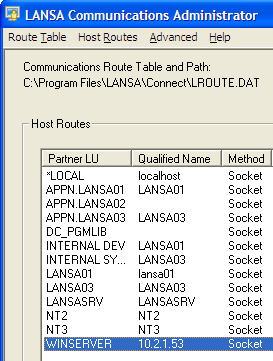
Define the server in the LANSA Communications Administrator | Click on the LANSA Comms Admin button on the Server Details tab. | Define the server: |
A Framework application ready for deployment | You need to have an executable version of your Framework application ready for deployment |
|
|
Copies of UF* and DF* objects | If you are deploying your application for end-users, the package should not reference any Framework objects with names starting with UF* or DF* because there is a risk these objects may change the next time you install a new version of the VLF. | For more information see Getting Ready for Deployment in VLF-WIN in the Framework Guide. |
Establish the minimum supported configuration (MSC) | You need to formally define the minimum configuration your solution will viably support, including:
| A formal MSC will:
For more information refer to Application Performance in the Framework Guide. |