In this step, you will compile the form iiiDragandDrop and view the compile messages.
1. On the Home ribbon, click on the down arrow button on the Compile button to select Compile Options.
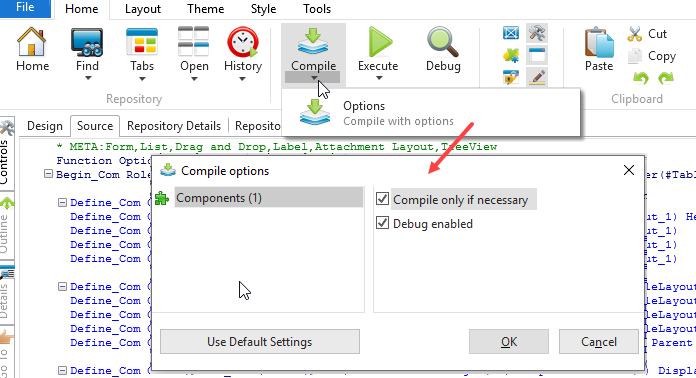
The Compile Options dialog will be shown.
2. The Compile Options shown will vary depending on the type of component. For a form, the options are simply Compile only if necessary and Debug enabled. If a component's code has not been changed and the Compile only if necessary option is selected, then the component will not be recompiled, assuming it has already been compiled.
During development, we recommend the settings should be as shown above.
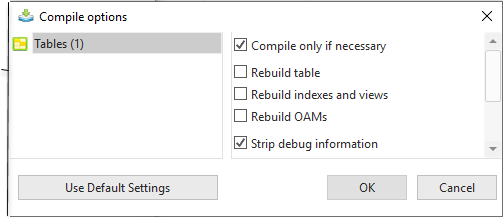
You can select a number of different types of components to be compiled at the same time. Selecting each object will display the relevant compile options:
A Compile warnings message will concern the component which is currently open in the editor.
3. Press the OK button to submit the compile form iiiDragandDrop.
4. If necessary, resize the tabs in the bottom area of the editor and display the Compile tab.
The status of the compile will be displayed in the Compile tab. You will see the messages change as the compile is in progress and then completes.
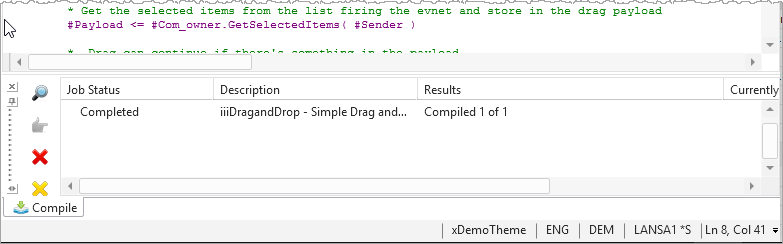
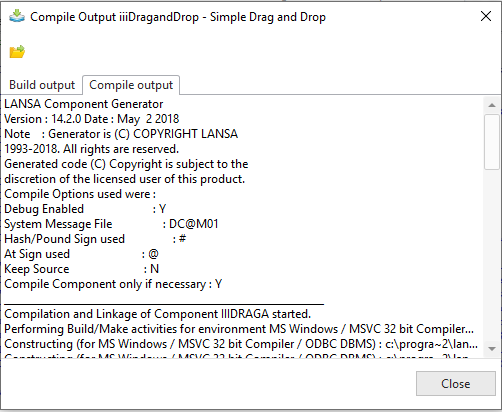
5. Click the job log icon to see the compile messages.
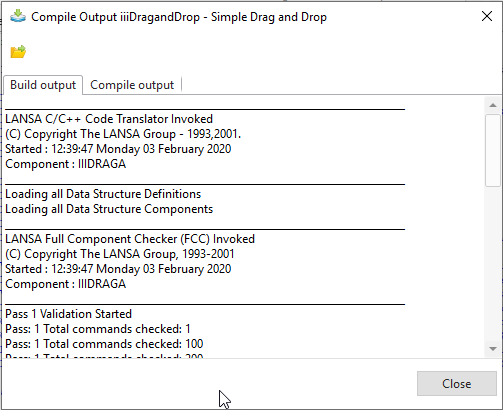
The Build output tab will be displayed. You can view the Compile output messages as well as the Build output messages.
Notes:
- The logs contain two tabs, with details of the build and the compile.
- The log can be opened in Notepad, in case you need to save the compile logs to send to LANSA Support.
6. Close the Compile Output dialog.
7. Close the iiiDragAndDrop form.