Page History
...
- a new installation - that is, a brand new installation or an upgrade of an installation of the same LANSA version, select New Install.
- an upgrade of an older version of LANSA - that is, a Version earlier than the one you are installing. Choose Upgrade and older version of LANSA. For details, go to Upgrade LANSA on Windows.
- if you are modifying or repairing an existing system, select Modify or Repair an existing install. For details go to Modify or Repair an existing install.
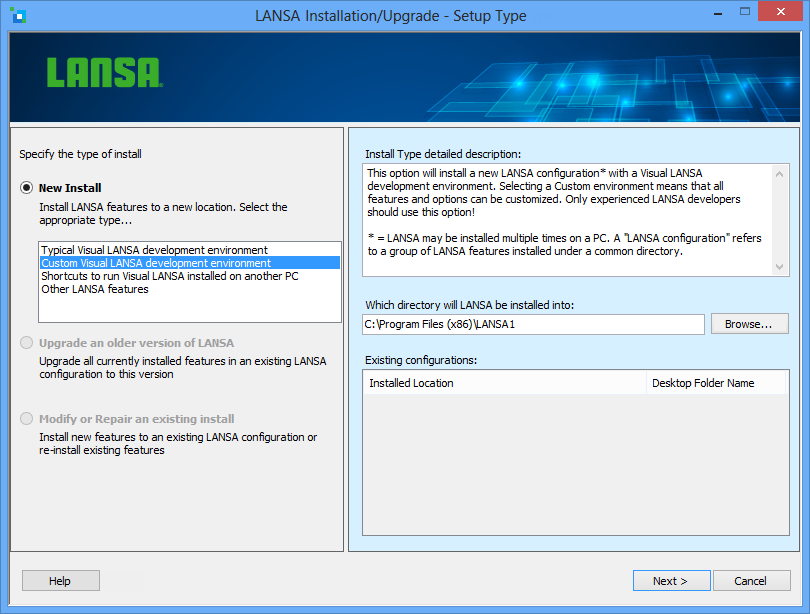
As this is a New Install, select the type of installation to be performed. This could be:
- Typical Visual LANSA Development Environment
- Custom Visual LANSA Development Environment
- Shortcuts to run Visual LANSA installed on another machine (Network Client)
- Other LANSA Features
You may install more than one LANSA configuration on your workstation. LANSA supports multiple versions of the software on a single workstation. To install LANSA into a new configuration, specify a location where LANSA has not previously been installed.
...
This option will install a new LANSA configuration that allows a developer to design, build and test a full range of LANSA applications including host, Web, mobile, and component applications.
...
The list of features that will be installed and the options selected may be reviewed on the Summary screen prior to the installinstallation. Modifications may be made, if necessary. If you wish to change any features or non-critical options you must cancel this Install and perform a Custom Visual LANSA Development Environment instead.
Microsoft IIS must be installed in order to use the LANSA Web Server Extension. If IIS is not installed, a warning will be displayed that IIS will not be configured. In that case, manual configuration steps must be completed before the Web development environment will be operational.
Go to 3.3 Select the Visual LANSA System Type.
Custom Visual LANSA Development Environment
This option will install a new LANSA configuration with a Visual LANSA development environment. By selecting a Custom environment you will be able to select (or deselect) the features and options that you require. You will then be able to specify the actual details for each option, if you choose.
Go to 3.3 Select the Visual LANSA System Type.
Shortcuts to run Visual LANSA installed on another machine (Network Client)
...
Once you have selected this option, you will immediately be asked to enter your Network Client Server details. Refer to 3.4.23 Network Client Server Details.
Other LANSA Features
This option will install new LANSA software with any LANSA feature other than Visual LANSA. For example, you would use this option if you wish to install the LANSA for Web Administrator on an Administrator's PC. All features and options can be customized.
Go to 3.2 Select Features to choose the features you wish to install.
...
This button will open the Installing LANSA on Windows Guide.