Page History
...
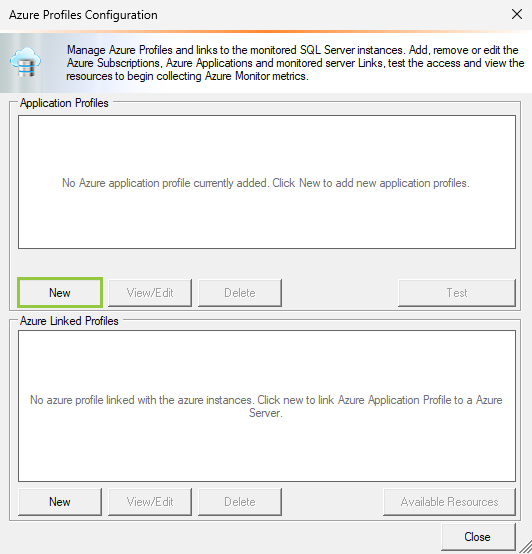
- Click the New button from the Application Profiles section.
- Choose a Profile Name and Description for your Azure profile, from the Azure Application Profile wizard.
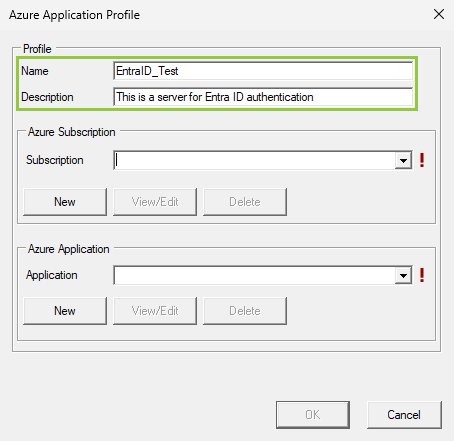
- Select an Azure Subscription from the subscription dropdown, otherwise, click New and complete the following fields with the application information:
- Subscription ID*
- Description
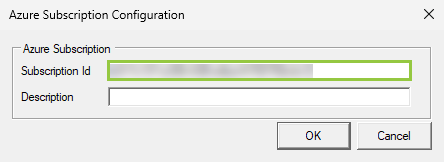
Info (*) This information is mandatory, to get it from your application follow the steps outlined in theHow to get Azure Profile components? section.
- Click OK to save your Subscription information.
- Select an Azure Application from the application dropdown, otherwise, click New and complete the following fields with the application information:
- Application name
- Tenant ID*
- Client ID*
- Secret value*
- Description of the Azure application
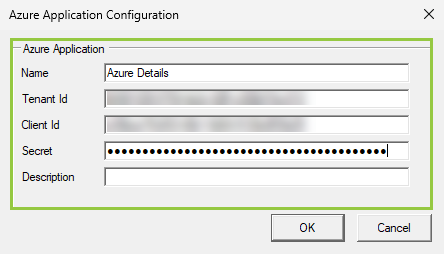
Info (*) This information is mandatory, to get it from your application follow the steps outlined in the How to get Azure Profile components? section.
- Click OK to save your Subscription information. Review all your information. When you finish, the wizard should look like this image.
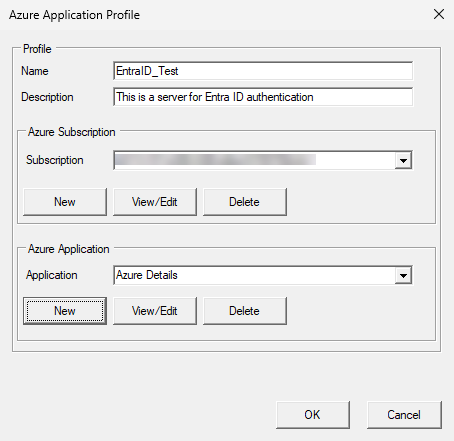
- Click OK to save your Azure Application Profile.
- Click Close to close the Azure Profiles Configuration wizard.
- Select In the Azure Application configuration, select the Azure Profile you just created from the Select a Azure Profile dropdown.
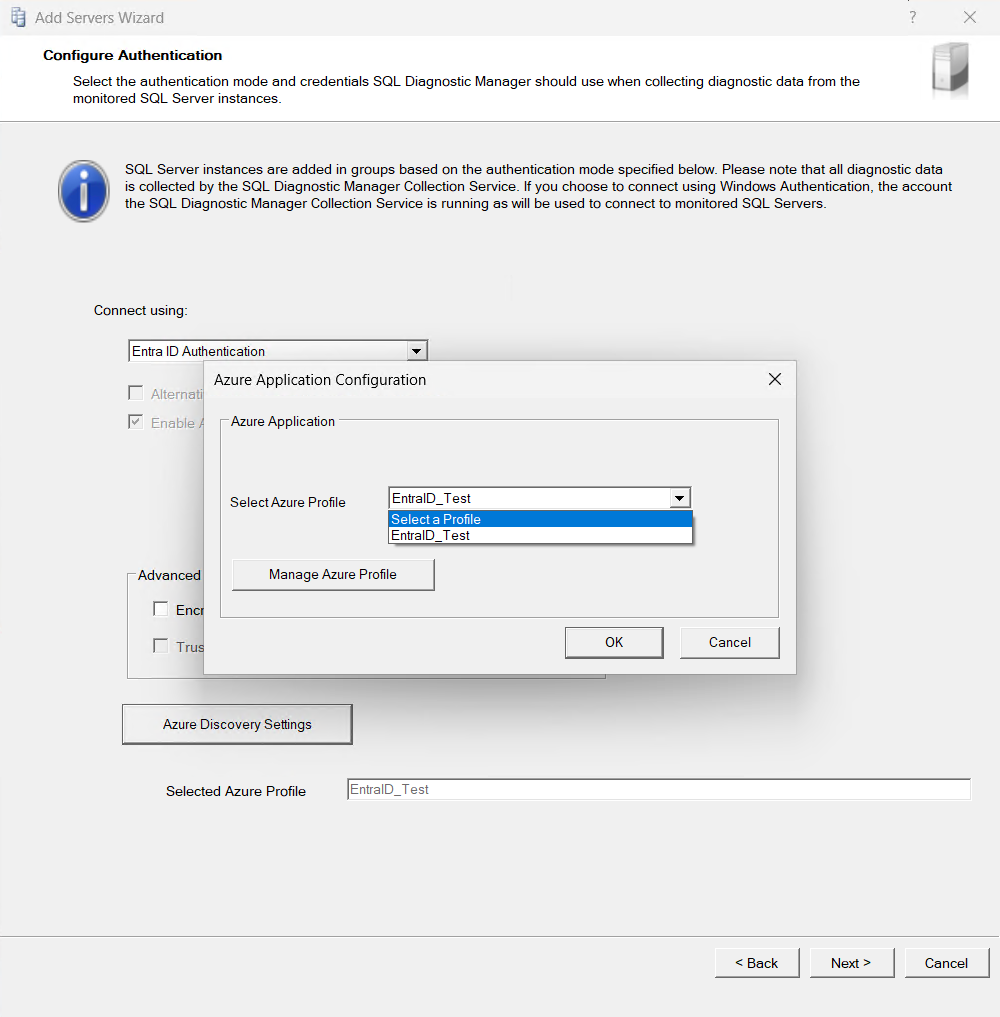
- Select the instances to monitor.
...