Page History
...
Configuring a report using Microsoft Reporting Services
To configure a report in Microsoft Reporting Services:
- In Microsoft Visual Studio .NET, right-click Reports, and
...
- select Add New Report. The Report Wizard starts.
...
- Click Next.
- Select Shared data source, and then select the database from which you are retrieving data.
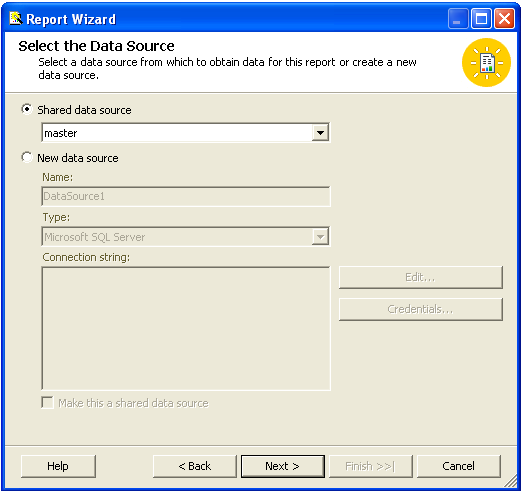
- Click Next.
- Enter the following query string:
Code Block language sql SELECT e.display_name AS 'Description',
...
AVG(p.cpu_usr + p.cpu_sys + p.cpu_wio) AS 'CPU Workload Average',(CONVERT(char(10),s.sample_time,102)) AS 'Date'
...
FROM performance_sample s, performance_aggregate p, entity e
WHERE s.id = p.sample_id
...
AND e.entity_id = s.uptimehost_id
AND s.sample_time > '
...
2023.11.29'
...
AND s.sample_time < DATEADD(day,5,'
...
2023.11.29')
...
This exampleGROUP BY (convert(char(10),s.sample_time,102)), e.display_name ORDER BY (convert(char(10),s.sample_time,102)), e.display_name;
...
- reports on the CPU workload average for all systems over the five day period from
...
- 2023-11-29 to
...
- 2023-12-03 (simply change the dates or the interval as required).
- Click Next after you change the range to suit your needs.
- Choose the Matrix option, and then click Next.

The Design the Matrix window appears, which enables you to change the way in which data is arranged in the report. - In this example:
- Description is moved to the Rows field.
- Date is moved to the Columns field.
- CPU Workload Average is moved to the Details field.
- Click Next.
- In the Choose Matrix Style window, select Compact. The Design the Matrix window appears.

- Select to display all of the fields in the report, and then click Next.
- Click the Preview Report check box at the bottom of the page.
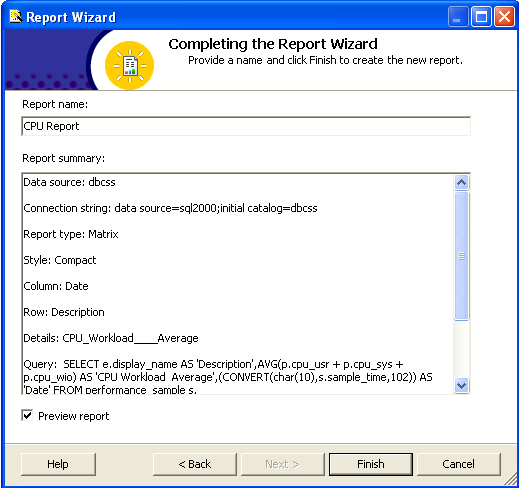
- Click Finish to generate a preview of the report.
Publishing a report to IIS
...