Page History
This is a guide to installing the WhereScape Enablement Pack for Microsoft Fabric in WhereScape RED10
Prerequisites For PostgreSQL Metadata
Before you begin the following prerequisites must be met:
...
- RED supports the following versions for the metadata repository: PostgreSQL 12 or higher
Prerequisites For Microsoft Fabric
Before you begin the following prerequisites must be met:
...
- Open the command prompt:
No Format az login
- Login using an Azure account having a Microsoft Fabric subscription.
- Create a Database and ODBC DSN:
- Microsoft Fabric
- At least one schema available to use as a RED Data Warehouse Target.
- Microsoft Fabric
- Python 3.8 or higher
- Select "Add Python 3.8 to PATH" from installation Window.
- Pip Manager Install with command :
No Format python -m pip install --upgrade pip
Enablement Pack Setup Scripts
The Enablement Pack Install process is entirely driven by scripts. The below table outlines these scripts, their purpose and if "Run as Administrator" is required.
...
Each Powershell script in the list above provides some help at the command line, this can be output by passing the "-help" parameter to the script.For Example > .\Setup_Enablement_Pack.ps1 -help
Step-By-Step Guide
Setup and configure RED Metadata Repository
Run Powershell as Administrator:
| No Format |
|---|
Script 1 > Powershell -ExecutionPolicy Bypass -File .\Setup_Enablement_Pack.ps1 |
Important Upgrades Notes
If RED repository exists, it will prompt to upgrade the repository.
...
| Warning | ||
|---|---|---|
| ||
| A change to the script exit code has been introduced. Whenever a load/update script is regenerated, it is essential to regenerate the linked action script. Similarly, regenerating the action scripts requires regenerating the associated load/update scripts to keep both scripts in sync. |
Install or Update WhereScape Python Modules
Run Script As Administrator
...
2. PIP to download/update required Python libraries - for offline install please see the required library list for Python in the Troubleshooting section.
Install or Update WhereScape Python Templates (For Existing Installations)
Run Script as Administrator
...
| Note | ||
|---|---|---|
| ||
| Skip this step for new installations. |
Set Connection defaults for a Template Set (For Existing Installations)
| No Format |
|---|
Script 4 > . .\set_default_templates.ps1 |
Choose "Python" when prompted.
Guide for setting Fabric Data Factory Pipeline
The EP contains 2 load templates:
...
In Fabric Data Factory, currently only OneLake sources are supported. When creating a connection to browse files, the Lakehouse name must be specified in the source connection. After browsing the connection and selecting a file, dragging the table will automatically populate the source properties.
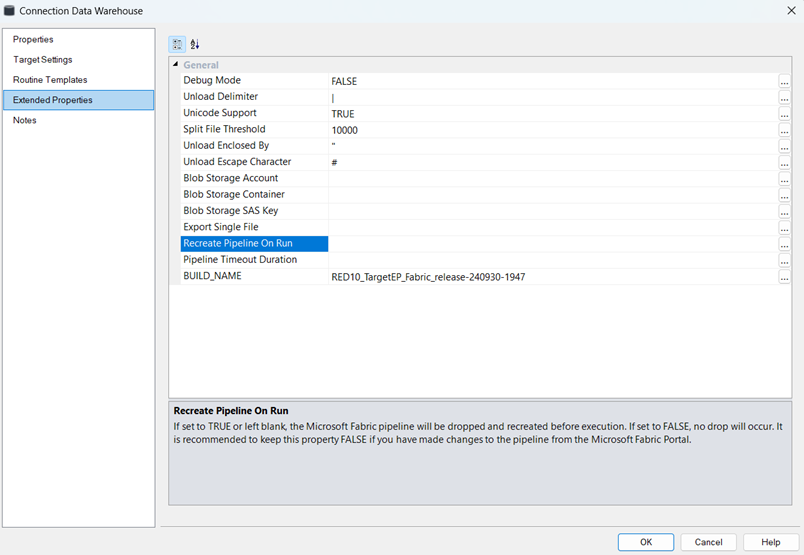
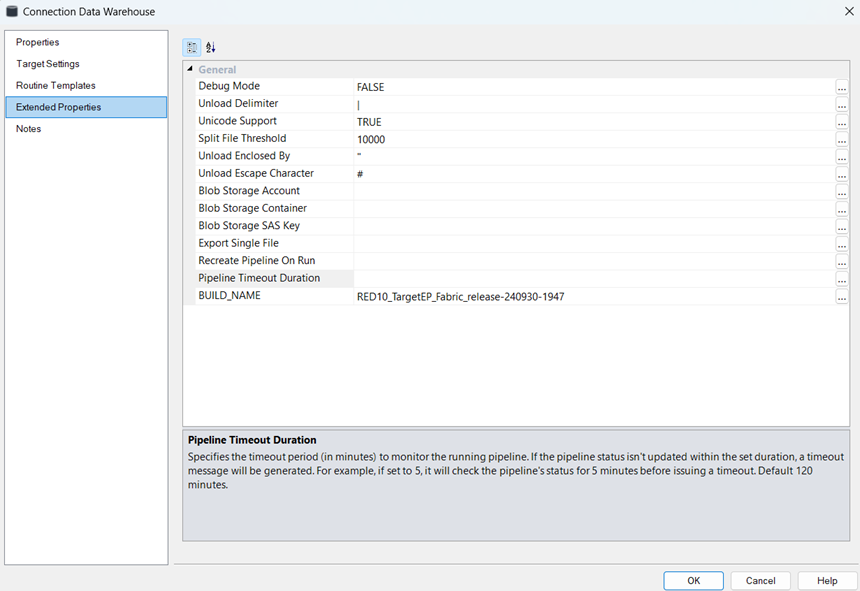
Two additional extended properties are specifically available for pipelines: “Recreate Pipeline on run” and “Pipeline Timeout Duration.”
Setting “Recreate Pipeline on run” to “True” ensures that a new pipeline is created each time the job is executed, with any existing pipeline with same name being deleted beforehand. If set to “False,” the existing pipeline remains intact, and only the execution is performed. However, if a pipeline fails due to a data type issue or any other property-related problem, the pipeline must be deleted and recreated, as the pipeline's JSON code cannot be modified when the “Recreate Pipeline on run” property is set to “False”. The default to this property is set to “True” in the script.
Whenever the Pipeline is created and data is loaded to the table, changing the Extended property to “False” will keep that existing pipeline as it is and act as a starting point for other operations which can be done.
The second property, “Pipeline Timeout Duration,” is responsible for monitoring the pipeline once it is executed. By default, the timeout is set to 120 minutes in script. If the execution exceeds this duration, the pipeline will continue running in the background, but RED will notify the user that the pipeline is still in progress. At this point, the user can monitor the pipeline through the Fabric portal.
It’s important to note that even if the timeout is set to 120 minutes, if the job completes in a shorter time—such as within a minute or two—RED will mark the job as successful and display the result in the result pane accordingly
There can be issues with data types when loading data through Fabric Data Factory.In such cases, the Fabric pipeline will display an error, suggesting using varchar(8000) for the affected column (e.g., “”). The user should update the column’s data type to match the recommendation from Data Factory.After making the changes, the table should be recreated, the script regenerated,and the pipeline executed again with the extended property “Recreate Pipeline on run” set to “True” or left blank.
Post Install Steps – Optional
If you used the script Setup Wizard for installation then the following optional post-install steps are available.
...
- Connection: Data Warehouse ('Fabrics') - This connection was setup as per parameters provided in Setup Wizard
- open Properties and click derive button for Database Host/Server and Database ID.
- open it's properties and check extended properties tab, set it up for Blob Storage Account , Blob Storage Container and Blob Storage SAS Key
- Connection: 'Database Source System' - this connection was setup as an example source connection,
- open its properties and set it up for a source DB in your environment
- or you can remove it if not required
Enable Script Launcher Toolbar
There are a number of stand-alone scripts which provide some features such as "Ranged Loading", these scripts have been added to the Script Launcher menu but you will need to enable the menu toolbar item to see them.
To enable the Script Launcher menu in RED: Select menu item Home > Script Launcher
Source Enablement Pack Support
| Source Pack Name | Supported By Microsoft Fabric | Supported Features | Prerequisites/Permissions Required for Microsoft Fabric |
|---|---|---|---|
| Google Cloud Storage | Yes | Download to local and load | None |
| Yes | Download to local and load | None | |
| Amazon S3 | Yes | Download to local and load | None |
| Windows Parser | Yes | Load Template, Source Properties will have option to select parser type to load the files. | Refer to Windows Parser Guide |
| Azure One Lake | Yes | Download to local and load | Refer to Windows Parser Guide |
Troubleshooting and Tips
Run As Administrator
Press the Windows Key on your keyboard and start typing cmd.exe, when the cmd.exe icon shows up in the search list right click it to bring up the context menu, select "Run As Administrator"
...
| Note | ||
|---|---|---|
| ||
| In the event you can not bypass the Powershell execution policy due to group policies you can instead try "-ExecutionPolicy RemoteSigned" which should allow unsigned local scripts. |
Windows Powershell Script Execution
On some systems Windows Powershell script execution is disabled by default. There are a number of workarounds for this which can be found by searching the term "Powershell Execution Policy".
...
| No Format |
|---|
cmd:>Powershell -ExecutionPolicy Bypass -File .\<script_file_name.ps1> |
Re-install Python Libraries
Press the Windows Key on your keyboard and start typing cmd.exe, when the cmd.exe icon shows up in the search list right click it to bring up the context menu, select "Run As Administrator"
...
| No Format |
|---|
python -m pip install -r requirements.txt |
For upgrade of existing repository
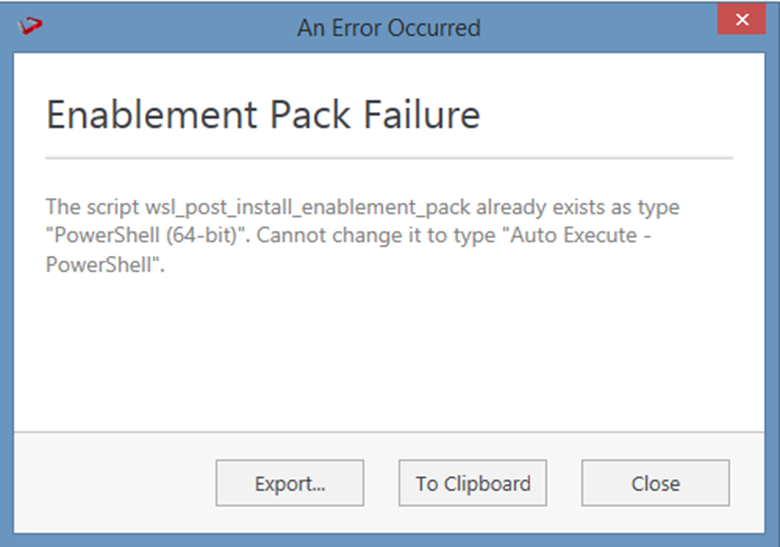
In upgrade of exiting repository if the user gets above error then it means the script type of wsl_post_install_enablement_pack is set to PowerShell(64-bit) change the script type to Auto Execute-PowerShell before upgrade or manually run the wsl_post_install_enablement_pack script from host script from RED after upgrade.
If a valid RED installation can not be found
If you have RED 10.x or higher installed but the script (Setup_Enablement_Pack.ps1) fails to find it on you system then you are most likely running PowerShell (x86) version which does not show installed 64 bit apps by default. Please open a 64 bit version of Powershell instead and re-run the script
Table name should be given in lowercase only
While loading the table, the table name should be given in lowercase, for example, load_tablename; otherwise, loaded data will now get displayed.
...