Page History
The WhereScape RED Migration tool Tooling allows you to migrate metadata repositories from WhereScape RED Classic 8.6 and 9.0 to WhereScape RED 10.4+. The following sections provide information on how to install and use the WhereScape RED Migration toolTooling.
| Table of Contents | ||
|---|---|---|
|

Prerequisites
License
The RED Migration Tooling requires a 'Custom Target' enabled license. This is because the tooling will use the Custom Target database type for loading into the destination PostgreSQL RED metadata database. For customers on a traditional SQL Server, Oracle or Teradata targets your license may need to be temporarily upgraded to support the migration by adding a Custom Target.
| License Fields | Values | Migration Requirements |
|---|---|---|
| Licensed Metadata Database Type(s) | SQL Server, Oracle, Teradata | One or more of SQL Server, Oracle or Teradata |
| Licensed Target Database Type(s) | SQL Server, Oracle, Teradata, Custom | 'Custom' at a minimum |
| Licensed Custom Target Database Type | MySQL Any | Any Custom Target Type (see the note that follows) |
...
| Info | ||
|---|---|---|
| ||
Licensed Custom Target Database Type is the label in your license given to your Custom targetTarget, this will be used for PostgreSQL targets during migration. This is just a display label for the underlying Custom target type. It could be set to anything in your own license and will be discernable in database type dropdowns by having a trailing '*'. So MySQL will appear as MySQL* in RED. For example: your license might have a label of Snowflake*, RedShift* or Synapse* but the underlying database type in RED is Custom, the important differentiator is that it is not one of the in-built target types SQL Server, Oracle or Teradata and can therefore be used for any other template enabled target platform. |
Source Metadata
Source Metadata:
...
- An empty PostgreSQL database to become your migrated metadata repository.
- An ODBC DSN and user with full permissions on the database (see setting up users in PostgreSQL for RED).
- Compatible PostgreSQL command line tools.
Data warehouse:
- A downloaded RED 10 WhereScape Target Enablement Pack for your data warehouse platform
- All prerequisites as outlined in your WhereScape Target Enablement Pack's install guide.
Migration Tooling
...
Migration Tooling Metadata:
- An empty PostgreSQL database to house your Migration Tooling, this database can be removed once migration is complete.
- An
- A supported RED Metadata Repository on PostgreSQL (with lowercase db name).
- ODBC DSN and user with full permissions on the metadata database
- database (see setting up users in PostgreSQL for RED).
- Compatible PostgreSQL command line tools.
...
Tooling
...
:
- Downloaded and unzipped Migration Tooling Enablement Pack.
- RED 10.4.0.2 or higher installed.
- Valid RED license installed with a Custom Target enabled
- The tool should be unzipped to a local directory on the system where the migration script will be run.
- Requires a Windows user with permissions to run a cmd as administrator in order to relax the PowerShell ExecutionPolicy to run the migration script.
- The latest RED 10 version should be installed on the system running the migration with a valid license installed and the EULA accepted for the windows user running the migration tool. PostgreSQL tools should be available on the environment variable “Path” for the Azkaban service user. Psql.exe is used in a Powershell script to bulk load the source metadata to the target
- .
How the Migration Tooling Works
The WhereScape Red RED Migration Tool is a Tooling is provided as an Enablement Pack which can be installed using the RED Setup Wizard onto a dedicated PostgreSQL database. Once installed you will have a RED metadata repository + the Migration Tooling Enablement Pack which provides a set of scripts and jobs that you can run from RED GUI, the scripts can be divided into three categories.Scripts runningto transfer RED Metadata from a Source of SQL, Oracle or Teradata to a Destination of PostgreSQL and then reconfigure the Destination to suit RED 10 and the Azkaban Scheduler.
Installing the Migration Tool
- Launch the Install RED Setup Wizard as administrator.
- Select Create a new repository.
- Configure the metadata repository.
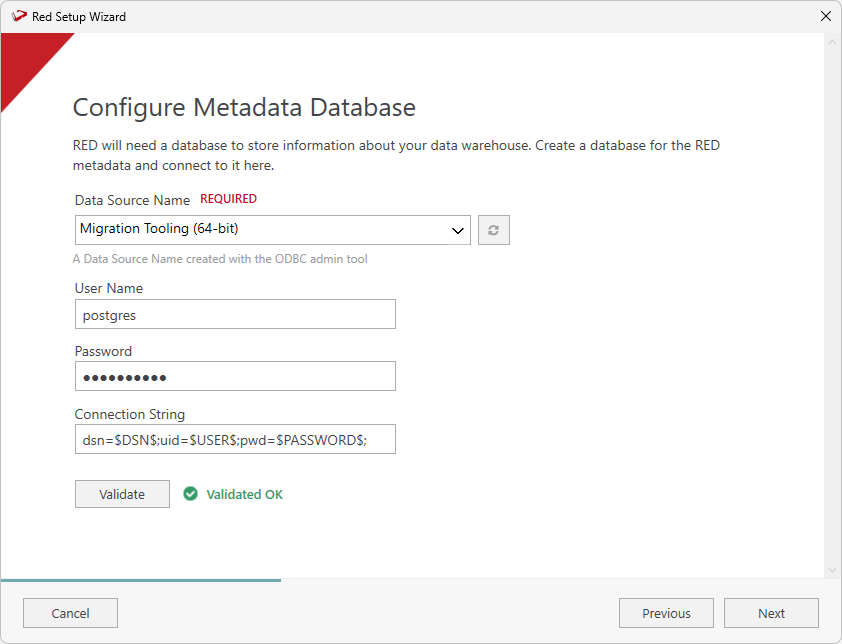
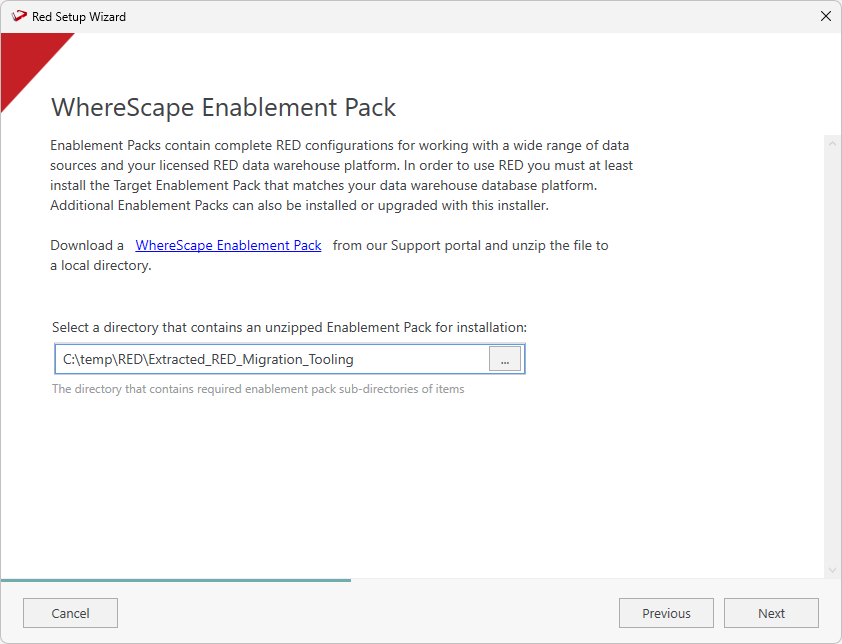
- Select the directory that contains the unzipped migration tool. Click Next.
- Select the components that you want to install. Click Next.
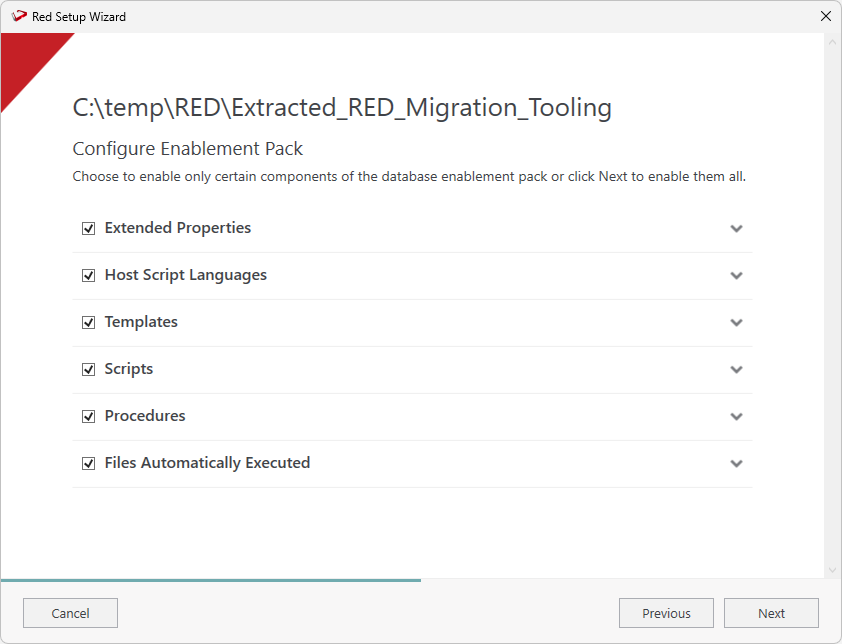
...