Page History
...
- Deploy the ClickOnce files as normal to the website hosting VLF.NET
- Enter in the URL to launch it on the address bar of your browser - make sure to include any additional parameters (such as Partition=xxx) that are required. Add an additional parameter “GenerateDesktopApp=Y”. This parameter is the key to the files generation as instead of running the framework, VLF.NET will generate the application files. It will also write out a configuration file containing all the parameters that you specified in the query string.
- When completed, VLF.NET will open the folder containing the generated files in Windows Explorer. Those are the files you (or the network administrator) need to manually deploy. Once deployed, the administrator needs to identify the main executable file (it’s the executable file outside the Content subfolder – do not do anything to the files inside the Content subfolder) and do these steps:
- Modify the Windows security policy to allow the executable file to run.
- Modify the .NET security policy to grant Full Trust to the executable. This is especially important when the files are in a network share as by default they will be treated as partially trusted.
- Optional - create a shortcut to the executable file for the convenience of the end-users.
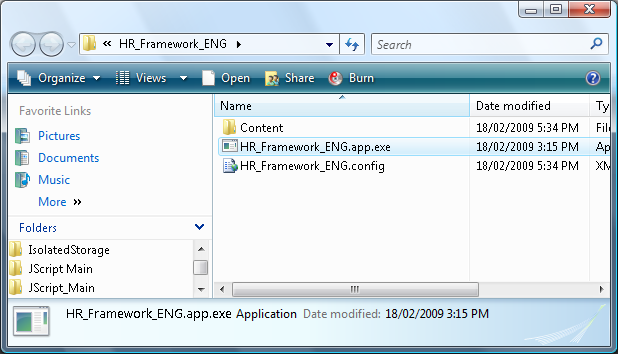
Configuration File
Since the application is going to be launched locally, there is no notion of a URL and query string. To allow you to specify parameters when launching VLF.NET locally, a configuration file is employed as a means to specify these parameters. The name of the configuration file is the same as the name of the executable file but ends with .config extension. If you rename the executable file, make sure to rename the configuration file as well to match the executable file.
...