Page History
Use the panel to complete three definitions for this business object:
- Associate a database table with this business object. Many of the automatic code generation components in the VLF's common activities can then use that table's definition to generate highly functional RDMX code for you. How … How….
- Identify what columns should be shown in lists of this these business objects. For example, for an Employee business object, you might show their names and phone numbers in lists. For an Order, you might show the order number, the customer name, and the delivery address. How….
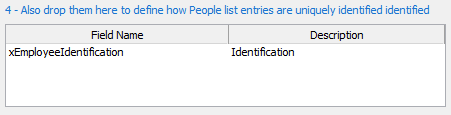
- Identify what columns uniquely identify an instance of this business object. For an employee that might be their employee number, for an order it's probably the order numbers. How….
For more about instance lists see The Instance Lists and the Instance List Manager.
| Anchor | ||||
|---|---|---|---|---|
|

| Anchor | ||||
|---|---|---|---|---|
|
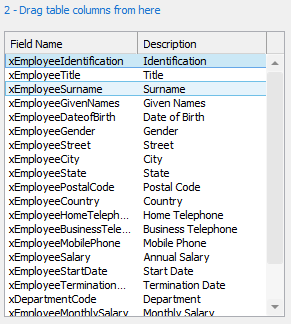
And drop them onto the 'demonstration' instance list display displayed on the right:
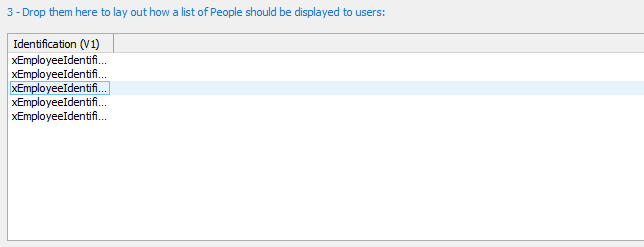
You can format the demonstration instance list to define a column's order, width, and captioning. Click on the column heading to further refine how the column should be handled:.
| Anchor | ||||
|---|---|---|---|---|
|
And drop them into the identification list at the bottom right: