Page History
メニュー・アイテム・デザイナを開くには、以下の手順に従ってください。
- ページ上でメニューバー・ウェブレットが選択され、[詳細]タブがクリックされていることを確認します。
- マウスポインタを[詳細]タブのmenu_itemsプロパティに移動します。省略記号(...)がプロパティの値の横に表示されます。省略記号のボタンをクリックし、メニュー・アイテムのデザイナを開きます。下のようなウィンドウが開きます。
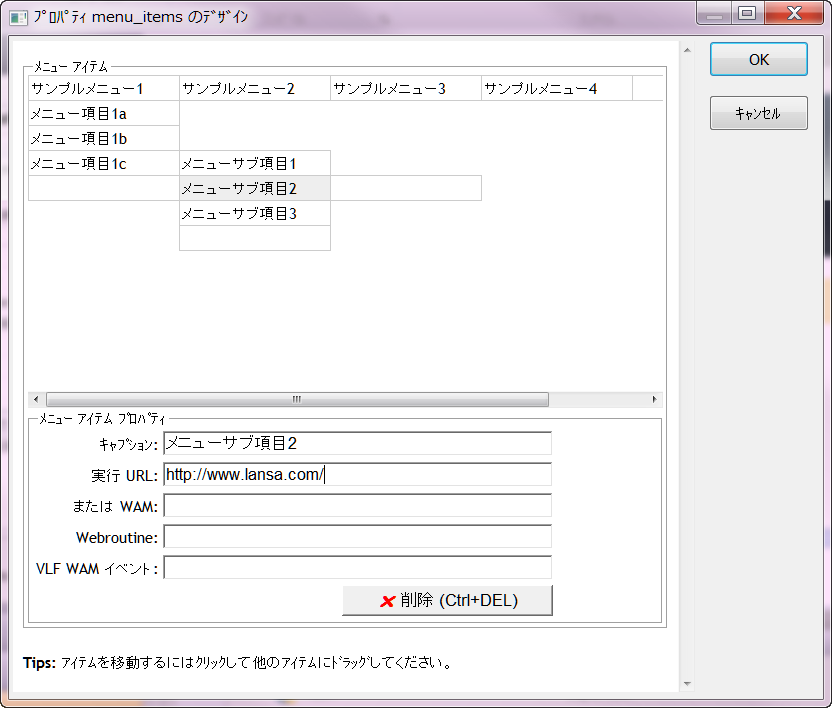
ウィンドウの上半分はメニューの現在の状態を示しています。これはorientationプロパティの現在値に関わらず、常に水平方向に表示されることに注意してください。このウィンドウの上半分では、次のことができます。
- 項目をクリックし、下半分で詳細を入力する。
- ドラッグ・アンド・ドロップして項目を並び替える。
- 現在選択されている項目の隣に表示されるブランクの項目をクリックして、新しい項目を追加する。
- 項目を選択、[削除]ボタンをクリックして項目を削除する
ウィンドウの下半分では選択した項目の詳細を次のように指定することができます。
[キャプション]
メニュー・アイテムに表示するテキストを指定します。ウィンドウの上半分でメニュー・アイテムをクリックしてタイプし、テキストを直接入力することもできます。
[実行URL]
メニュー・アイテムがクリックされた時に移動するURLを指定します。URL全体を指定することも、現在のページに関連付けられたURLを指定することもできます。
[WAM]と[Webroutine]
メニュー・アイテムがクリックされた時に呼び出されるWebroutineを指定します。URLとWebroutineの両方が指定された場合は、URLが優先され、Webroutineは無視されます。WAM 名が指定されない場合、デフォルト値は現在の WAM 名となります。
[VLF WAM イベント]
VLF WAM イベントを指定して、このメニュー・アイテムが選択された時にハンドラーに引き渡すことができます。
To open the menu item designer, follow these steps:
1. Make sure the menu bar weblet on your page is selected and then click on the Details tab.
2. Move the mouse pointer over the menu_items property in the Details tab. An ellipsis should appear next to the property value. Click the ellipsis button to open the menu items designer. A window like the one shown below appears.
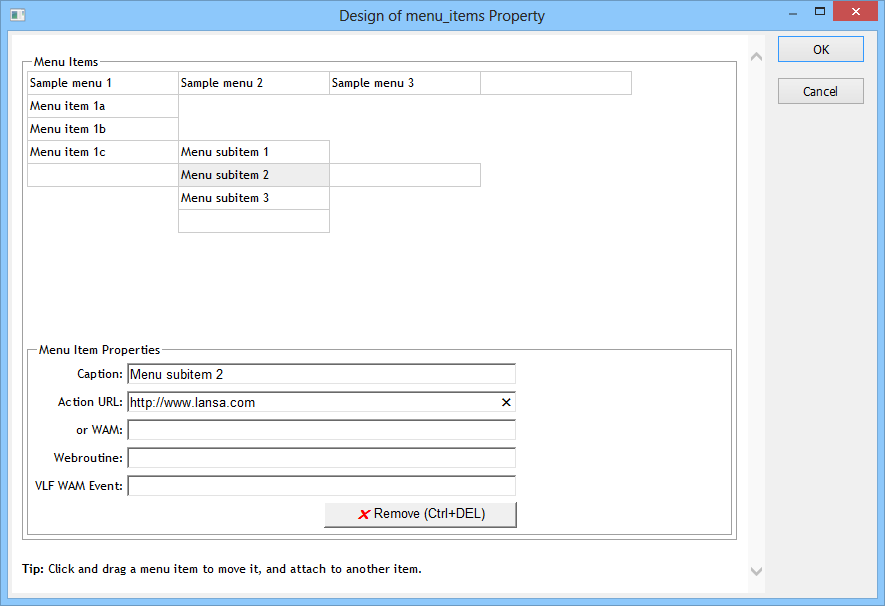
The top-half of the window shows a representation of the current state of the menu. Note that this is always shown in horizontal orientation irrespective of the current value of the orientation property. In this part of the window, you can:
- click on items to complete their details in the lower half;
- drag and drop items to rearrange them;
- add new items by clicking on the blank items shown adjacent to the currently selected item;
- remove items by selecting them and clicking the Remove button.
In the bottom-half of the window you can specify the details for the selected item as follows:
Caption
Specifies the text that appears on the face of the menu item. You can also enter the text directly on the face of a menu item by clicking on it in the top-half of the window and typing.
Action URL
Specifies a URL that the menu item will navigate to when clicked. You can specify a complete URL or one that is relative to the current page. The URL can invoke another webroutine by specifying an appropriate URL.
Background Image
Specifies the path and file name of an image to be displayed as background to the menu item.
WAM and Webroutine
Specifies a Webroutine to invoke when the menu item is clicked. Note that if both a URL and a Webroutine have been specified, the URL will take priority and the Webroutine will be ignored.
VLF WAM Event
...