Page History
日付ピッカー・ウェブレットは日付タイプ(date)のフィールドのデフォルト値のビジュアライゼーションなので、通常、手動でこれをWebページに追加する必要はありません。日付フィールドをWEB_MAP、またはWEB_MAPに存在するリストに含むだけで、日付ピッカー・ウェブレットを使用してビジュアライズされます。同様に、時間タイプ(time)のフィールドや日時タイプ(datetime)のフィールドも時間(std_time)ウェブレットや日時(std_datetime)ウェブレットを使用してビジュアライズされます。
| Info |
|---|
日付フィールドのうち、バージョン12 SP1以前に作成されたものはデフォルト値でstd_dateウェブレットが使用されます。std_datepickerを使用するには、フィールド定義でウェブレットのビジュアライゼーションを変更します。 日付ピッカー・ウェブレットは、ISO言語コードを使用して、日付の形式、週の最初の曜日やカレンダーのキャプションなどのプロパティをローカライズします。 |
ページに日付ピッカーウェブレットを手動で追加する必要がある場合は、日付フィールドを[Fields]タブからページにドラッグします。もしくは、LANSAエディターでWebroutineのXSLを開き、以下の手順に従います。
- [ウェブレット テンプレート]タブをクリックし、上にあるドロップダウン・リストから[標準フィールドビジュアライゼーション]を選択、[jQuery UI 日付ピッカー]ウェブレットを見つけてください。
- [デザイン]ビューでウェブレットをページにドラッグしてください。ウェブレットをクリックして、[詳細]タブをクリックします。
- nameプロパティ及びvalueプロパティを必要に応じて設定し、WebroutineのWEB_MAPに必要なフィールドとウェブレットを関連付けます。
数字フィールドに格納された日付の表示
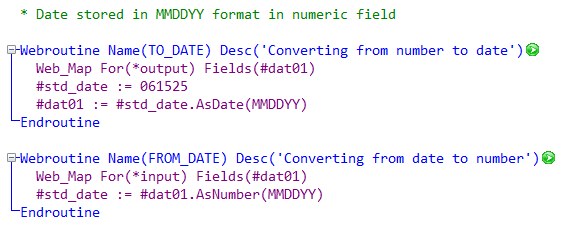
数字フィールドに格納された日付を日付フィールドにマップする際は、次のような組み込みを使用します。
Because the datepicker weblet is the default visualization for fields of type date, you usually do not need to manually add it to your web page. Simply include your date fields in your web_map or in a list that is present in your web_map and they will be visualized using the datepicker weblet. Similarly fields of type time and of type datetime will be visualized using the timepicker (std_timepicker) and datetimepicker (std_datetimepicker) weblets.
| Info |
|---|
Date fields created before Version 12 SP1 use std_date weblet by default. To use std_datepicker, change the weblet visualization in the field definition. The Datepicker weblet uses the ISO language code to localize some properties such as date format, first day of the week, and calendar captions. |
If you do need to add the datepicker weblet to your page manually, simply drag the date field from the Fields tab onto your page. Alternatively, open the XSL for your webroutine in the LANSA Editor and follow these steps:
1. Click on the Weblets tab, select Standard Field Visualization from the drop-down list near the top and locate the jQuery UI Datepicker weblet.
2. Drag the weblet onto your page in the Design view. Click on the weblet and then click on the Details tab.
3. Set the name and value properties as required to associate the weblet with the required field in your webroutines web_map.
Displaying Dates Stored in Numeric Fields
...