Page History
...
When you create the stack, do not specify extra web servers. Leave it set to the default of 0. Once the stack is fully operational you may make these changes. That is, use the application and test that it's working.
...
- Navigate to the RDS AWS console page.
...
- Locate the DB Instance and identify the Zone it is running in, say ap-southeast-2a. This is the AZ that all the EC2 instances will need to be created in.
...
- Now navigate to the Auto Scaling Groups listed on the EC2 AWS console page. You'll notice that both Auto Scaling Groups are in multiple AZs:

...
- Choose the DB Web Server and edit the Auto Scaling Group details. Identify the AZ you need to remove (e.g. ap-southeast-2b) and click the 'x'. Save the Auto Scaling Group.

...
- Check the instance tab. If the instance is in the correct AZ, for example ap-southeast-2a, then you may continue to the next step. Otherwise you will need to wait for a new instance to be created in ap-southeast-2a and for it to be fully operational before you may continue.
...
- Do not continue if the DB Web Server instance is being re-created in the new AZ.
...
- Now modify the other Auto Scaling Group in the same manner. At the same time, you may alter the Desired, Min and Max settings to create some web server instances in the single AZ.
...
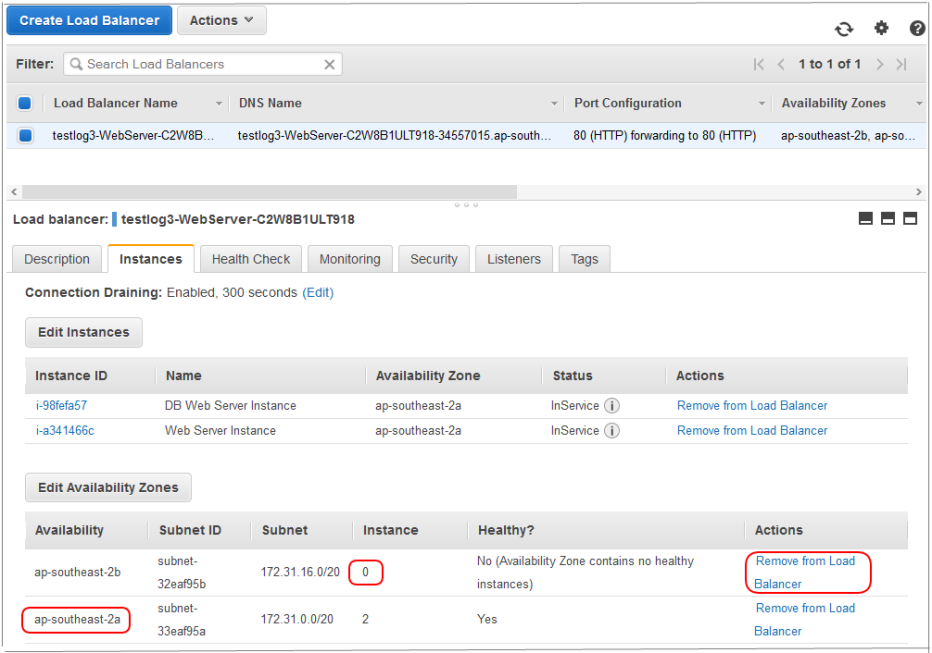
- Alter the Elastic Load Balancer by removing the unused AZ from the Load Balancer, in this case ap-southeast-2b. Click on the Instance tab. ap-southeast-2b will probably have 0 instances. If it doesn't, check that you have the correct AZ. It may be in the process of removing instances from it. Click the action Remove from Load Balancer:
...
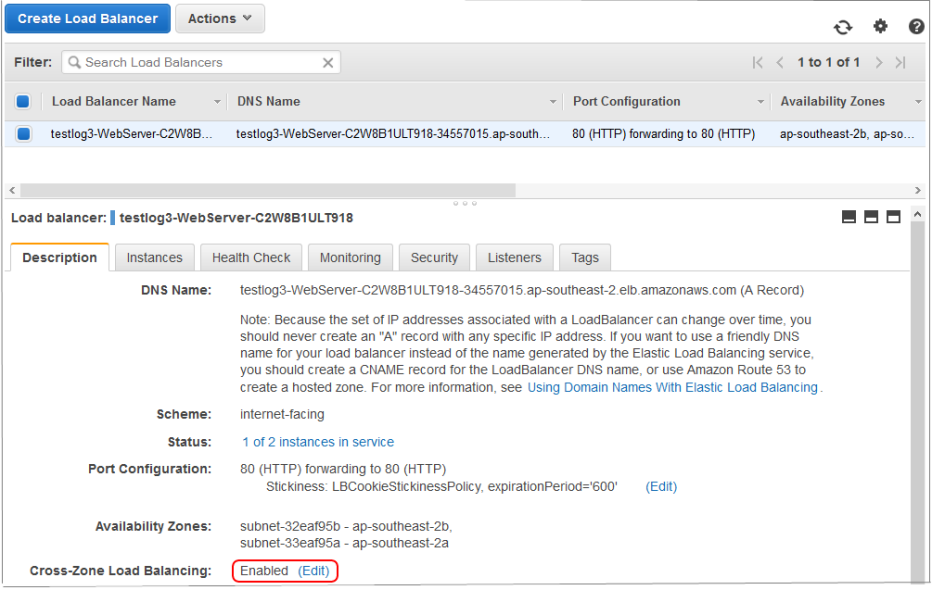
- Finally, alter the Elastic Load Balancer so that Cross-Zone Load Balancing is disabled: