Page History
In this step you will set up a font style for all your screens.
You use styles in your application (as opposed to formatting individual screens or elements manually) because styles produce a common look and feel and prevent unconstrained style evolution. They also provide a single point of change so you can, for example, change the font of all screens by changing the style.
Even though you can freely customize screens using aXes, you should bear in mind that the look and feel of your application should be primarily controlled by the standard Framework themes, and that any customization needs to fit in with them.
For example, you should not use aXes styles to set up screen background colors, because the Framework automatically sets the background color of all RAMP screens.
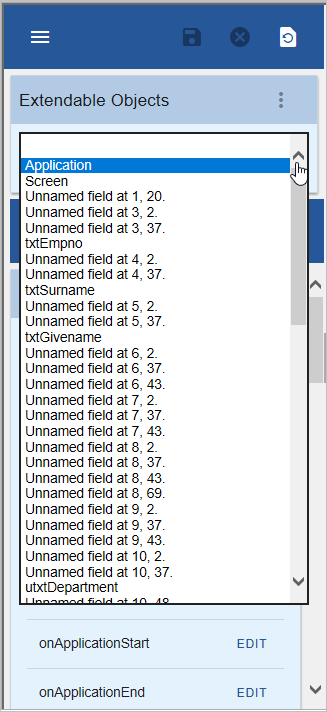
1. Click Edit Screen, then select Application in the list of eXtendable objects to display the properties of the application:
2. Scroll down until you see the Styling section:
...
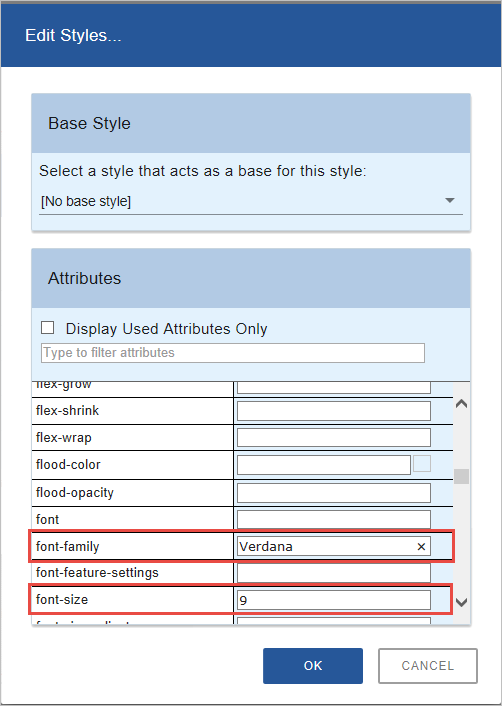
8. Click OK.
When setting font sizes, please note that the screens shown in a RAMP application are automatically sized to fit the available space. This may mean that the font size displayed may be smaller than what you have specified.
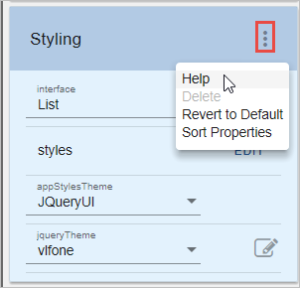
9. To understand what the Style properties are, click on the menu icon in front of the Styling heading in the aXes Designer window and choose Help:
10. Read the description for the StyleFor property:
...