Page History
RAMP is shipped with a default set of styles and a jQueryTheme to make the screen appearance resemble a default VLF-ONE screen.
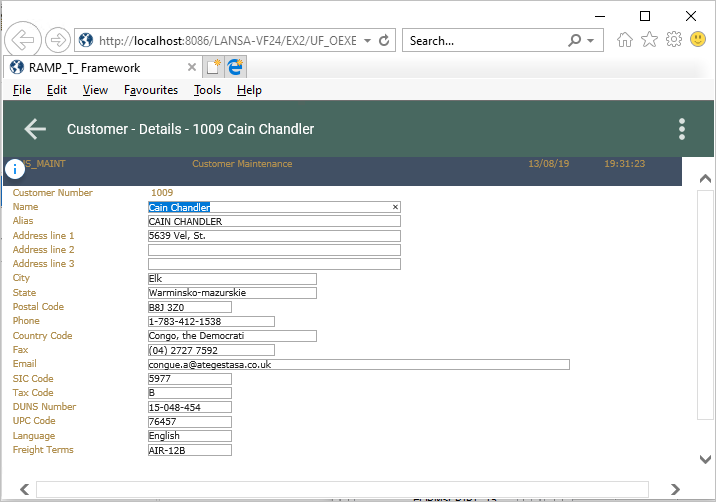
Here is the Customer Maintenance screen without the VLF-ONE styles:
For a new aXes project to adopt the VLF-ONE styles, tick the VLF-ONE RAMP Project check box and the styles will be automatically copied to the project folder. See the tutorial Step 2. Create the Project Container for the RAMP Tutorial.
To manually apply the VLF-ONE styles to an existing project, execute these commands in an IBM i command line:
     CPY OBJ('<root>/ts/screens/.defaults/application_definition_vlfone.js') TOOBJ('<root>/ts/screens/<project folder>/application_definition.js') REPLACE(*YES)

     CPY OBJ('<root>/ts/screens/.defaults/application_definition_vlfone.css') TOOBJ('<root>/ts/screens/<project folder>/application_definition.css') REPLACE(*YES)

     CPY OBJ('<root>/ts/screens/.defaults/axautoguirules_VLFONE.json') TOOBJ('<root>/ts/screens/<project folder>/axautoguirules.json') REPLACE(*YES)

     CPY OBJ('<root>/ts/ts2/css/projectThemes/jqtheme_VLFONE/') TODIR('<root>/ts/screens/<project folder>/projectThemes/') SUBTREE(*ALL) REPLACE(*YES)

     CHGAUT OBJ('/axes/ts/screens/<project folder name>') USER(*PUBLIC) DTAAUT(*R) OBJAUT(*NONE) SUBTREE(*ALL)
Where:
- For aXes 4.20, <root> would be for example '/axesjsm/jsm/instance/www/instance/htdocs'.
- For earlier versions of aXes, <root> would be for example '/axes'.
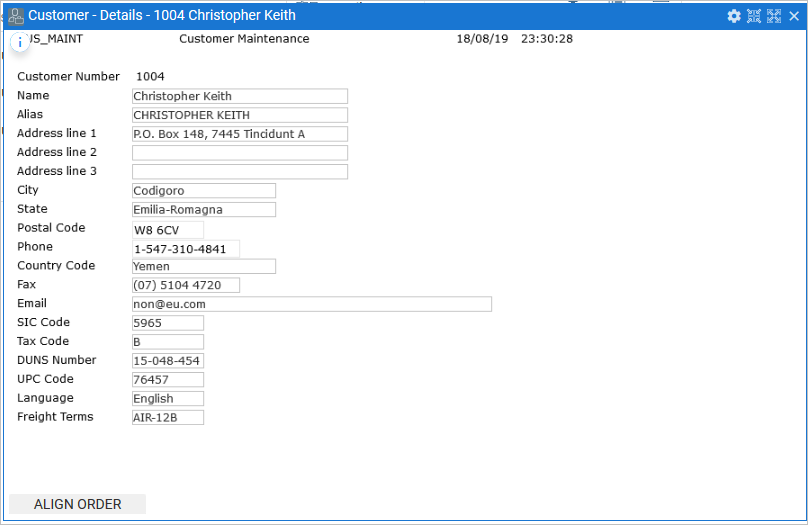
Here the VLF-ONE styles have been applied to the screen:
...
...
...
...
...
...
...
...
...
How the 5250 Application Will Change
...
5250 Application Before Modernization
...
5250 Application After Using RAMP
...
Accessing Data in the Modernized Application
...
Navigation in the Modernized Application
...
Modernization Process Overview
...
Stage 1: Creating a Modernization Framework
...
...
...
Executing and Refining the Prototype
...
Stage 2: Incrementally Modernizing the 5250 Application
...
...
Tracking and Classifying the Screens
...
RAMP Stage 2A: Rapidly Modernizing Complete Application Segments
...
RAMP Stage 2B: Individually Modernizing Frequently Used Screens
...
...
...
...
Stage 3: Removing IBM i Platform Dependencies
...
...
...
...
New Features in EPC 142057 Version of RAMP
...
New Features in EPC 142011 Version of RAMP
...
New Features in EPC 142005 Version of RAMP
...
New Features in EPC 141081 Version of RAMP
...
New Features in EPC 141017 Version of RAMP
...
...
New Features in EPC 141006 Version of RAMP
...
New Features in EPC 132100 Version of RAMP
...
New Features in EPC 868 Version of RAMP
...
New Features in EPC 843 Version of RAMP
...
...
Installation and Configuration
...
...
Install and Configure RAMP-TS / aXes-TS on your IBM i Server
...
Verify your RAMP-TS/aXes-TS Installation
...
...
...
Verify Browser Security Settings
...
Set Up Reverse Proxy for the Browser
...
...
...
...
Specify RAMP-TS Server Details
...
Setting up the Shipped VLF-ONE RAMP Demo
...
To Use RAMP You Need to Have aXes Installed and Running on Your IBM i
...
Locate and Unzip the aXes Project vf_vlfone_ramp_demo
...
...
...
...
Configure the Shipped VLF-ONE Demonstration System for Your Servers
...
Verify RAMP Tools Functions as Expected
...
Set up a Valid 5250 RAMP Demonstration User Profile
...
Execute the Shipped RAMP Demonstration System
...
Remember It Is Not a Real 5250 Application
...
When Many Developers Work on the Same Application
...
Handle Multiple Framework Versions
...
...
...
...
...
...
Start the Instant Prototyping Assistant
...
...
...
...
...
...
...
...
Organizing Screens and Scripts
...
...
...
...
...
...
...
...
...
...
...
...
...
The most important and complex 5250 program in an application can become a modernization trap
...
How long will it take to RAMP my application?
...
...
5250 Application Session Guidelines
...
...
...
Issues with Porting VLF-WIN/WEB Application Sessions
...
Issues with Multiple Smaller and Simple Sessions
...
...
Essential RAMP Concepts (VIDEO)
...
...
...
IBM i User Profile and Library List Considerations
...
...
Step 1. Start a Developer Session in aXes
...
Step 2. Create the Project Container for the RAMP Tutorial
...
Create the VLF tutorial application
...
Step 1. Launch the VLF Developer's Workbench
...
Step 2. Create an Empty Framework
...
Step 3. Create the RAMP Tutorials Application
...
Define the IBM i and RAMP Server
...
...
RAMP-ONE02: Identify and Classify
...
...
Step 2. Start a 5250 Session with the Host
...
...
Screens with Identical Signatures
...
How to Add an Additional Identifier
...
...
...
...
...
Step 5. Introduction to Scripts
...
RAMP-ONE03: Navigate to Work with Active Jobs
...
...
...
Step 3. Choreograph MainLogin to MAIN
...
Step 4. Choreograph MAIN to WRKACTJOB
...
Step 5. Choreograph WRKACTJOB to MainLogin
...
Step 6. Disable Choreographing
...
...
Step 8. Link Destination WRKACTJOB with Command Active Jobs
...
Step 9. Execute the VLF-ONE Application
...
RAMP-ONE04: Navigate to Work with System Status
...
...
...
Step 3. Classify Work with System Status
...
Step 4. Get Ready to Choreograph
...
...
Step 6. Choreograph MAIN to WRKSYSSTS
...
Step 7. Choreograph WRKSYSSTS to MAIN
...
Step 8. Disable Choreographing
...
Step 9. Link Destination WRKSYSSTS with Command System Status
...
Step 10. Execute the VLF-ONE Application
...
RAMP-ONE05: Adding Value with Filters – Product Maintenance
...
Step 1. Review Shipped Product Maintenance in Green Screen
...
...
...
Step 4. Identify and Classify Product Screens
...
Step 5. Choreograph from MainLogin to PRO_MAINT
...
Step 6. Edit the PRO_KEY Script
...
Step 7. Link PRO_MAINT Destination with Details Command
...
...
RAMP-ONE06: Enhance Product Details
...
...
...
...
...
Step 5. Visualize Discontinued as a checkbox
...
Step 6. Visualize Class as a dropdown
...
...
Step 8. Only Enable the Enter Button
...
Step 9. Save and Unlock the Screen
...
...
RAMP-ONE07: Choreograph Navigation to Customer Details
...
Step 1. Enable the Details Command Handler for Customers
...
Step 2. Identify and Classify Customer Screens
...
Step 3. Get Ready to Choreograph
...
Step 4. Choreograph Navigating from MAIN to CUS_MAINT
...
Step 5. Edit the CUS_KEY Script
...
Step 6. Link CUS_MAINT with the Customer Details Command
...
...
Advanced VLF-ONE RAMP Tutorials
...
...
...
...
RAMP-ONEAD02: Manage Function Keys and Buttons
...
Step 1. Enable Only the Enter Key
...
Step 2. Enable Only the Enter Button
...
Step 3. Modify the Caption of the Enter Button
...
Step 4. Execute the Application
...
RAMP-ONEAD03: Add Value with Prompters: States Drop Down
...
...
Step 2. Execute the Application
...
RAMP-ONEAD04: Add Value with Prompters: List and Search
...
...
Step 2. Execute the Application
...
RAMP-ONEAD05: Add Value with Cross Scripting
...
...
Step 2. Modify ORD_MAINT Script
...
Step 3. Modify CUS_MAINT Script: Listen to the Event and React
...
Step 4. Execute the Application
...
...
...
IBM i User Profile and Library List Considerations
...
...
Step 1. Start a Developer Session in aXes
...
Step 2. Create the Project Container for the RAMP Tutorial
...
Create the VLF tutorial application
...
Define the IBM i and RAMP Server
...
RAMP-WIN001: Creating a Basic Prototype of the Modernized Application
...
Application before Modernization
...
RAMP-WIN001 Step 1. Create the Application Prototype
...
RAMP-WIN001 Step 2: Modify the Code Tables Prototype
...
RAMP-WIN001 Step 3: Examine the Employees Prototype
...
RAMP-WIN001 Step 4: Prototype End-User's Access to Employee Information
...
RAMP-WIN001 Step 5. Visualize the Filters
...
RAMP-WIN001 Step 6. Validate the Basic Prototype
...
...
RAMP-WIN002: Rapidly Modernizing Complete Application Segments
...
...
RAMP-WIN002 Step 1: Enable RAMP
...
RAMP-WIN002 Step 2: Name the Screens
...
RAMP-WIN002 Step 3: Classify the Screens and Track Navigation
...
RAMP-WIN002 Step 4: Remove Cancel and Exit buttons
...
RAMP-WIN002 Step 5: Snap the Application into the Framework
...
...
RAMP-WIN003: Creating a Data Filter for Employees
...
RAMP-WIN003 Step 1. Creating Your Real By Name Filter
...
RAMP-WIN003 Step 2. Snapping In the By Name Filter
...
RAMP-WIN003 Step 3. Filter Code
...
...
RAMP-WIN004: Naming and Classifying the Employee Screens
...
RAMP-WIN004 Step 1. Name the Screens
...
RAMP-WIN004 Step 2. Classify Screens
...
RAMP-WIN004 Step 3. Track Navigation
...
RAMP-WIN004 Step 4. Take Snapshots of Your Destination Screens
...
...
...
RAMP-WIN005 Step 1. Place Snapshots on Mock Up Command Handlers
...
RAMP-WIN005 Step 2. Review the Prototype
...
...
RAMP-WIN006: Snapping in a Basic Inquiry Screen
...
RAMP-WIN006 Step 1. Snap a Basic Inquiry Screen into the Framework
...
RAMP-WIN006 Step 2. Change the Script to Use the Current Instance List Entry
...
RAMP-WIN006 Step 3. Disable Function Keys
...
...
RAMP-WIN007: Snapping in a Data Entry Function
...
RAMP-WIN007 Step 1. Snap a Basic Data Entry Screen into the Framework
...
RAMP-WIN007 Step 2. Change the Script to Signal the New Employee Number
...
RAMP-WIN007 Step 3. Add Error Handling
...
RAMP-WIN007 Step 4. Change the Script to Update the Instance List
...
RAMP-WIN007 Step 5. Disable Function Keys
...
...
RAMP-WIN008: Changing Inquiry Screen to Update Mode
...
RAMP-WIN008 Step 1. Create Two Variants of Display Employee Screen
...
RAMP-WIN008 Step 2. Script for Update Mode
...
RAMP-WIN008 Step 3. Redisplay DisplayEmployee After Save
...
RAMP-WIN008 Step 4. Change Button Caption
...
...
RAMP-WIN009: Tracing Navigation
...
RAMP-WIN009 Step 1. Starting the Trace and Redisplaying the Destination Screen
...
RAMP-WIN009 Step 2. Examining the Trace
...
...
RAMP-WIN010: Using Special Field Handlers
...
RAMP-WIN010 Step 1. Naming the Field
...
RAMP-WIN010 Step 2. Associating the Field with the Handler
...
RAMP-WIN010 Step 3. Test the Special Field Handler
...
...
RAMP-WIN011: Snapping in Shipped Documents Command Handler
...
RAMP-WIN011 Step 1. Snapping in the DX_DOCS Command Handler
...
RAMP-WIN011 Step 2. Adding Documents
...
RAMP-WIN011 Step 3. Working with Documents
...
...
RAMP-WIN012: Snapping in Shipped Notes Command Handler
...
RAMP-WIN012 Step 1. Snapping in the DF_T3201 Command Handler
...
RAMP-WIN012 Step 2. Adding Notes
...
...
RAMP-WIN013: Sending Instance List Data to Excel
...
RAMP-WIN013 Step 1. Creating the Command Handler
...
RAMP-WIN013 Step 2. Snapping in and Testing the Command Handler
...
...
RAMP-WIN014: Understanding and Handling Screen Variations
...
...
RAMP-WIN014 Step 1. Assigning the Same Name to Two Screen Variations
...
RAMP-WIN014 Step 2. Handling Different Screens with the Same Signature
...
RAMP-WIN014 Step 3. Creating Screen Variants
...
RAMP-WIN014 Step 4. Using Screen Variants in the Script
...
RAMP-WIN014 Step 5. Creating a Set of Screens (Advanced)
...
...
Advanced RAMP Windows Tutorials
...
RAMP-WINAD01: Using Buttons to Add Value to an Application
...
...
RAMP-WINAD01 Step 1. Enable a Framework Button
...
RAMP-WINAD01 Step 2. Name Fields to Be Copied on the DisplayEmployee Screen
...
RAMP-WINAD01 Step 3. Add a Function to the Script for the DisplayEmployee Screen
...
RAMP-WINAD01 Step 4. Call the Function in the ButtonClick Function
...
RAMP-WINAD01 Step 5. Test the Buttons
...
...
RAMP-WINAD02: RAMP-TS Event Handling Basics
...
RAMP-WINAD02 Step 1. Add a Signal Button to the By Name Filter
...
RAMP-WINAD02 Step 2. Make Your 5250 Screen Listen to the Signal
...
RAMP-WINAD02 Step 3. Test Signaling from Filter to RAMP Screen
...
RAMP-WINAD02 Step 4. Add a Signal Button to the RAMP Screen
...
RAMP-WINAD02 Step 5. Make the Filter Listen to the Signal
...
RAMP-WINAD02 Step 6. Signalling from a RAMP script to a VLF component
...
...
RAMP-WINAD03: Special Field Handling
...
RAMP-WINAD03 Step 1. Understand What Makes the Prompter Appear
...
RAMP-WINAD03 Step 2. Being smarter with HANDLE_PROMPT()
...
RAMP-WINAD03 Step 3. Handler Styles
...
RAMP-WINAD03 Step 4. Generic Handler Association
...
RAMP-WINAD03 Step 5. Generically Associating Date Fields with Date Picker
...
RAMP-WINAD03 Step 6. Dynamic Handler Association
...
RAMP-WINAD03 Step 7. Communicating with a Handler
...
RAMP-WINAD03 Step 8. What to Do When Things Do Not Work
...
...
RAMP-WINAD04: Redesigning the Screen Using aXes
...
RAMP-WINAD04 Step 1. Get Started with aXes Designer
...
RAMP-WINAD04 Step 2. Set up Styles
...
RAMP-WINAD04 Step 3. Hide Repetitive Information
...
RAMP-WINAD04 Step 4. Add a Tooltip
...
RAMP-WINAD04 Step 5. Add a Drop-Down
...
RAMP-WINAD04 Step 6. Organize Fields inside Group Boxes
...
RAMP-WINAD04 Step 7. Hide Function Keys and Add a Picture
...
RAMP-WINAD04 Step 8. Add a Hyperlink
...
RAMP-WINAD04 Step 9. Test the Redesigned Screen
...
RAMP-WINAD04 Step 10. Remove the Screen Customization
...
...
RAMP-WINAD05: Using SHARED Properties and Functions
...
...
RAMP-WINAD05 Step 1. Optional - Creating Your Own Copy of the Shared Scripts File
...
RAMP-WINAD05 Step 2. Accessing SHARED properties and functions
...
RAMP-WINAD05 Step 3. Creating your own SHARED properties
...
RAMP-WINAD05 Step 4. Creating your own SHARED functions
...
...
RAMP-WINAD06: Handling Multiple Screens on Multiple Tabs
...
RAMP-WINAD06 Step 1. A Multiple 5250 Screen Scenario
...
RAMP-WINAD06 Step 2. Name the Screens
...
RAMP-WINAD06 Step 3. Classify the Screens
...
RAMP-WINAD06 Step 4. Review and Understand the Targets List
...
RAMP-WINAD06 Step 5. Using Multiple Command Handler Tabs
...
RAMP-WINAD06 Step 6. Review and Alter Buttons and Function Keys
...
RAMP-WINAD06 Step 7. Review the value you have added to the 5250 application
...
RAMP-WINAD06 Appendix: Function UFRTS03
...
RAMP-WINAD07: Handling Multiple Screens on a Single Tab
...
RAMP-WINAD07 Step 1. A Multiple 5250 Screen Scenario
...
RAMP-WINAD07 Step 2. Making a Plan
...
RAMP-WINAD07 Step 3. Putting the Screens on a Single Tab
...
RAMP-WINAD07 Step 4. Enable Function Keys/Buttons and Add Required Scripting
...
RAMP-WINAD07 Step 5. Defining the Exit Junctions and vHandle_NAVIGATETO scripting
...
RAMP-WINAD07 Step 6. Testing and Debugging
...
RAMP-WINAD07 Step 7. Fine Tuning
...
RAMP-WINAD08: Screen Wrapper Basics
...
RAMP-WINAD08 Step 1. Name the Fields to Be Used in the Wrapper
...
RAMP-WINAD08 Step 2. Create and Snap in the Screen Wrapper
...
RAMP-WINAD08 Step 3. Understanding the Screen Wrapper Code
...
RAMP-WINAD08 Step 4. Test Updating the Screen from the Wrapper
...
...
RAMP-WINAD09: Screen Wrapper with a Subfile
...
RAMP-WINAD09 Step 1. Add an Image to the Screen Wrapper
...
RAMP-WINAD09 Step 2. Add Skills List View to the Wrapper
...
RAMP-WINAD09 Step 3. Add Code to Populate the List View
...
...
...
...
...
...
...
...
...
...
Your RAMP-TS Screen Script Defines a JavaScript Object
...
Scripts in a Classic Details Display
...
...
External JavaScript Documentation
...
...
Reading, Writing and Storing Values
...
...
...
...
...
Is This Variable Number or String?
...
...
...
...
Using objGlobal to pass optional parameters
...
Using objGlobal to define commonly used functions
...
...
Interacting with Instance Lists in Scripts
...
...
Visual and Programmatic Identifiers
...
Working with All Selected Entries
...
...
Replacing Hardcoded User Name with Current Framework User
...
Replacing Hardcoded Employee Number with Current Instance List Entry
...
Adding Your Own Options to the Scripting Pop-Up Menu
...
Updating the Instance List from RAMP screens
...
Filter Code which Automatically Handles Changes to Instance List
...
...
...
...
...
...
...
Locating a specific value in a Subfile and making the selection
...
...
...
GET_MENU_OPTION_NUMBER Function
...
...
...
RESTART_LAST_NAVIGATION Function
...
...
...
...
...
...
...
...
...
...
...
DROP_SPECIAL_FIELD_HANDLER Function
...
SET_SPECIAL_FIELD_HANDLER Function
...
...
...
...
...
...
...
...
...
...
...
...
...
...
...
...
...
...
...
...
...
...
...
...
...
...
...
...
...
STRIP_LEADING_NUMBERS Function
...
...
...
OVERRIDE_KEY_CAPTION_SCREEN Function
...
OVERRIDE_KEY_CAPTION_ALL Function
...
...
AVRESTOREAVALUE and AVRESTORENVALUE Function
...
AVRESTOREAVALUE and AVRESTORENVALUE in VLF-ONE
...
ADD_UNKNOWN_FORM_GUESS Function
...
...
Framework Objects that Scripts Can Refer To
...
...
...
...
...
...
...
...
Function Key Names for SENDKEY Function
...
...
Switching Off Recursion Checking
...
When Are Scripts Reloaded so That Change Can Be Tested?
...
...
Creating your own navigation planner
...
...
Using a vHandle_DEPART function
...
Arrival Scripting and Inter-Screen Communication
...
...
...
...
...
Could not complete the operation due to error 80020101
...
...
...
Your script does not execute at all
...
...
Using ALERT_MESSAGE in Your Scripts
...
...
Hide screen titles in individual RAMP Screens
...
...
...
Using The HTMLAPI Scripting Object
...
...
Implementing a Basic Standard Layout function
...
Generically Modifying a Screen via the Standard Layout function
...
Specifically Modifying a Screen via a Specific Layout function
...
Adding More Capability to the Standard Generic Handler
...
...
...
...
...
What HTMLAPI functions are provided?
...
...
Why Would You Create a Form Wrapper?
...
How Do You Create a Form Wrapper?
...
How Do You Cause a Wrapper to Be Displayed?
...
What Is the Basic Anatomy of a Wrapper?
...
...
How Do Wrappers Send Function Keys to the 5250 Form?
...
Can a Wrapper Service More Than One 5250 Form?
...
Can a 5250 Form Have More Than One Wrapper?
...
Things You Should Approach Cautiously When Using Wrappers
...
Things You Should Do When Using Wrappers
...
When a Wrapper Wants to Request a RAMP Script to Do Something
...
When a RAMP Script Wants to Request a Visual LANSA Wrapper to Do Something
...
...
...
Using DF_WRAPO to Understand, Experiment or Trace
...
...
When to Use 5250 Screen Wrappers?
...
...
...
...
...
...
...
...
...
...
...
...
...
...
...
...
...
...
Example 1: Show Employee Details
...
Example 2: Show Employee Details and Skills
...
Example 3: Show the IBM i Disk Usage
...
Transitioning to RAMP in VLF-ONE
...
...
Comparing VLF-WIN and VLF-ONE Code
...
Some Techniques for Handling the Differences
...
...
Location of the Files Used by RAMP at Run Time
...
...
Using Function Key Descriptions to Condition RAMP Buttons
...
...
SHARED.apply5250FunctionKeyPatterns
...
Handling a Single Screen which Shows Multiple Modes
...
A Command Handler Tab with Many 5250 Destinations
...
A User Controlled Command Tab with Many Destinations
...
A Program Controlled Command Tab with Many Destinations
...
Using this Approach in other Situations
...
...
...
Are any Examples Provided to Learn More about this Topic?
...
A RAMP Design Approach – Using a Single Junction Point (SJP)
...
...
Is an SJP really that simple in a real application?
...
Can SJP do the other useful things?
...
Does SJP have to be CL (Control Language) program?
...
What other issues might impact the use on an SJP approach?
...
Using HIDE_CURRENT_FORM to manage access to command handler tabs
...
Multilingual RAMP Applications
...
...
xxxxxxx is an orphan script and should be deleted
...
Screen does not react when selection is changed in instance list
...
Error running RAMP in end-user mode (UF_EXEC) but not in design mode (UF_DESGN)
...
...
...
How to tell in a RAMP-TS script what theme is being used?
...
How is a Framework associated with RAMP-TS or RAMP-NL?
...
I have made a mistake in classifying a screen. How do I change the classification?
...
How do I differentiate two screens which have the same name?
...
How can I use web browser windows from RAMP scripts?
...
How can I get the message from the bottom of the current 5250 screen into my RAMP script?
...
How do I handle RA (Auto Record Advance) fields?
...
Why should the F12=Cancel and F3=Exit buttons and function keys be disabled on every 5250 screen?
...
Do I have to identify and script every 5250 screen in my application to modernize it?
...
How can I get the RAMP tool to assign a fixed session?
...
How do I make my scripts work in multiple partitions?
...
Can you add in your own functions to the scripts?
...
How do I stop break messages in aXes 5250 sessions?
...