In this step you will install the Framework package.
1. Copy the .msi file to the target machine.
The installer must be able to update the SQL Server database so start
a Command Prompt using Run as Administrator
2. Press Windows+R to open the Run box. Type “cmd” into the box and
then press Ctrl+Shift+Enter to run the command as an administrator).
3. In the Run box, position to the directory into which you have copied
the .msi file and type:
Msiexec.exe /I TUTORIAL_v1.0.0_en-us.msi
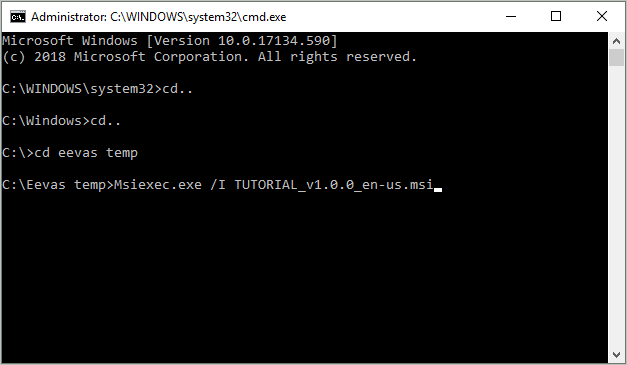
4. Press Enter to start the installation.
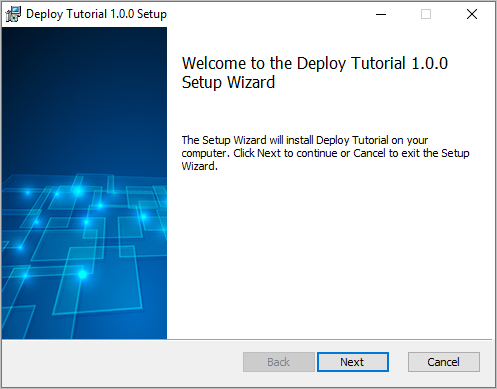
5. Click Next.
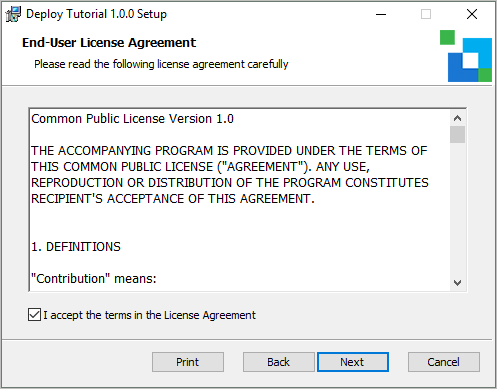
6. Accept the License Agreement and click Next.
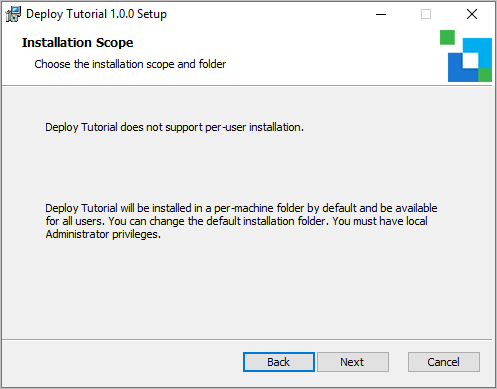
7. Click Next.
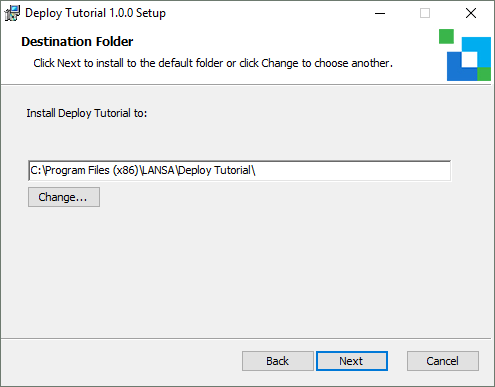
8. Click Next.
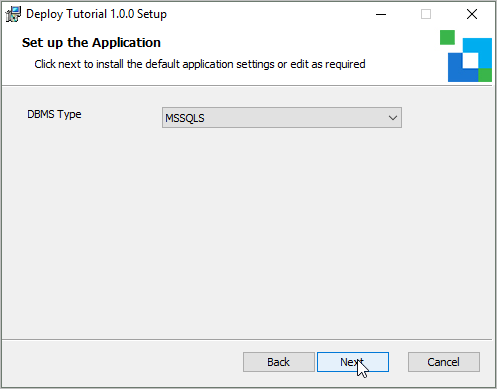
9. Click Next.
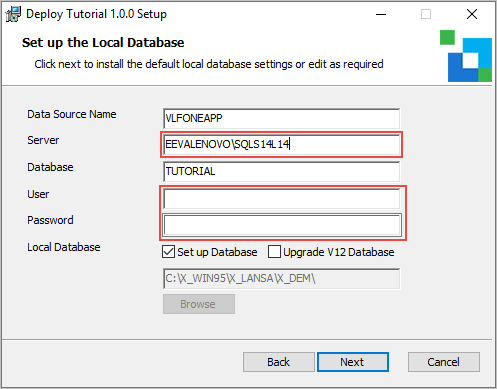
10. Specify your Microsoft SQL Server details for /Server./
11. Leave the User ID and Password fields blank. If these credentials
are entered, the install will assume the database settings require a
secure login. Your Visual LANSA database is configured to use Windows
Authentication.
12. Click Next.
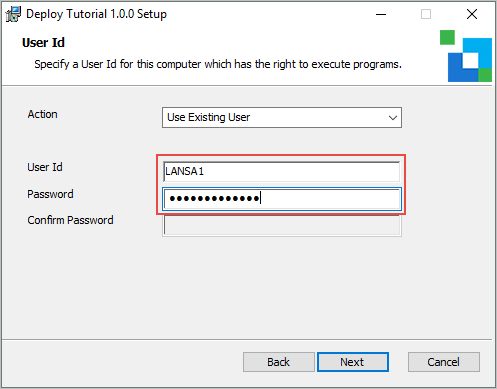
13. Specify the User Id and Password with the rights to execute the web
application. See Step 5. Prerequisite Actions on the Target Machine.
14. Click Next.
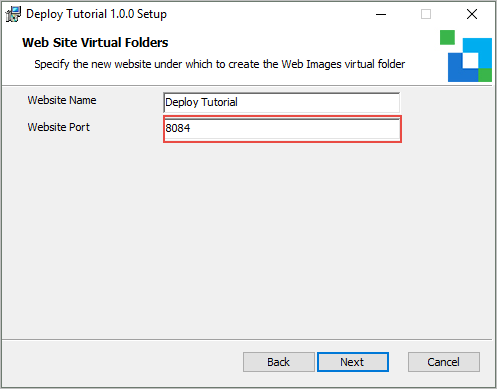
15. Note the website port number which will be part of the URL when you
execute the deployed application.
16. Click Next.
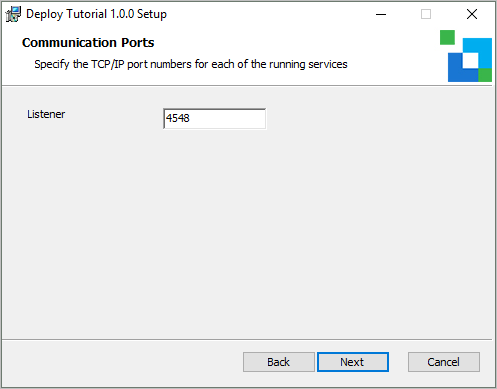
The LANSA Communications Port number setting is displayed.
17. Click Next.
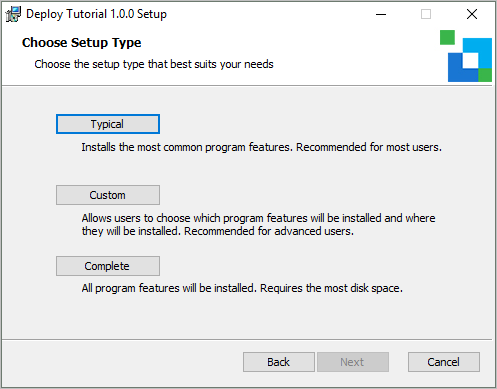
18. Click Typical setup.
The "Ready to Install …" dialog is displayed, displaying the main
installation settings. You can use the Back button to return to previous
settings and change these if necessary.
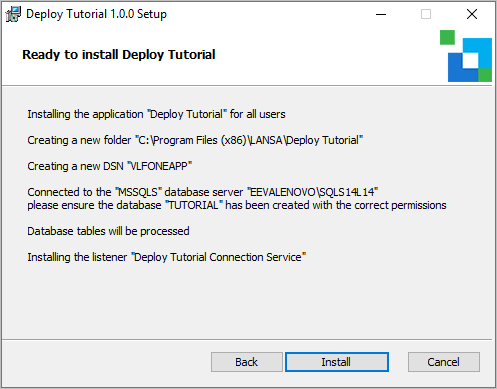
19. Click Install to continue.
The Setup Wizard will install the LANSA web application, showing a
progress bar.
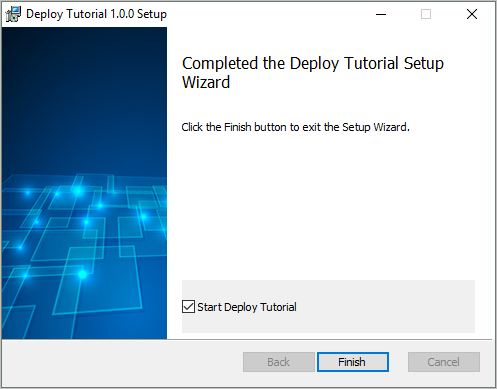
19. When the installation is complete, click /Finish./
This will run the LANSA /Server Licenses/ application.
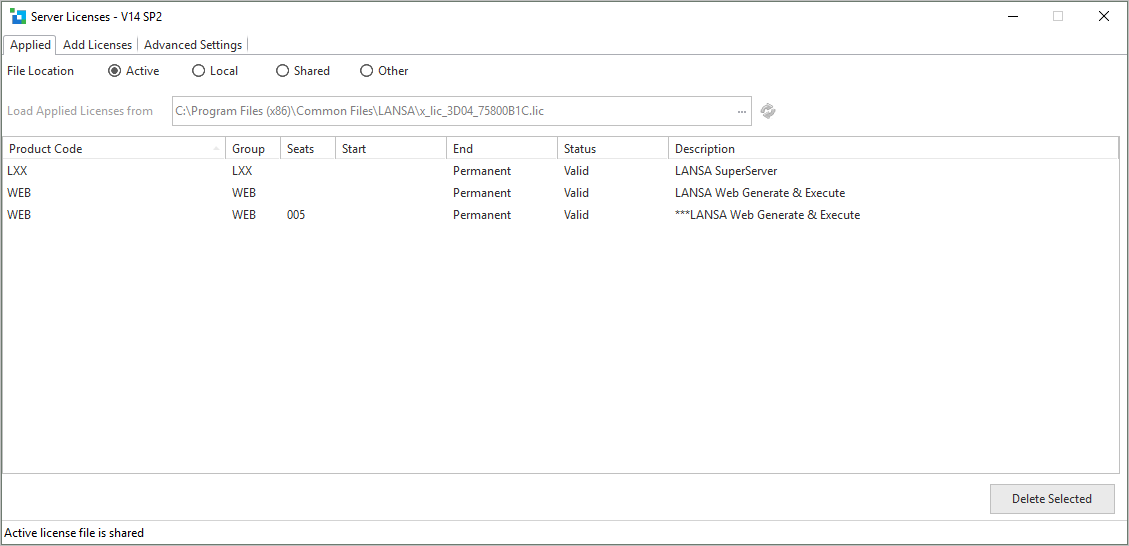
20. Ensure you have a valid WEB license.
21. Close the Server Licenses application.