In this step you learn how to use the shipped Documents command handler.
1. Copy a document file (for example a Word document or a PDF).
2. Display the Documents tab in your Framework.
3. Right-click the area on the right of the Documents command handler and select Paste from the context menu: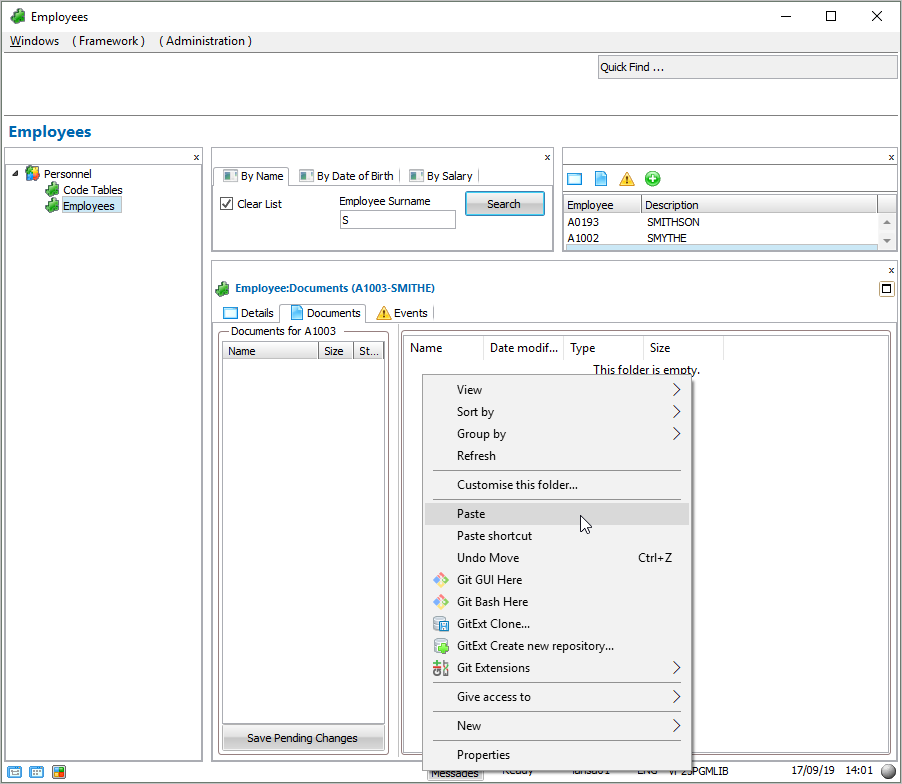
The document is added to the command handler: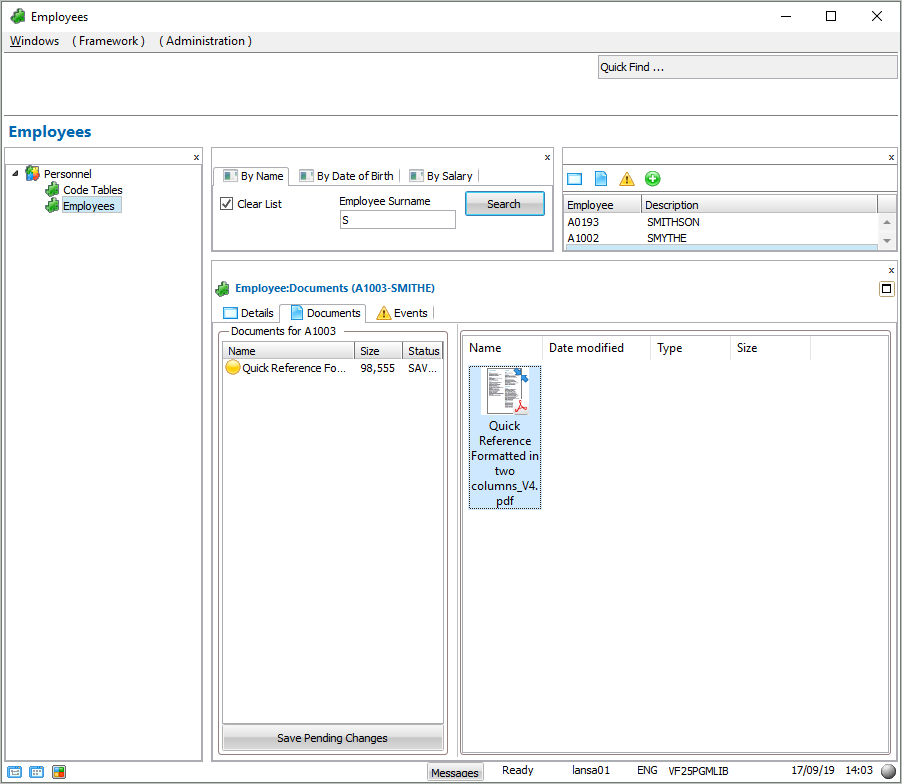
4. Click on the Save Pending Changes button to store the document in the shipped database file DXDOCS on the server.
5. Add another file, for example a photo or another image to the command handler and save it.
Note that you can also use drag-and-drop to add documents, or use the context menu to create new documents..