The LANSA Composer Windows server installation does not re-configure the LANSA IIS plug-in if it is already installed. This is deliberate, to avoid interfering with existing working LANSA web applications, but it also means that you cannot immediately execute the LANSA Composer Web components (for example, the Management Console) until you manually alter the IIS plug-in configuration.
There are several ways to do this. The following describes an example procedure to accomplish this.
You should refer to the applicable LANSA and IIS documentation for full details. The example procedure shows one way to configure the IIS plug-in for this purpose. The specific screens and the most appropriate configuration steps and values may differ on your system according to your circumstances and requirements.
The major steps in the example procedure are:
1. In IIS, add a new site binding for LANSA Composer
2. In the LANSA Web Administrator, add a data/application server for LANSA Composer
3. Copy LANSA Composer's web images, styles and script files
4. In LANSA Composer, alter System Settings to use the new port number
When you have finished, continue with:
Running the LANSA Composer Client on the Windows Server
1. In IIS, add a new site binding for LANSA Composer
By default, the existing LANSA web application is being served using the default port 80.
You can choose a new port number on which to serve the LANSA Composer Web components. Usually you should use a port number greater than 1000 to avoid conflict with "well-known" port assignments used for other protocols such as FTP.
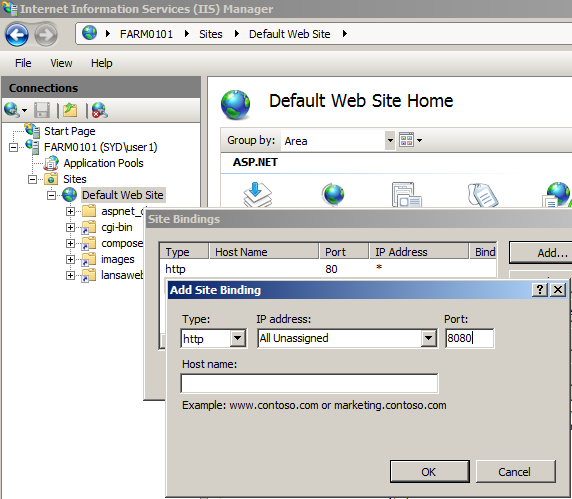
Once you have chosen the port number (for example, 8080), perform the following steps to configure the web site to serve that port:
a. Open the Microsoft Internet Information Services (IIS) Manager and select the website in which the LANSA IIS plug-in (lansaweb) is installed.
b. Open the Site Bindings window for the selected website and click Add to add a new binding.
c. In the Add Site Binding window, type the new port number.
d. Make sure you have saved all your changes. There is no need to restart IIS services yet.
2. In the LANSA Web Administrator, add a data/application server for LANSA Composer
Perform the following steps to configure LANSA to invoke LANSA Composer to serve web requests made using the new port number:
a. Open the LANSA Web Administrator and open the active LANSA web configuration (for example, webplugin.conf in the WebServer\IISPlugIn folder of the LANSA system directory in which the IIS plug-in is installed)
b. Select Maintain Systems from the Tools menu and click Add.
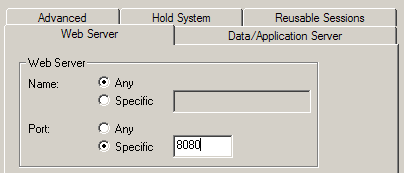
c. On the Web Server tab of the Add LANSA System window, type the specific port number determined above.
d. On the Data/Application Server tab of the Add LANSA System window, type the name of the LANSA Communications Administrator entry for LANSA Composer. Click the ellipsis (…) button to open the LANSA Communications Administrator if necessary. Type the user and password details necessary for the LANSA web listener to connect to the LANSA Composer application server.
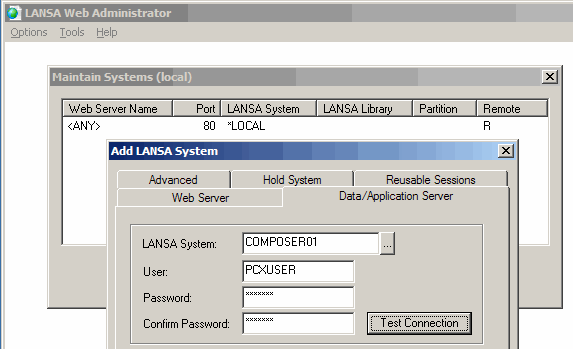
The specified user profile need to be an authorized user in the SQL database (if using Microsoft SQL Server)
e. Test the connection, save your changes and close the LANSA Web Administrator.
f. Finally you should restart IIS now to cause the new configuration to take effect.
3. Copy LANSA Composer's web images, styles and script files
The LANSA Composer Windows server installation program installed the web images, styles and script files for LANSA Composer in the WebServer\Images directories of the LANSA Composer installation location.
You will need to copy these files to the equivalent WebServer\Images directories of the LANSA system directory in which the IIS plug-in is installed.
The following files need to be copied:
- Image files named xfd*.* in WebServer\Image s
- Cascading style sheet files (.css) named xfd*.css in WebServer\Images\style
- JavaScript files (.js) named xfd*.js in WebServer\Images\script
4. In LANSA Composer, alter System Settings to use the new port number
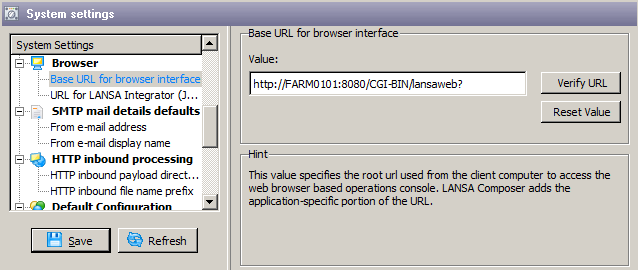
Once IIS and LANSA web support are configured, you need to change the base URL used by LANSA Composer for the Management Console.
To do this, start the LANSA Composer client and select System Settings from the navigator on the left. In the list of system settings, select Base URL for browser interface. In the Value edit box on the right, change the URL to use the new port number that has been bound to the LANSA IIS plug-in.