When running scheduled jobs from WhereScape RED, it's possible to configure a job to run commands when the job finishes successfully or when a task in the job fails. These commands can be set to trigger email notifications, maintenance tasks, create a log file, or other actions.
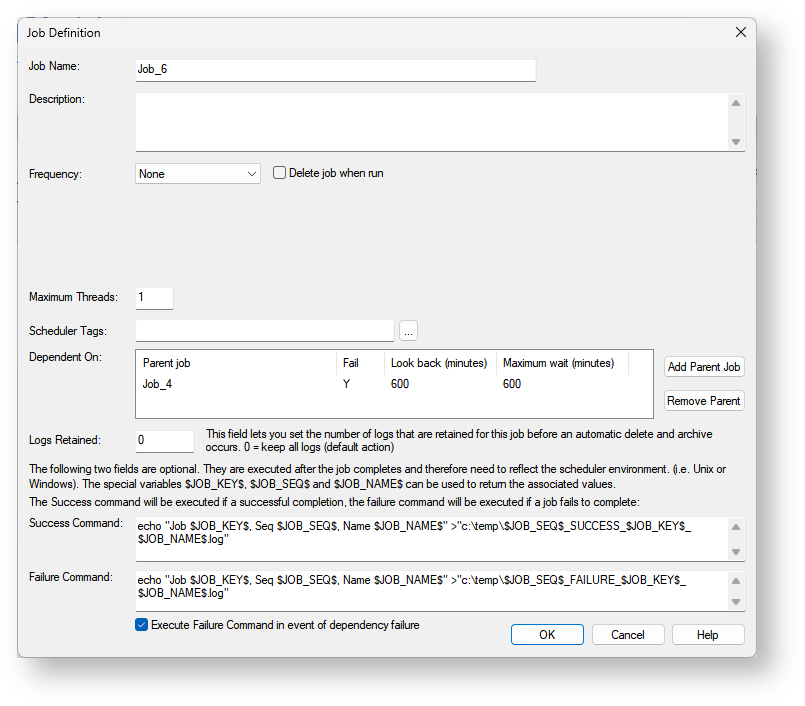
The commands can be entered in the Job Definition screen as shown below. It is important to make sure the commands you enter reflect the operating system (Linux or Windows) where the job will run or be portable between environments, as the commands entered are simply run as a system command where the job is being executed.
Success Commands
Success commands run when a job is a marked as successful in the final stage of execution and the Success Command field is populated.
Failure Commands
Failure commands run when a task marks a job as failed and the Failure Command field is populated. This command will only run once for the job even if more than one task fails in multi-threaded jobs.
If the Execute Failure Command in event of dependency failure option is set the failure command will also be run when the following conditions are met:
- The job has a Frequency set other than 'None'
- The job has at least one parent job dependency defined
- One of the parent jobs has failed
Success and Failure Command Parameters
Special Variables or "Tokens"
- $JOB_KEY$ - replaced with the Job ID
- $JOB_SEQ$ - replaced with the Job Sequence Number
- $JOB_NAME$ - replaced with the Job Name
- $WSL_SCRIPT_<host script name in metadata>_CODE$ - Script Sourcing Tokens
Environment Variables
The following environment variables are set prior to running the command
- WSL_META_<variable name> - all the usual metadata environment variables available to scripts
- WSL_<JOB|TASK>_<KEY|NAME> - Job and Task environment variables
- WSL_<SEQUENCE|WORKDIR|BINDIR> - Sequence, Work Directory and Bin Directory environment variables
- WSL_SCH_RESTAPI_<URL|USER|PWD> - The Scheduler REST API URL and credentials
Success and Failure Command Script Sourcing
RED can reference other scripts form the metadata at run-time, this Script Sourcing feature of RED is also available to be used in the Success and Failure Commands, this allows referencing a Host Script from the RED metadata rather than a script that already exists on the operating system.
Example success command using this feature:
python "WSL_SCRIPT_my_python_success_script_CODE"
When this Success Command is executed at run-time RED will do the following:
- Parse the command for RED Tokens
- Write referenced metadata Host Scripts found in any Script Sourcing Tokens to the work directory
- Expand the RED Tokens in the command line, Script Sourcing Tokens are replaced with the full file path of the script
- Set up the environment variables
- Execute the expanded command
Success and Failure Command Output Protocol
Only the exit code of the Success or Failure command is considered by the Scheduler, all output is ignored.
- An exit code of '0' signals a successful execution of the command, this is reported in the Scheduler Job Log in RED
- A non-zero exit code signals a failure executing the command , this is also reported in the Scheduler Job Log in RED
- All output streams are ignored, therefore your script or command should perform it's own logging.
Success Command Failure