Follow these steps when using LANSA Version 14 SP2.
Step | Activity | How to Do It | OK |
|---|
Assign a build number | Assign a build number nn to the version of your product being released. | See Create a Version in the Deployment Tool guide. |
Start the Deployment Tool | Logon to Visual LANSA and start the Deployment Tool. | Start Visual LANSA and logon to the partition containing the application to be deployed. Ensure that you use a user profile which is authorized to the objects that are being deployed. From the Tools ribbon, select Deploy. The Visual LANSA Deployment Tool's main window will open. |
Create a Deployment Tool application and package | Create an application and a package using the Deployment Tool. Choose the Deployment Tool template XVLFONE which creates a deployment package for the Windows server components of a VLF-ONE application. | Click on the New Application button on the tool bar or select the New command from the Application menu. Fill in the application details. Click Create. You are prompted to create a version. Fill in the package details and click Create. The package maintenance window is displayed. For more information, see Create an Application in the Deployment Tool guide. |
Verify package settings | Click on the Package Settings button on the toolbar to display the Package Settings window. | Please ensure these settings are appropriate for your environment. We recommend these settings for most systems: |
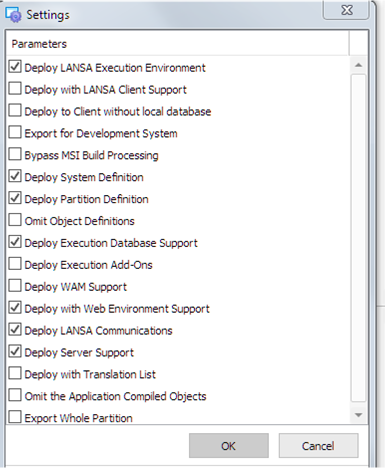
Decide what execution parameters need to be prompted | For example, to enable the Prompting of the Target Directory option, double-click the parameter and select the Prompt during SETUP check box in the window which is displayed. | For more information, see Execution Parameters in the Deployment Tool guide. |
Configure the database to be installed on the target system | For more information, see Database in the Deployment Tool guide. |
Include your objects | Add your objects:
Make sure you include your custom snap-in components. For more information please refer to o VLF-ONE Snap-In Points Summary in the Framework Guide. | Ensure that all non-LANSA objects have correct installation paths specified for the target machine. See Configure the Non-LANSA Object Installation Path in the Deployment Tool guide. | |
The Framework definition with a name like: XXXXXXXXX_LLLL_VLFONE_Definition.DAT where XXXXXXXXX is the Framework name LLLL is the language. | Find this file in the partition execute folder, for example: <lansa root>\x_win95\x_lansa\x_<partition identifier>\execute Note that this file is a Non-LANSA object so you need to add it in the Non-LANSA objects node. |
Optionally add a shortcut | You can create a desktop shortcut to launch the URL on the target machine when the package is installed. | Click on the Application Icon button on the toolbar of the Package Control Panel. Select an icon. See Application Icon in the Deployment Tool guide. |
Save the package | Save the package definition. |
Build the package | Check and build the package. Your application package is created in the X_APPS\PackageName directory, for example: C:\Program Files\LANSA\X_WIN95\X_LANSA\ X_APPS\PackageName). | Select the Check Package option in the Options menu. The message you receive should tell that no errors were encountered. Click on the Build button. Wait for the package compilation to complete. |