Scheduled tasks for Mac execute commands automatically by letting the user select specific times and dates to have the action executed.
There are different managing options with scheduled tasks such as refreshing, editing, deleting, and viewing logs and results. You can also set an email address to receive email notifications when the tasks run with different details. See E-mail Options to configure these settings.
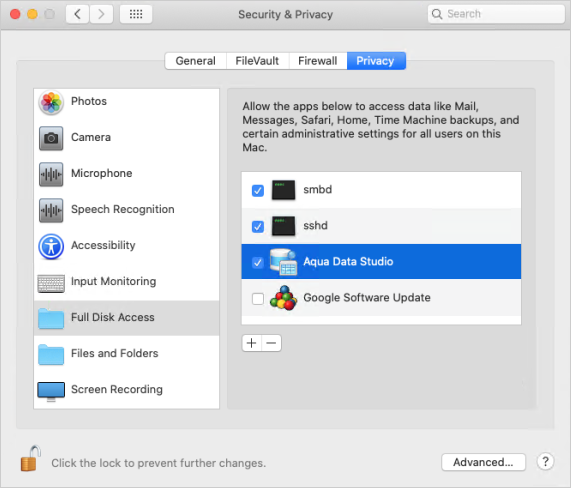
Keep in mind that for the latest Mac operating system there is an added layer of security when trying to edit the crontab. This step for extra security might not appear in older versions. Users will be prompted to allow editing of crontab every time there are add/edits crontab. If the user doesn't allow it within a minute of being prompted, the action will timeout and the task scheduler will fail. In this case, Aqua Data Studio will have to be restarted if the user wants to see the prompt again. However, for business users, permission can be given permanently to Aqua Data Studio so that they are not prompted every time add/edits crontab are used.
To allow Aqua Data Studio to edit crontab permanently go to:
Schedule SQL Tasks can be created by:
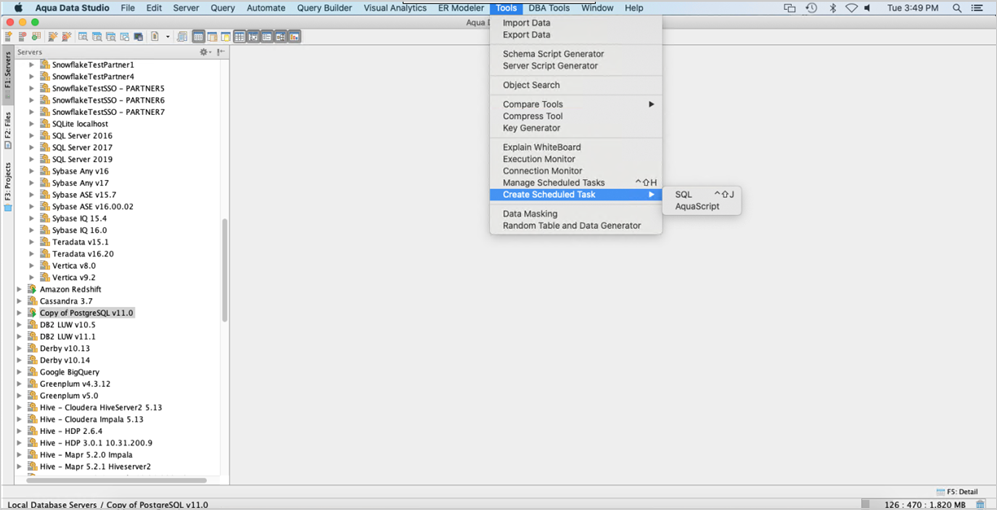
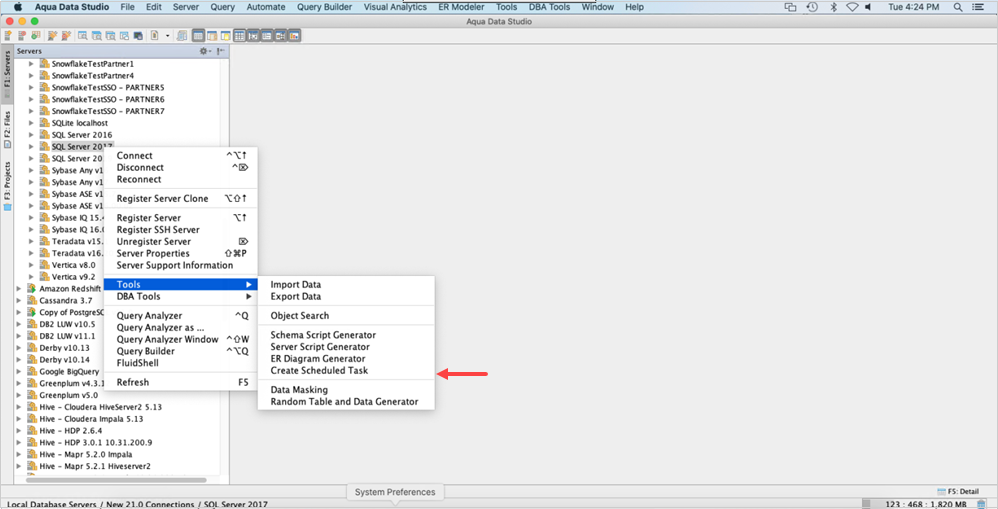
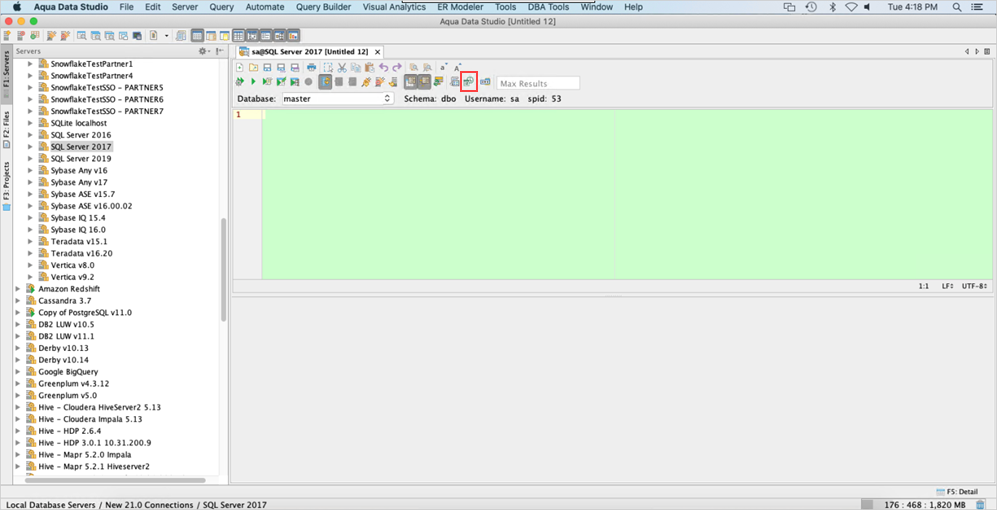
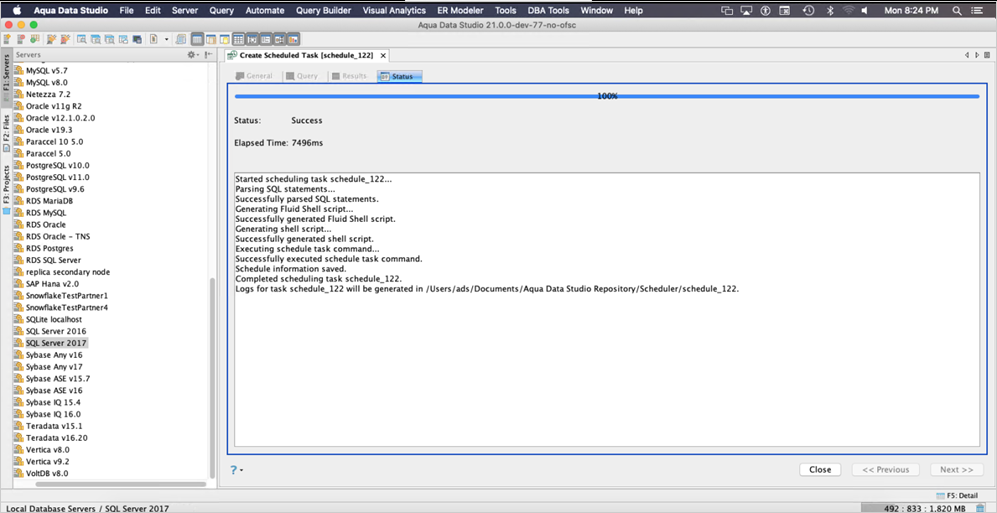
Select Create Scheduled Task in any of the above-mentioned ways. Choose a server in which to create a SQL Scheduled Task. Select the server, navigate the database and schema objects, and click OK. This will bring up the Create Scheduled Task Dialog.
| Note that if you choose to Create Scheduled Task from the Query Analyzer Window, Aqua Data Studio takes the configuration for Server, Database and Query from that window, helping you save time when scheduling a task. |
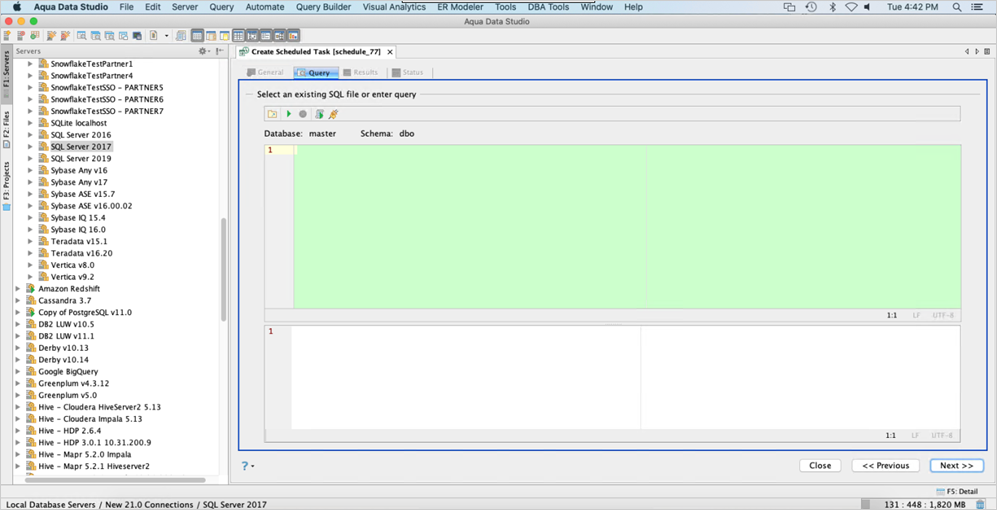
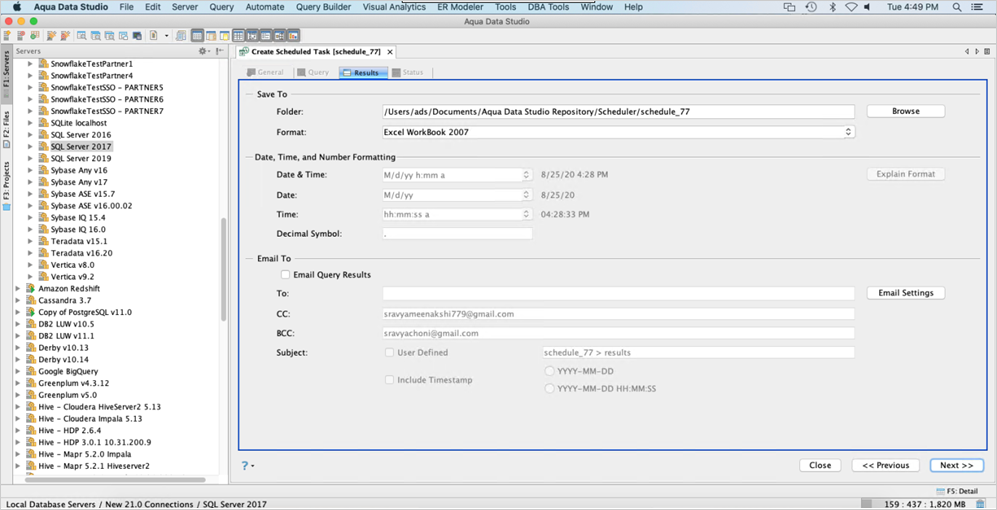
The first tab in the Create Scheduled Task Dialog is the General Tab. In this section, specify the Database Connection. The first option is to specify a connection, a database and a Schema where the scheduled task will be run. Then, specify a Name for the task, by default the name is schedule_number, this can be changed to any name you want that contains only ASCII characters. Now, select the Interval for the task, select from the drop-down menu the interval you want (Once, Daily, Weekly, Monthly.) Then, choose the start date and time in the drop-down calendar menu. If the interval you chose is Daily, Weekly, or Monthly you have to choose the repetition frequency of the task. When the interval is Weekly or Monthly the Advanced menu pops up. Click Next to select the Query Tab.
Per cron configuration, the interval will be estimated starting the first of the month and not from the date you are scheduling the task.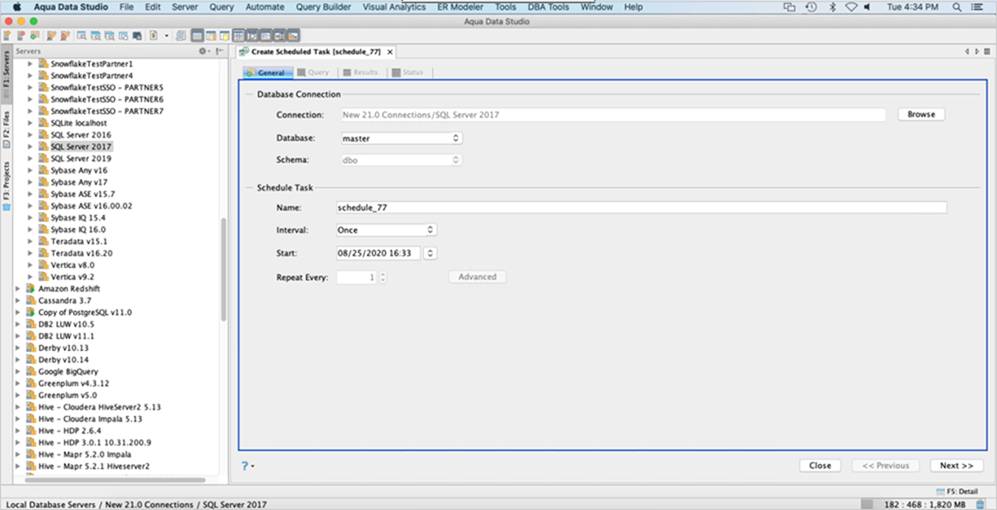
Inside the General Tab in the Create Scheduled Tasks dialog, the advanced menu is available when the interval selected is Daily, Weekly, or Monthly.

In the Advanced Task Settings dialog, you can schedule the date for the scheduled task to run..
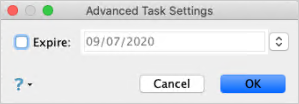
When the Monthly interval is chosen, the advanced menu pop-up as well, here you can choose a date for the scheduled task including the month and the day the task will run.
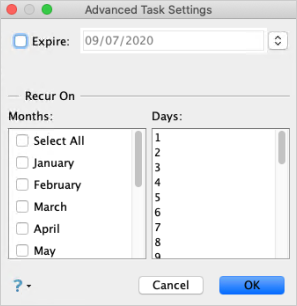
For the monthly option the last day of the month is not available, and if you choose any value greater than 30, the task run date will be next year.