This is a guide to installing the WhereScape Enablement Pack for Databricks for WhereScape RED.
Prerequisites For PostgreSQL Metadata
Before you begin, ensure to meet the following prerequisites:
- Create Database and ODBC DSN :
1. Supported* version of PostgreSQL (PostgreSQL 12 or higher)
i. A database to house the RED Metadata Repository.
ii. A database for the Range Table DB (Optional)
iii. A database to house scheduler (Optional)
Software Installations
- WhereScape RED10 with a valid license key entered and EULA accepted.
- WhereScape Enablement Pack for target database version RED10.
Windows Powershell (64 bit) version 4 or higher
To check the Windows Powershell Version:
- Run below command in Windows Powershell:
Get-Host|Select-Object Version
- Run below command in Command Prompt:
powershell $psversiontable
Run the following command using PowerShell:
- The security protocol TLS 1.0 and 1.1 used by PowerShell to communicate with PowerShell gallery has deprecated and TLS 1.2 has been made mandatory:
1 [Net.ServicePointManager]::SecurityProtocol = [Net.ServicePointManager]::SecurityProtocol -bor [Net.SecurityProtocolType]::Tls12
2 Register-PSRepository -Default -Verbose
3 Set-PSRepository -Name PSGallery -InstallationPolicy Trusted
- Progress bar placeholder info line:
1 Install-Module -Name PoshProgressBar -SkipPublisherCheck -Force
Prerequisites For Target Database Databricks
- Before you begin the following prerequisites must be met:
- Create Database and ODBC DSN:
- Databricks (ODBC driver version 2.7.5 or higher(64-bit))
- At least one schema available to use as a RED Data Warehouse Target
- Databricks (ODBC driver version 2.7.5 or higher(64-bit))
- Software Installations
- Databricks CLI - Refer to Setup Guide Databricks CLI Setup
- Python 3.8 or higher
- Select Add Python 3.8 to PATH from the installation Window
- Pip Manager Install with the command:
python -m pip install --upgrade pip
Enablement Pack Setup Scripts
The Enablement Pack Install process is entirely driven by scripts. The following table outlines these scripts, their purpose and if Run as Administrator is required.
| Script | Description | Run As Administrator | Use | |
|---|---|---|---|---|
| 1 | Setup_Enablement_Pack.ps1 | Setup and configure a RED Metadata Repository for target database If RED repository exists then updates the repository with:
| Yes | New and Existing installations |
| 2 | install_WslPython_Modules.bat | Installs or updates WslPython Modules and required Python libraries on this machine. | Yes | New and Existing installations |
| 3 | import_python_templates.ps1 | Imports or updates the Python Templates to a RED Metadata Repository. Also includes any Script Imports | No* | Existing installations |
| 4 | set_default_templates.ps1 | Applies the RED Connection defaults in a RED Metadata Repository for Python or Powershell templates. | No* | Existing installations |
Step-By-Step Guide
Setup and configure RED Metadata Repository
Run Powershell as Administrator:
- Script 1 >
Powershell -ExecutionPolicy Bypass -File .\Setup_Enablement_Pack.ps1
This enablement pack will overwrite any existing Source Enablement Pack UI Configs:
| Connection UI Config | Load UI Config |
|---|---|
| Amazon S3 | Load From Amazon S3 |
| Azure Data Lake Storage Gen2 | Load From Azure Data Lake Storage Gen2 |
| Google Cloud | Load From Google Cloud |
To ensure existing Source Enablement Pack connections and associated Load Tables continue to browse and load, go into UI Configuration Maintenance in RED before installing this Enablement Pack and rename the affected UI Configurations.
While the updated Load Template will work with previous Source Enablement Pack's we recommend moving these previous versions of Load Tables to newly created Parser-based connections following this install. The earlier versions of the Source Enablement Pack will be deprecated following this release.
Install or Update WhereScape Python Modules
Run the Script as Administrator
- Script 2 >
install_WslPython_Modules.bat
This script performs two tasks:
- Installs the WhereScape WslPython modules to
C:\Program Data\WhereScape\Modules\ - Uses PIP to download or update required Python libraries - for offline install please see the required library list for Python in the Troubleshooting section.
Install or Update WhereScape Python Templates (For Existing Installations)
Run these scripts as Administrator
- Script 2 >
install_WslPython_Modules.bat - Script 3 >
. .\import_python_templates.ps1 - Script 4 >
. .\set_default_templates.ps1
Set Connection defaults for a Template Set (For Existing Installations)
- Script 4 >
. .\set_default_templates.ps1 - Choose Python when prompted.
Post Install Steps - Optional
If you used the script Setup_Enablement_Pack.ps1 then the following optional post-install steps are available
Configure Connections
There were Three connections added that will optionally require your attention:
- Connection: 'Database Source System' - this connection was set up as an example source connection,
- open it's properties and set it up for a source DB in your environment
- or you can remove it if not required.
- Connection: 'Databricks' - this connection was set as per parameters provided in script 1
- open properties and check if the Database ID is set correctly
- open its properties and check the extended properties tab, set it up for HTTP_PATH, SERVER_HOSTNAME, DB_ACCESS_TOKEN, and DBFS_TMP
Enable Script Launcher Toolbar
Several stand-alone scripts provide some features such as "Ranged Loading", these scripts have been added to the Script Launcher menu but you will need to enable the menu toolbar item to see them.
To enable the Script Launcher menu in RED: Select menu item View>Toolbars>Script Launcher
Source Enablement Pack Support
Source Pack Name | Supported by Databricks | Supported Features | Prerequisites |
Amazon S3 | Yes | Bulk load to Databricks | Include the Access Key and Secret Key in the Amazon S3 Cloud Parser Connection for S3. For guidance on obtaining these credentials, please refer to the relevant documentation: {+}https://docs.aws.amazon.com/IAM/latest/UserGuide/security-creds.html+ |
Azure Data Lake Storage Gen2 | Yes | Bulk load to Databricks | Add the SAS Token to the ADLG2 Cloud Parser Connection. Refer to {+}https://learn.microsoft.com/en-us/azure/storage/common/storage-sas-overview+ |
Google Cloud Storage | Yes | Bulk load to Databricks | Step 1: Service Account Setup
|
Windows Parser | 1. CSV | Load Template, Source Properties will have the option to select parser type to load the files. | Refer to Windows Parser Guide |

Troubleshooting and Tips
Run As Administrator
Press the Windows Key on your keyboard and start typing cmd.exe, when the cmd.exe icon shows up in the search list right click it to bring up the context menu, select Run As Administrator
Now you have an admin prompt navigate to to the folder where you have unpacked your WhereScape Red Enablement Pack using the cd command:C:\Windows\system32> cd <full path to the unpacked folder>
Run batch (.bat) scripts from the administrator prompt by simply typing the name at the prompt and clicking enter, for example:C:\temp\EnablementPack>install_WslPython_Modules.bat
Run Powershell (.ps1) scripts from the administrator prompt by typing the Powershell run script command, for example:C:\temp\EnablementPack>Powershell -ExecutionPolicy Bypass -File .\Setup_Enablement_Pack.ps1
In the event you can not bypass the Powershell execution policy due to group policies you can instead try "-ExecutionPolicy RemoteSigned" which should allow unsigned local scripts.
Setting Up Databricks Configuration
- Add a system variable
DATABRICKS_CONFIG_FILEto point to a location that permits you to configure thedatabricks-cli.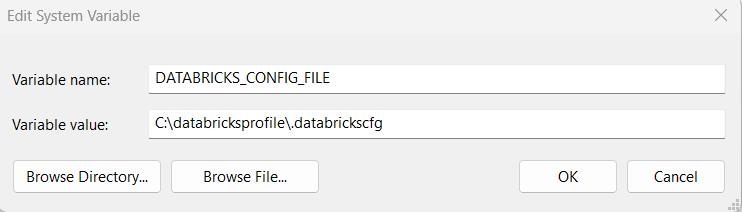
- Open the command prompt and configure
databricks-cliusingdatabricks configure --aad-token.
- On running this command, config file should be created in the location specified in the config file system variable

Windows Powershell Script Execution
On some systems, Windows Powershell script execution is disabled by default. There are several workarounds for this which can be found by searching the term "Powershell Execution Policy".
Here is the most common workaround that WhereScape suggests, which does not permanently change the execution rights:
Start a Windows CMD prompt as Administrator, change the directory to your script directory, and run the WhereScape Powershell scripts with this command:
cmd:>Powershell -ExecutionPolicy Bypass -File .\<script_file_name.ps1>
Restarting failed scripts
Some setup scripts will track each step and output the step number when there is a failure. To restart from the failed step (or to skip the step) provide the parameter "-startAtStep <step number>" to the script.
Example: Powershell -ExecutionPolicy Bypass -File .\<script_file_name.ps1> -startAtStep 123
To avoid having to provide all the parameters again you can copy the full command line with parameters from the first "INFO" message from the beginning of the console output.
Python requirements for offline install
Additionally to the base Python installation being required, the WhereScape Python Template set also requires certain additional Python libraries. The install scripts use the PIP (package manager) to download these libraries, however, for offline installs, you will need to install the required libraries yourself.
Required Python libraries/add-ons:
- pywin32-ctypes
- python-tds
- pywin32
- glob2
- gzip-reader
- regex
- pyodbc
- databricks
- databricks-sql-connector
If a valid RED installation can not be found
If you have Red 8.5.1.x or higher installed but the script (Setup_Enablement_Pack.ps1) fails to find it on your system then you are most likely running the PowerShell (x86) version which does not show the installed 64-bit apps by default. Please open a 64-bit version of Powershell instead and re-run the script.