Microsoft Fabrics - Service Principal Authentication
Steps to be followed to create target DSN using Service Principal Authentication method:
- Login to Azure Portal
- Register Azure App --> Go to App registration
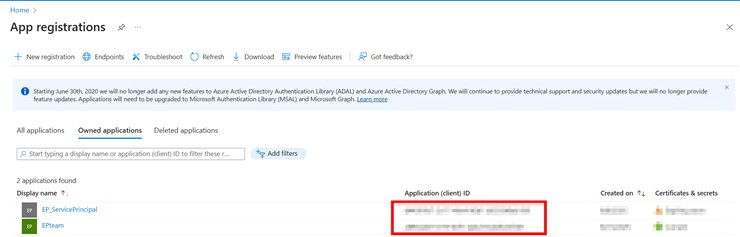
- Click on plus button create New Registration
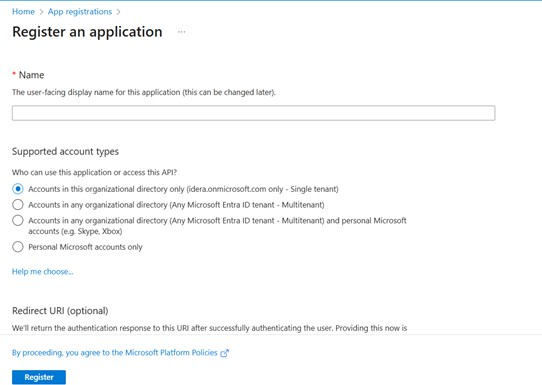
- Provide the Application name and click on Register
- Registration is done successfully.
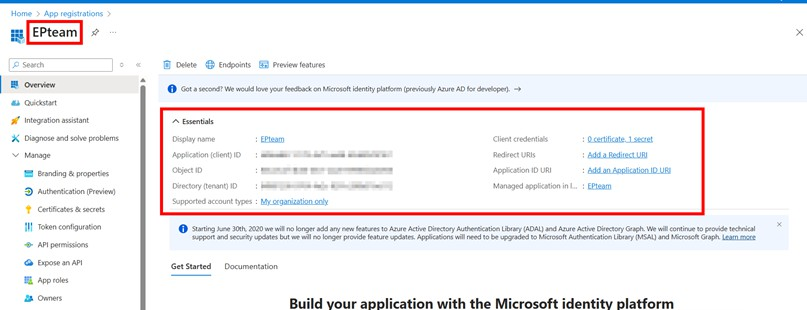
- Create Client Secret
- In the Registered App
- Go to Certificates & Secrets
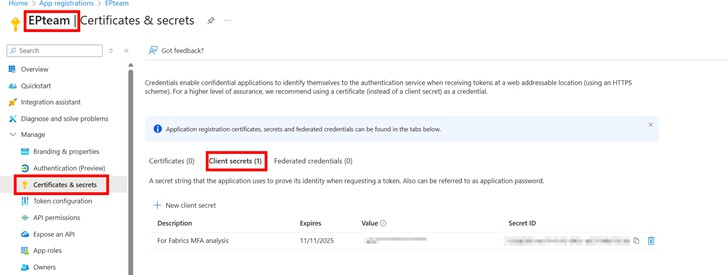 Click on Client Secret and generate new client secret (The value id is displayed only once make sure to copy it)
- Assign RBAC (Role Based Access Control) Roles
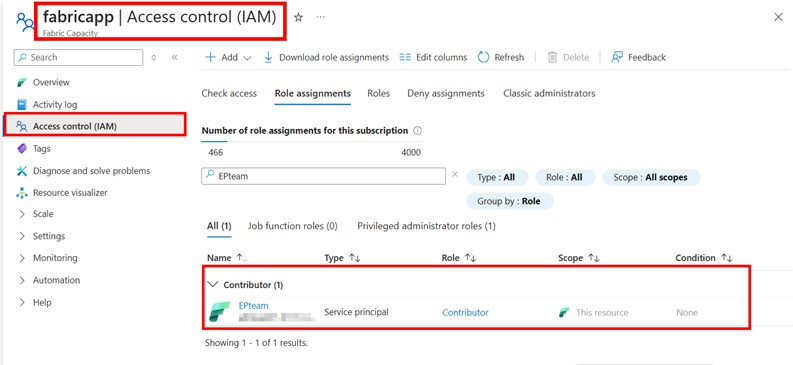
- In Fabric Capacity, Go to Access Control (IAM)
- Assign the registered app as Contributor role and add it as Service principal
- Login to Microsoft Fabrics Portal
- Add Service principal as Admin in Fabrics Workspace
- Go to Manage access in Fabrics Workspace
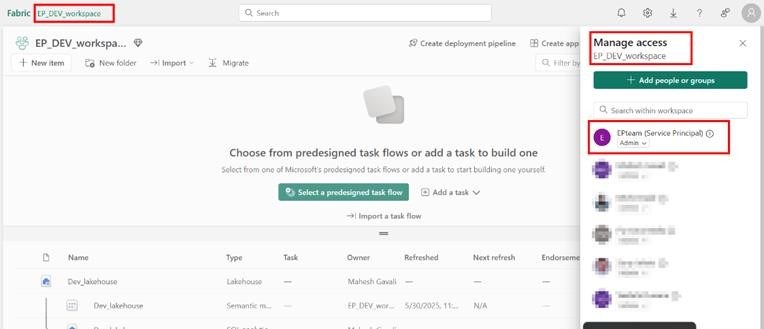 Add the Service principal as Admin
ODBC Connection:
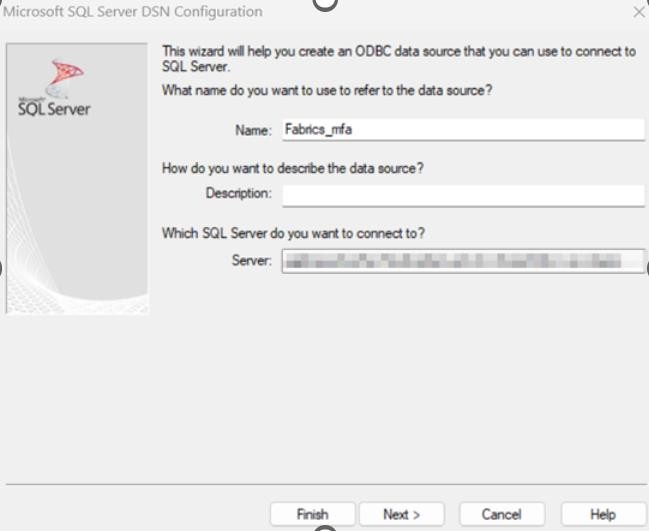
Install ODBC Driver for SQL Server and configure the DSN
- Add Server
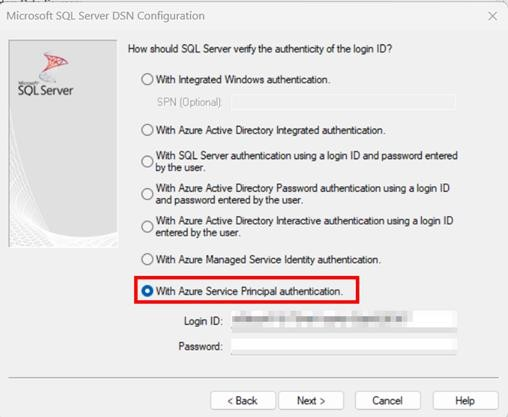
- Select Azure Service Principal Authentication
- Add Client ID as Login ID
- Value ID as Password
- Test the connection
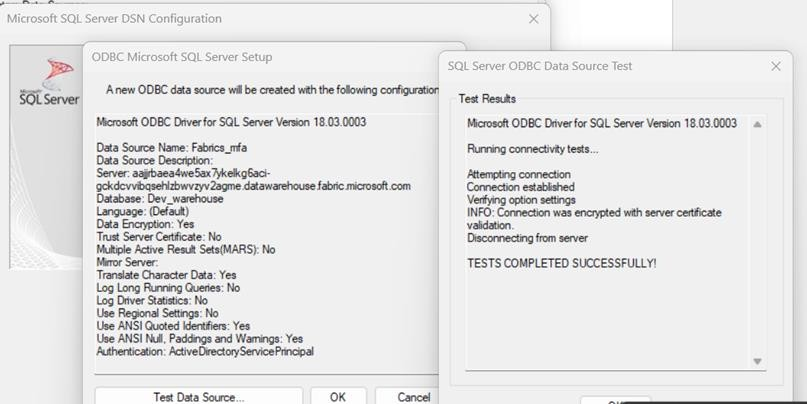
Successfully connected to Fabrics Workspace using Service Principal Authentication.