Restarting a Job Via the Azkaban Scheduler Dashboard
Restarting a job can only be done via the Azkaban Scheduler Dashboard as there is currently no integration point for this action via the RED UI.
To restart a failed job run in the Azkaban Scheduler Dashboard, navigate to the Executions of the job and select the latest execution for the restart.
Note: only the latest execution can successfully be restarted and it must be in a failed state, since the RED Job Plugin expects the job to be in a failed state in the RED metadata, rather than failed aborted or successfully completed. Restarting from any other state will result in a flow failure, as the RED Job Plugin will not be able to find an active job run record in the initial step of the flow.

Now select the 'Prepare Execution' button as shown:
Next you are presented with the 'Execute Flow' screen which will show the graph of the tasks in the flow, if you click execute now the flow will be restarted and the Job will be restarted from the last failure, thus skipping the already successful tasks.
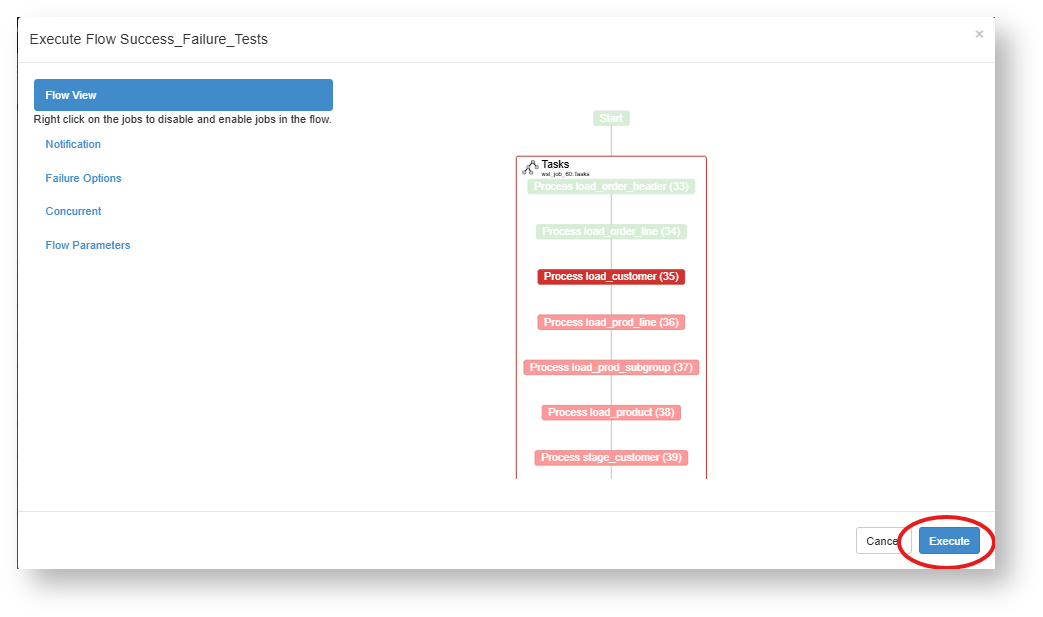
If the Job is restarted from Azkaban the matching job sequence in the RED Scheduler tab in RED will be updated with the latest results.
Additionally if you would like to simply run certain steps or the final step of a job via Azkaban Dashboard, then this can be achieved via the Execute Flow screen, by right clicking on the tasks in the flow view. See the following section for an example.
Synchronizing Jobs stuck in the running state in RED but finished in Azkaban
If a job is stuck in the running state in RED UI but completed in Azkaban then there was likely some communication problem with Azkaban and the RED PostgreSQL metadata database. To resolve the synchronization issue you can follow the process to restart the execution via Azkaban Dashboard and enable at least the last 'Finish' step again.
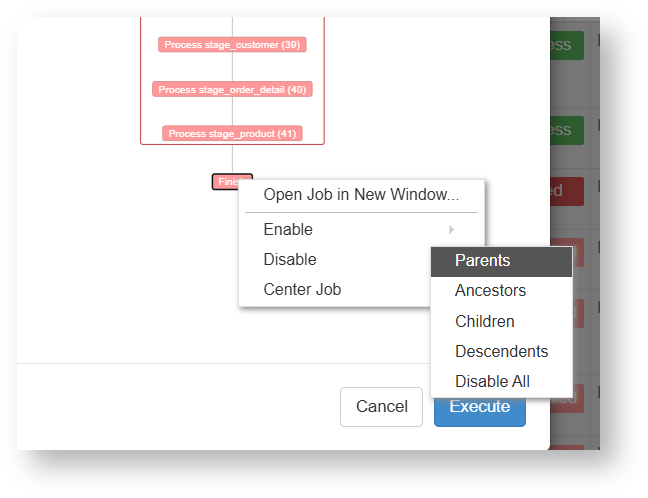
The below screenshot shows how to disable all parent tasks of the Finish step of a failed job, which will result in the job only running that step. This is useful if you have a job in the RED UI which is out of sync with the Azkaban scheduler, for example if the job is stuck in the running state in RED UI but completed in Azkaban then this restart process will simply update the currently running job in the RED metadata with the final result and move it out of the running state in RED.
Editing a task's status directly in RED
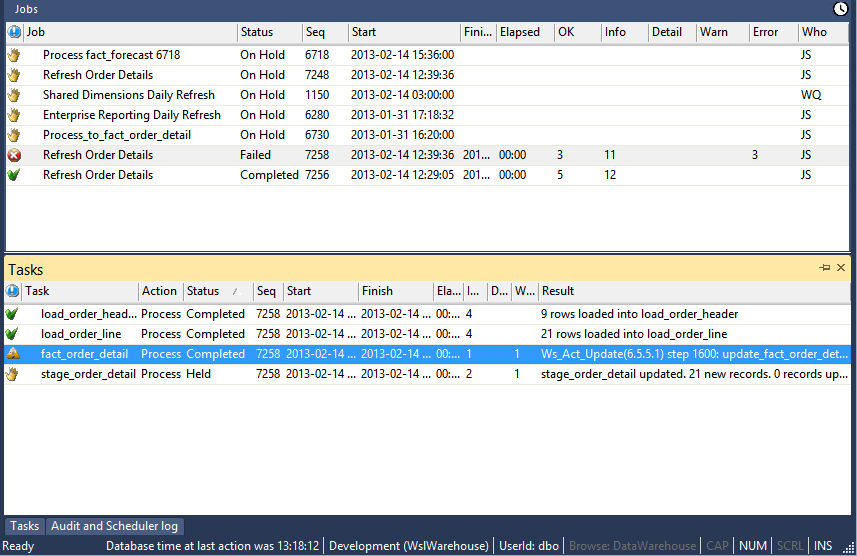
You can also edit the Task status of a failed run in RED so that it is skipped or rerun when restarting from Azkaban.
To achieve this, before restarting the job in Azkaban, edit the status of the job in the RED Scheduler tab job tasks so that only certain tasks will be run again or be skipped over.
To run a task again
View the job tasks by double-clicking on the failed job. The tasks will be displayed in the bottom pane.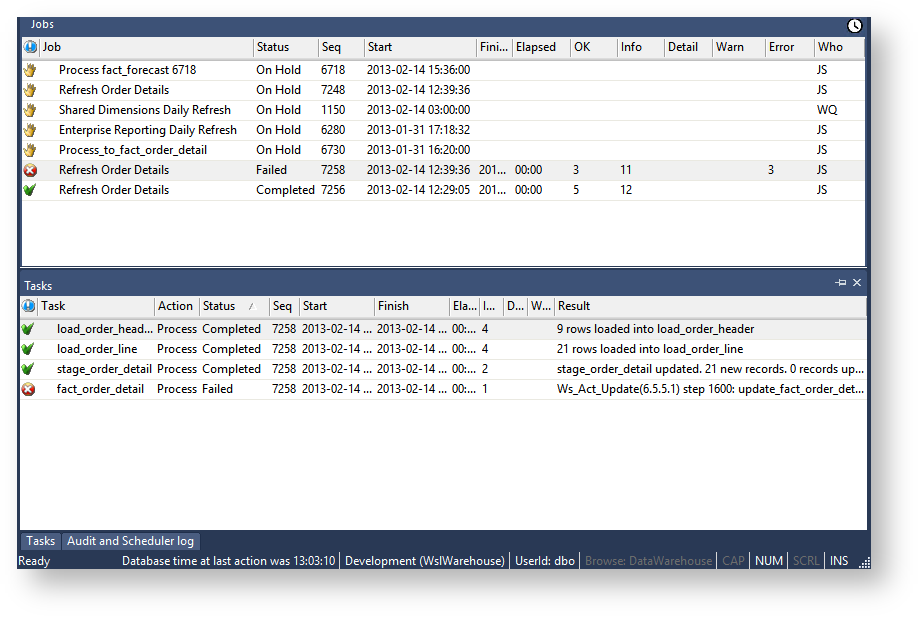
To rerun a task, right-click the completed task and select Change to On Hold
Click OK on the message dialog.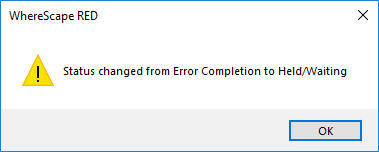
Double-click on the job again to display the tasks. You will see that the selected task now has a status of Held and will thus be rerun when you restart the job.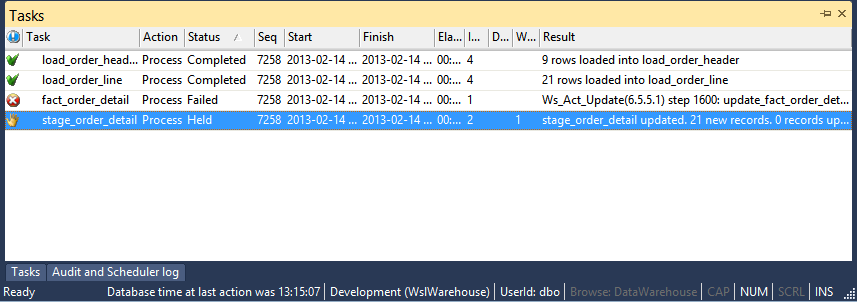
To skip over a task
View the job tasks by double-clicking on the failed job. The tasks will be displayed in the bottom pane.
To skip over a task, right-click the task and select Change to Completed.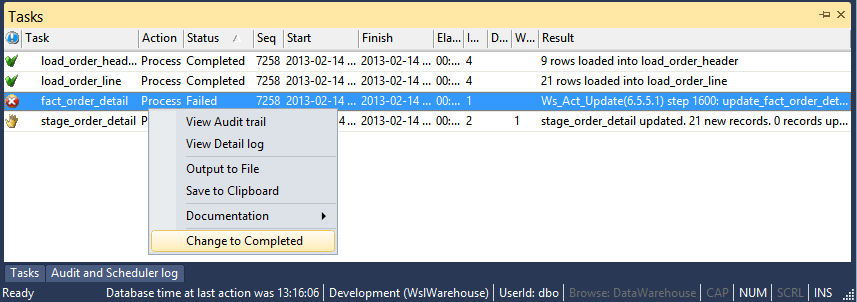
Click OK on the message dialog.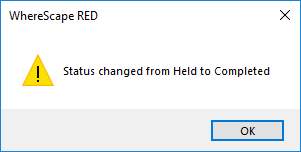
Double-click the job again to display the tasks. The selected task now has a status of Completed and will thus be skipped when you restart the job.