The AWS RDS System counter allows SQL Diagnostic Manager to monitor counters that are collected using CloudWatch for Amazon RDS instances.
To continue setting up your customer counter
- After you select the AWS RDS System Counter type when adding a Custom Counter, you need to provide some configuration details of your AWS RDS server:
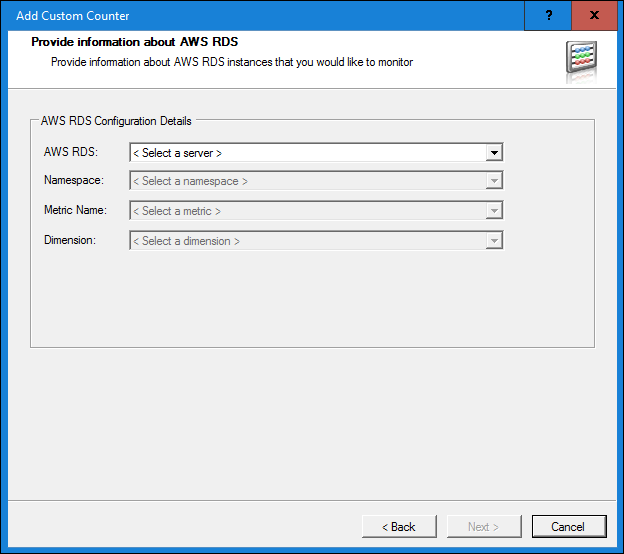
- Select a server from the list of available AWS RDS servers. The Instance List window appears.
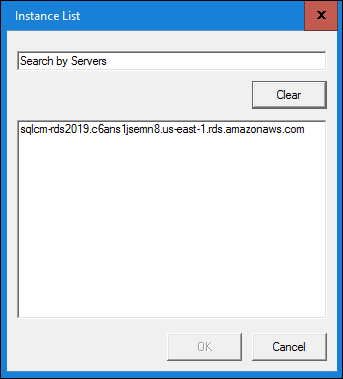
- In the Instance List window, search for an select the appropriate AWS RDS server, and then click OK. The selected server name appears in the AWS RDS field.
- Select an AWS namespace from the list of available Namespaces.
- Select the name of the metric you want to use from the list of available Metric Names.
- Select the dimension or name/value pair from the list of available Dimensions.
- Click Next.
- In the Customize Counter Value window, select whether you want to use collected value (default selection) or use a per-second value since the last collection.
- Select the scale factor you want to use to manipulate a custom counter value in cases where the raw value does not fit the number format you expect. By default, this value is 1.
- Optional. Click Test to run your selections.
- Click Next.
- Type a name and description for your new counter while also selecting the appropriate category before clicking Next.
- Configure your alert settings as needed:
- Select whether higher or lower metric values are worse.
- Set thresholds for your informational, warning, and critical alerts.
- Select whether you want to enable this custom counter alert by default when it is linked to a monitored SQL Server instance.
- Click Next.
- Click Finish to complete the wizard and create the custom counter.