1. Start the install/upgrade process by inserting the Installing LANSA on Windows DVD in the DVD drive.
If there is an IBM i master as well, upgrade it first.
The initial install page will open: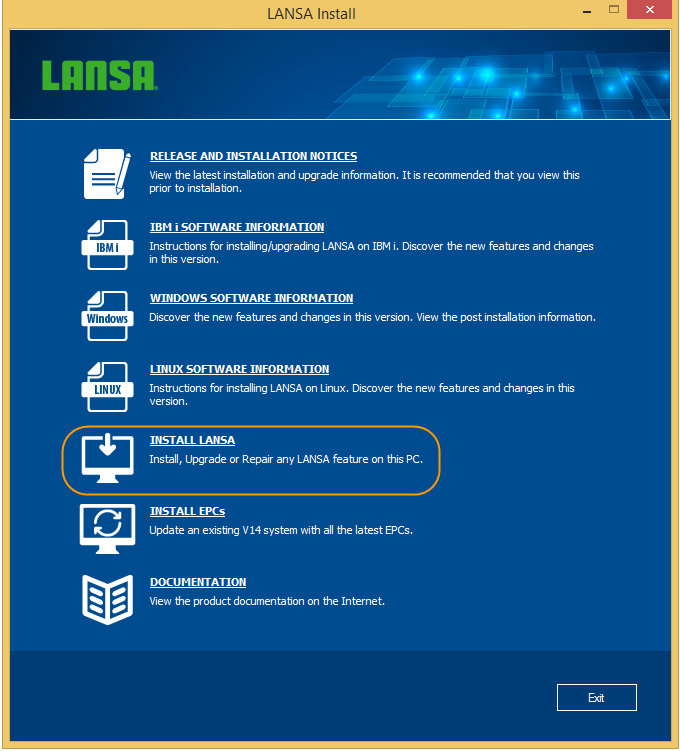
2. Select Install LANSA from the initial Install menu.
The Setup Type window will open for you to select the type of action you wish to take: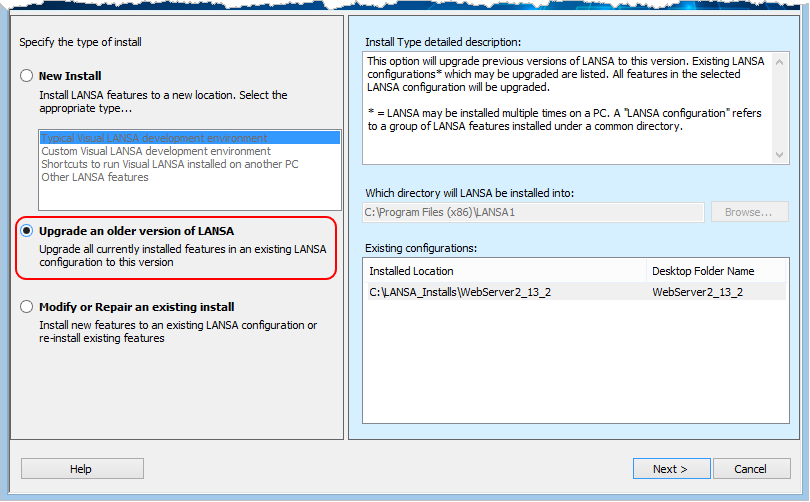
3. To upgrade, select Upgrade an older version of LANSA.
Existing Configurations
In this list are all your current systems with a version that can be updated by this upgrade process. If you have older versions that are not listed, you will need to update them as described in Upgrading Previous Versions of LANSA in 4. Upgrade LANSA on Windows, before you can upgrade them.
4. Select one of the configurations in the list and press the Next> button.
This message will be displayed:
If the database product is found to be of an unsupported version, an error will be displayed. You will have to upgrade the database product before the selected configuration can be upgraded. If the database product is an unsupported version of SQL Server Express, the LANSA install will offer to upgrade SQL Server Express automatically if the version can be upgraded directly to SQL Server 2019 Express. The LANSA install will also offer to upgrade SQL Server Express if the current version is supported but older than
SQL Server 2019 Express.
The upgrade of the database product will happen immediately so that the installer can successfully access the database. It is important to note that the SQL Server Express instance will be upgraded which means that all databases within that instance will be using the upgraded database product. If there are other databases in the instance, you should ensure, prior to upgrading, that the products that use those databases are compatible with SQL Server 2019 Express.
If you are upgrading a Local Client, then the LANSA Repository won't be updated as there is no Repository on a Client system. The Master Visual LANSA system must be upgraded prior to the Local Client upgrade.