In this step you give different names to two IBM i system command screens which have the same signature (all IBM i system command screens have the same signature), the IBM i Main Menu and Work with Active Jobs.
You will uniquely identify these screens by selecting additional details on the screen as ID fields.
1. Navigate to the IBM i Main Menu screen in the RAMP-TS 5250 emulator session.
You have already named the screen i5OSMainMenu, but because this screen has the same signature as other IBM i screens, you need to add more information to its definition to uniquely identify it.
2. Add the title of the screen to the definition by checking the check box in front of it.
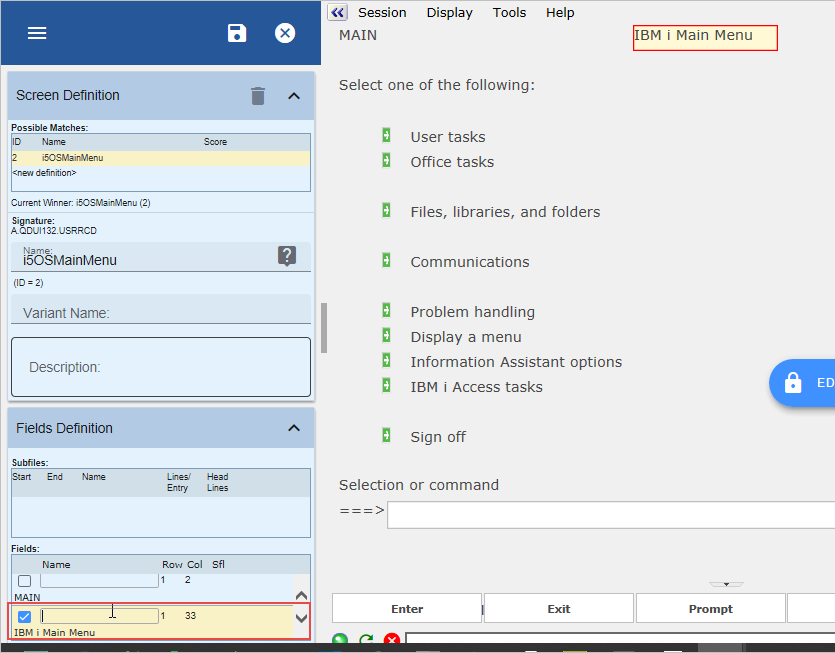
3. Click on the Save button on the Screens tab.
Next name the Work with Active Jobs screen:
4. Navigate to the Work with Active Jobs (WRKACTJOB) screen in the RAMP-TS 5250 emulator session.
5. Add the title area to the screen definition by checking the check box for the title in the Screens tab.
6. Enter WrkActJob as the screen name.
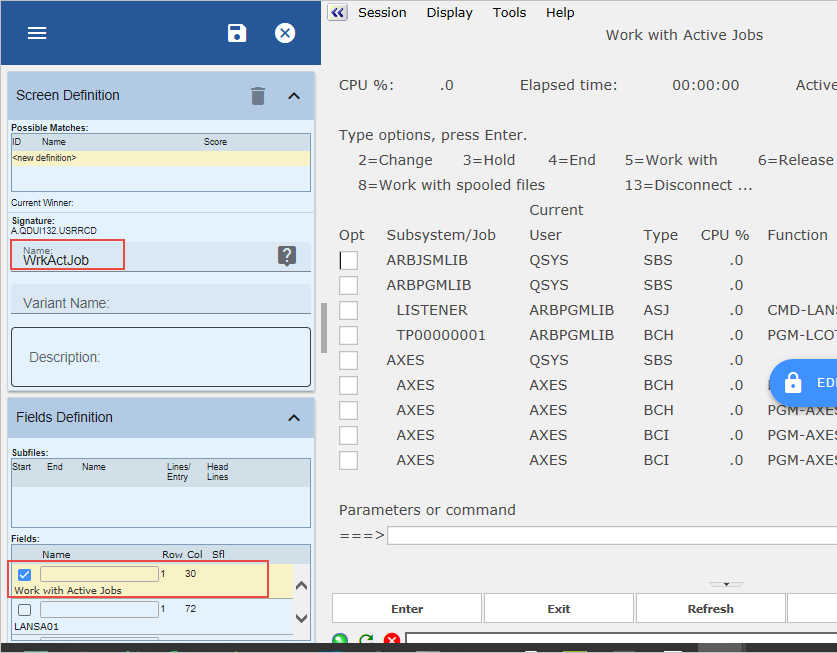
7. Click Save.
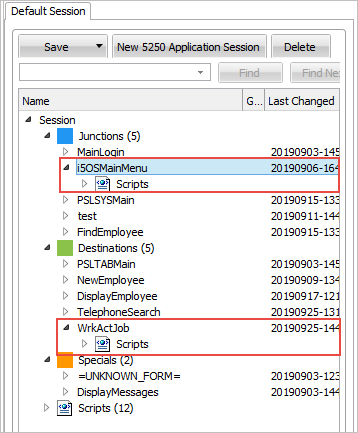
8. Classify the WrkActJob screen as a destination.
Note that now the two screens have their own definitions with associated scripts:
9. Next track the navigation to and from the Work with Active jobs screen.
10. Do a partial save of the RAMP definition.