In this step, you will learn how to set breakpoints in a form. A breakpoint is the line of code where the form will stop execution so that you can review the code or variables. You will add a breakpoint at the beginning of the UPDATE button click event, before any data is written to the table.
1. Scroll down to the event handling routine to UPDATE.Click
2. Press the F9 key to set a breakpoint on this line. The line is highlighted in red.
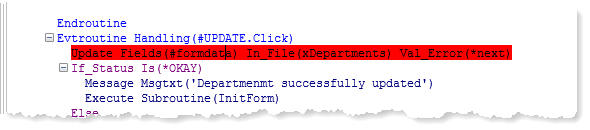
3. Press F5 to continue executing the form. Enter 1000 as the department code and click the Fetch button. The form will display the Internal Audit department. Leave the value of the Department Description as it is and click the Update button. When the form reaches the breakpoint, source code will be redisplayed, with the breakpoint line highlighted in yellow.
4. Display the Breakpoints tab. The new breakpoint will be listed as follows:
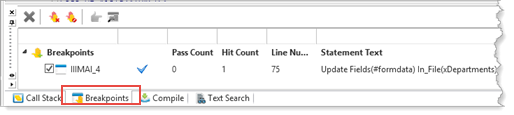
The program will now stop before executing this line of code. This will allow you to view and change the variables or make other changes to debug settings.
5. Scroll to the top of the code and set the focus on the GROUP_BY command, and press F9. Notice that this command is not highlighted. You can only set breakpoints on executed lines of code. The GROUP_BY is a definition statement, used for compilation and is not used at execution time.
6. Press the F5 key to execute the application until the next breakpoint. Since there are currently no more breakpoints, the UPDATE will be processed and the form redisplayed.