You specify the default location of the LANSA Web working library in the Miscellaneous page of the Configure Data/Application Server.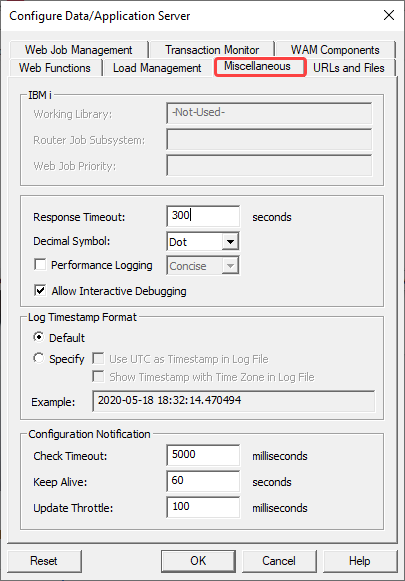
Working Library (IBM i only)
This library is used by LANSA Web to create its internal files.
If you have multiple LANSA systems on a single IBM i, it is strongly recommended that each of these LANSA systems is set up to have a different working library. This allows you to use the cleanup program, W3@P2200, against each individual system without disrupting the other LANSA systems on your IBM i.
The specified library must already exist on the IBM i.
The setting will not be reset to default.
Web Job Priority (IBM i only)
Configure the job priority of the Web jobs. New web jobs will now be assigned this job priority.
The default value is 19.
Response timeout
Response time is the given amount of time for which a primary job receives an acknowledgment from the secondary job. When the response time is reached, the primary job stops waiting for secondary job.
For a multi-tiered setup, the data application server has a default value of 300 seconds and the web server has a default value of 600 seconds response. The response time for the web server must always be set greater to that of the data application server to allow for network traffic.
In a single tier setup, this value has a default value of 300 seconds.
A value of 0 means there is no timeout.
Decimal Symbol
This setting determines which decimal symbol is used for some of the Web related operations in the LANSA runtime. It needs to be in sync with the LANSA setting. The possible values are Dot, Comma and Default. If you select the Default option, the next time a web function runs it will use the LANSA runtime value.
The default value is Dot
Performance Logging
When enabled, this setting determines the level of performance logging. Choose between Concise, Moderate and Verbose.
The default value is Disabled.
Allow Interactive Debugging
Enable interactive debugging using the LANSA Development Environment.
The default value is 'N'.
Log Timestamp Format
When Default is selected:
- Local timestamp without time zone is used in the Trace File.
For example: 2020-05-11 12:53:50.921598
When Specify is selected:
- Use UTC as Timestamp in Trace File
Choose whether to use UTC or local timestamp in the Trace File.
- Show Timestamp with Time Zone in Trace File
Choose whether to include time zone or not in the Trace File.
To include time zone is useful when there is a need to coordinate multiple trace files. This can be useful for Cloud environments. Note that time stamps without time zone are less useful unless the time zone is already known. However, producing time zone information may impact logging performance. Please take that into account when choosing the time stamp options.
The screen's Example will show you what your selected Trace Timestamp will look like.
Configuration Notification
Check Timeout
For IBM i, this is the polling time of checking for LANSA system web configuration changes. Shorter timeout can report web configuration changes more frequently but imposes more system loading to both the LANSA system and the Web Server.
For other platforms with file system changes notification (i.e. Windows and Linux), LANSA system web configuration changes can be reported back to Web Server Extension as soon as changes happen.
For all platforms, this also controls how frequent the background process performs periodic health check. Longer timeout may cause the background process taking longer to shutdown itself after the Web Server has been shut down.
Default is 5000 milliseconds.
Keep Alive
If no web configuration change is detected, the background process sends keep-alive message every keep-alive period to Web Server Extension. This action both identifies the background process is healthy and detects if the Web Server has been shut down. If Web Server has been shut down, the background process shuts down itself.
Default is 60 seconds.
Update Throttle
Only for platforms with file system changes notification (i.e. Windows and Linux). This setting controls the maximum number of updates allowed per second. With a value of 100 milliseconds, a maximum of 10 updates per second will be sent the Web Server Extension.
If many web configuration changes are to happen within the throttle period, the web configuration changes should be consolidated into one update to reduce loading for the Web Server.
Default is 100 milliseconds.