When you select the Add or Change button on the Maintain Websites (local) dialog box, the Add or Change Website <as requested> window is displayed. Add or change the Web Server options as required. Add or change option on the Advanced tab as required.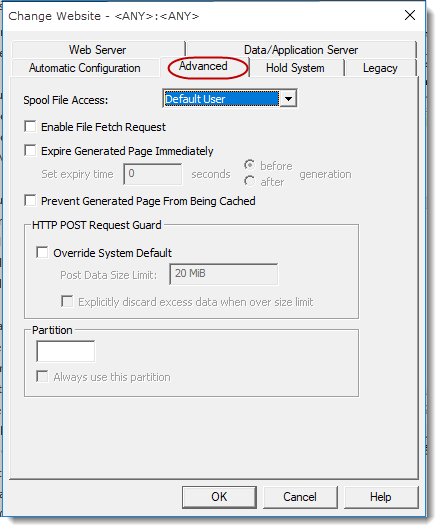
Spool File Access
Select an entry from the drop down list to set the level of user access to view IBM i Spool files via LANSA Web. This setting will only be relevant if you connect to an IBM i Data/Application Server and retrieve HTML.
Possible Spool File Access selections are:
- No - Spool file access is not allowed for this system.
- Default User - Spool file access is allowed and the user access will be as per the user profile associated with the default user. The default user will be the LANSA Web registered user of DFTPRT. If DFTPRT is not a LANSA Web registered user, DFTUSR will be used. The IBM i user profile associated with the default user will determine access rights to view spool file data. Refer to 1.4.2 User Registration for details of setting up default users.
- User Authentication - Spool file access is allowed and the user is required to provide authentication. This requires that the Web Server must be set up to require user authentication and that those users you wish to have access must be set up in the Web Server. The Web Server will not permit you to progress any further unless you provide a valid user profile. If a valid user profile is provided, the LANSA Web spool file features are available.
- When a user logs on to LANSA Web, it determines if the Web Server user profile is a registered LANSA Web user. If the user is known to LANSA Web, the associated IBM i user profile is used to determine access rights to spool file data. If the Web Server user profile is not registered with LANSA Web, the access to spool file data will be determined in the same way as for Default User access.
Enable File Fetch Request
This option allows the LANSA Web Server Extension or LANSA Web Server Extension for Linux to handle URLs like this: http://server/cgi-bin/lansaweb?fetch=/some/file to retrieve files from the Data/Application Server.
HTTP error code 404 (File Not Found) is returned if:
- this option is enabled and the corresponding option on the Data/Application Server is disabled.
- the requested file path does not exist in the file fetch directory.
By default, this option is not enabled.
Expire Generated Page Immediately
This option is used to expire the generated page at the specified time.
If enabled, the following additional text will be added to the HTTP header of every web response produced by the LANSA Web Server Extension: Expires: {time}
The expire time can be set to either the time when the web response is generated by the Data/Application Server or specified seconds before/after the generation time.
See W3C protocols: 14.21 Expires for more information.
By default, this option is not enabled.
Prevent Generated Page From Being Cached
This option is used to control caching behavior of web browsers and proxies.
If enabled, the following additional text will be added to HTTP header of every web response produced by the LANSA Web Server Extension: Pragma: no-cache
See W3C protocols: 14.32 Pragma for more information.
By default, this option is not enabled.
HTTP POST Request Guard
You can either use the settings defined at the Web Server level or you can override those settings for this LANSA System. See Post Data Size Limit in General (LANSA Web Server Extension) for information.
Partition
Specify the partition if you want to have all the requests for this Web Server/Port to use a particular LANSA partition or if you want to use a default partition. If no partition is specified, you must specify the partition parameter in your URL.
Always use this partition
If this option is selected, the specified partition will override any partition specified in the URL.
If this option is not selected, the specified partition will be used as a default partition if none is specified in the URL.