LANSA BI can be integrated with Visual LANSA applications to embed analytics content such as dashboards, reports, and charts directly inside business applications.
LANSA BI includes AI-driven insight capabilities that can generate natural language explanations and suggested visualizations from reports and dashboard visuals. These insights can be inserted into Stories or reused as standard charts within LANSA BI content embedded in Visual LANSA applications.
LANSA BI 9.16.1.1 continues to support the integration capabilities introduced in earlier releases, providing improved analytics functionality while maintaining the same integration mechanisms for Visual LANSA applications.
Key integration capabilities include:
- Enhanced REST APIs integration with Visual LANSA.
- Embed BI content, dashboards, charts, and reports.
- Automate workflows and reports.
- Build intelligent and branded analytics.
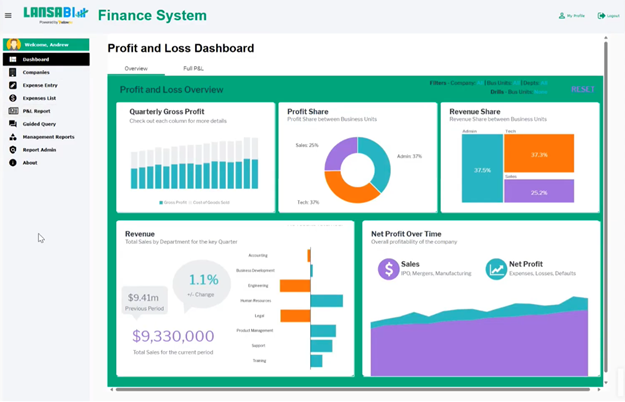
The LANSA BI installation package includes a sample of the Visual LANSA web file. This sample helps you quickly integrate LANSA BI dashboards and reports with your application in Visual LANSA.
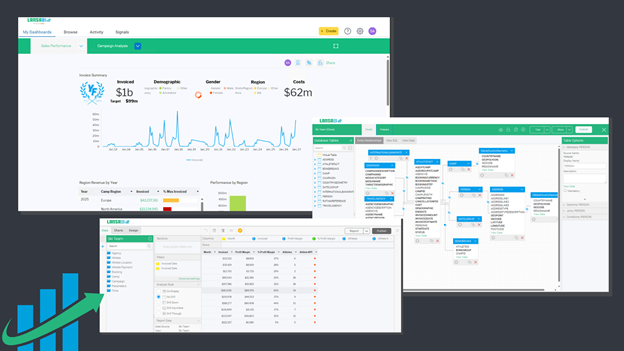
REST API functionality
The expanded range of REST API allows you to create your own applications in Visual LANSA, having multiple seamless integrations with LANSA BI’s reports, dashboards, and content.
The REST API provides important functionality to help you automate key processes, such as automating the onboarding of new clients in a multi-tenant environment, building custom embedded applications using LANSA BI in Visual LANSA, and integrating LANSA BI content (users, stories, signals, reports, etc) inside a LANSA application.
The REST API functionalities are:
- Content endpoint: returns a list of all content accessible to a user, including Views, Reports, Dashboards, Stories, and more. It allows further ability to build a custom content browsing solution in an embedded BI scenario.
- Dashboards, presentations, and themes endpoints: retrieves a list of items or detailed information for a specific content item.
- Health endpoint: returns the overall health of a Yellowfin deployment, including clustered deployments. There are two forms:
- Ping endpoint: returns limited information, and it does not require authentication.
- Full health endpoint: returns comprehensive information about the deployment.
- Users and import-export endpoints: updates the user profile information, such as timezone, language preference, and lists the dependencies of a Content Item from within an Import File.
- Cached filter refreshes: the REST endpoints trigger cached filter refreshes for Dashboards and Views.
- API integration: allows external developers to get information about the user and organization in a user-friendly interface. It eliminates the need to reference internal Yellowfin methods to get the current user, role or client organization when developing custom headers, JSPs, and internal plugins like formatters and analytic functions.
For detailed technical information, see the REST API documentation here.
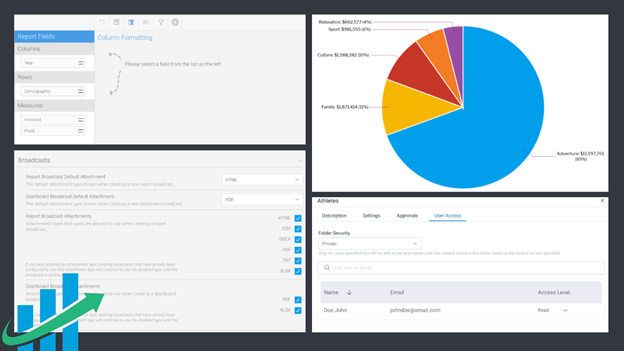
Report Builder
- Re-order columns from the Column Formatting page by dragging and dropping the column to a new location. This is especially useful for Reports with a large number of columns.
- Calculated totals are supported across most chart types. It is extremely useful when using Calculated Fields in a report. It provides the option to re-execute the calculation at the total or sub-total level for a report, rather than using traditional aggregation types such as Sum, Average, etc. It is useful when you use a calculation such as a ratio (e.g., return on equity).
- Apply micro-configurations to your charts, such as changing the color of label lines.
User Interface
- Create and edit folders.
- Share reports and stories.
- View summaries.
- Resize table columns.
- Filter your information.
Attachments
- Reporting capabilities, such as export, share, and broadcast reports as attachments (using Export and Broadcast features).
- Separated role functions for TXT and CSV.
- Fine-grained attachment control for Reports and Dashboards, including the ability to modify the default attachment type for broadcasts.
Image
- Upload images from the browser clipboard, making it easier when adding images to stories, dashboards, or presentations. To search for an image, right-click to copy it and paste it directly into the Image Manager popup.
- If you do not have a profile image, the user avatars display your initials, similar to many modern messaging applications.
- Customize the displayed initials.
- Choose a custom background color for your avatar. You can use the standard color picker that allows you to choose between standard or fully custom colors, including the ability to enter the hexadecimal code of your favorite color.