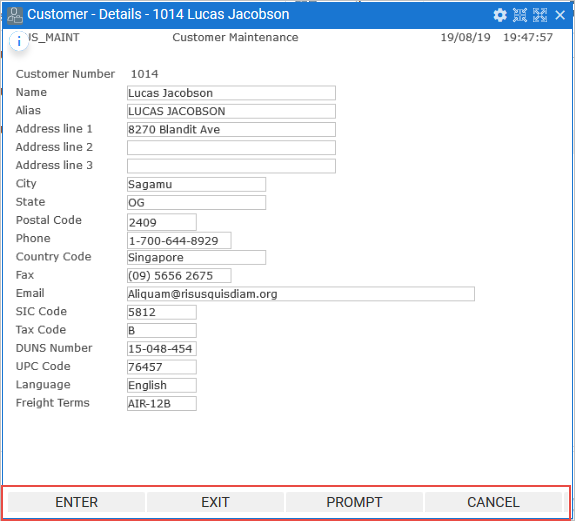
When a screen is classified as a Destination, RAMP creates a button for each function key found in the screen.
By default, all buttons and function keys are enabled when you snap in a 5250 screen.
There will be users who prefer using the function keys as they did when using the application on an IBM i and most likely a lot of other users who won't. Some users may not even know what a function key is.
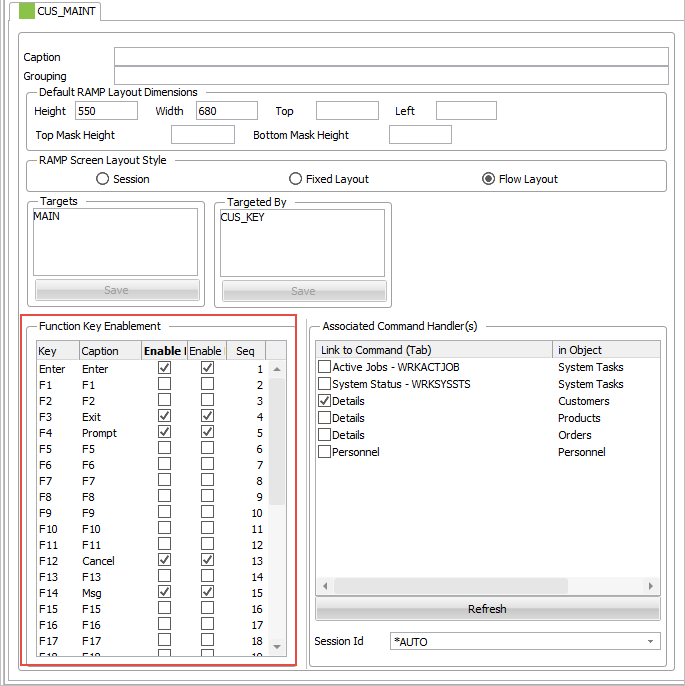
Use the optoins in Function Key Enablement in a destination screen's details tab to:
- Enable/disable a function key. Only enabled (checked) function keys can be used in a screen.
- Enable/disable a button. Enabled buttons will show on the screen. Clicking on a button will have the same effect as pressing the key.
- You can edit the caption to appear on the enabled button.
In this tutorial, we will:
- Disable all function keys except the Enter key.
- Of the currently enabled buttons, enable only Enter key and modify its caption to Save
- Enable currently disabled button F3.
We will use the Customer details screen, here with function keys and buttons enabled: