In this step you name the screens in your application. Naming the screens and the fields used for navigation (if any) is always the first step when modernizing applications with RAMP - do not try to track navigation and name screens at the same time.
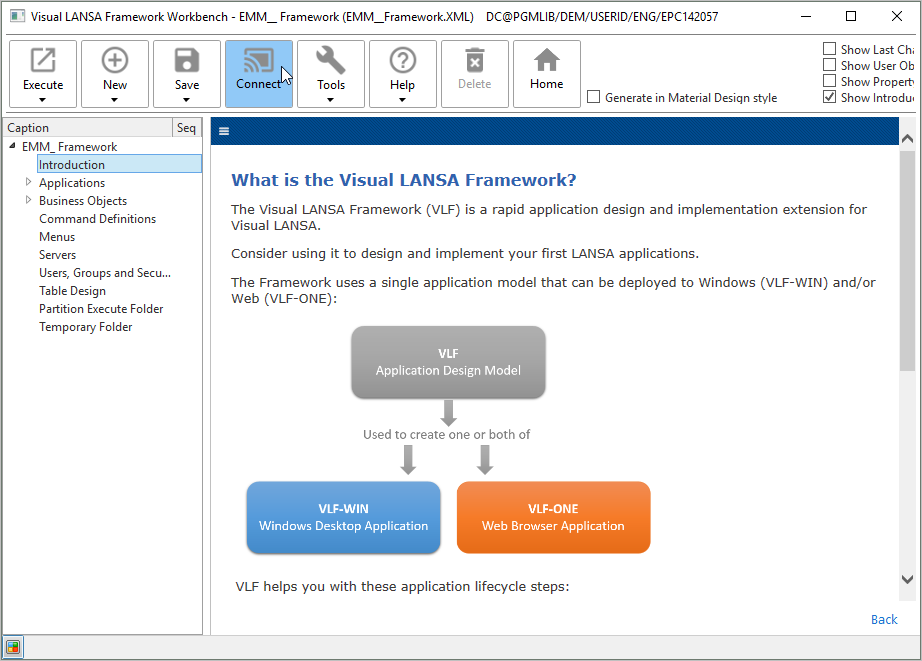
1. In the Framework Workbench, click Connect on the ribbon and connect to the server.
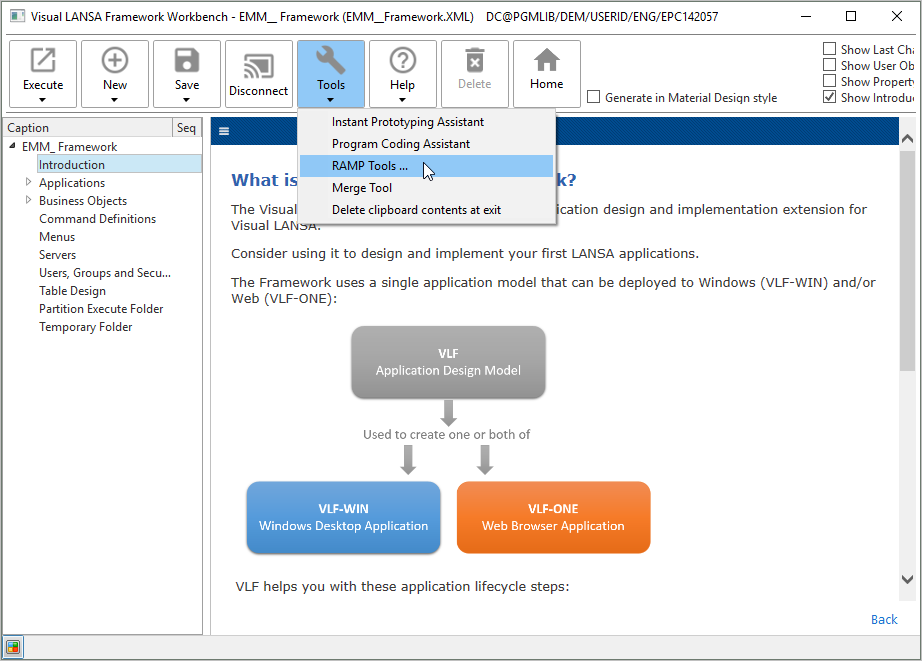
2. Start RAMP Tools by selecting the RAMP Tools… option in Tools in the ribbon:
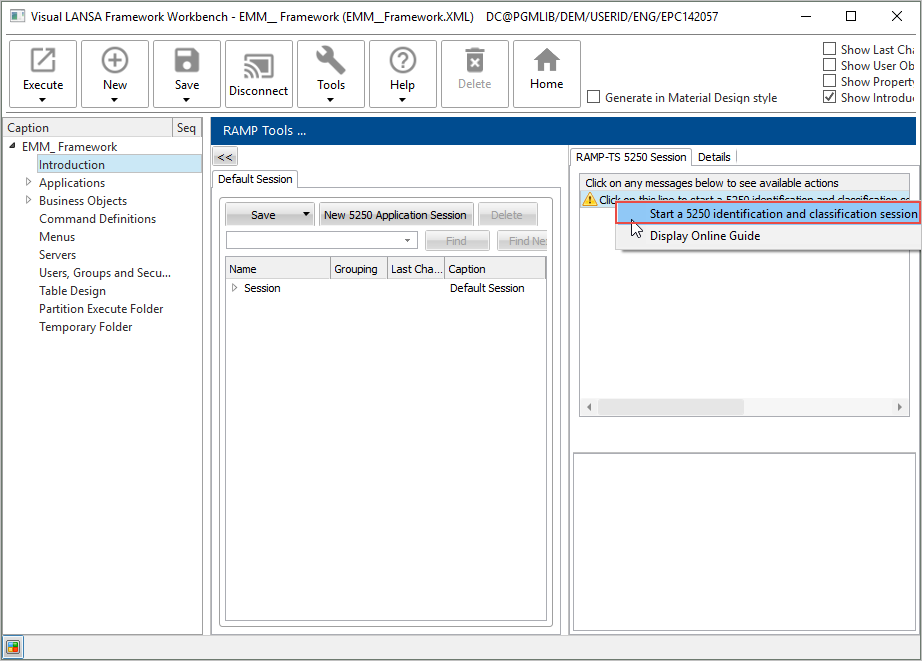
The RAMP Window is displayed.
3. In the message area click on the message indicating that RAMP Tools has not been started and choose the option to start it:
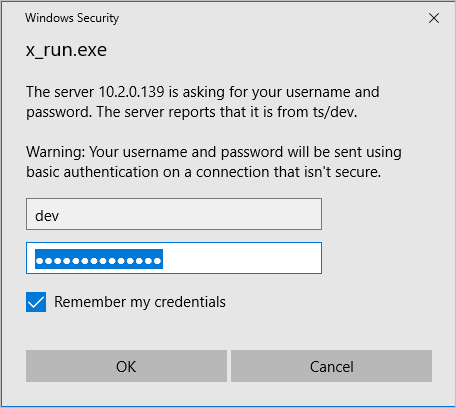
4. If you get a Windows Security message, sign in. The default RAMP-TS developer authentication userid and password are dev and dev, but your system values may be different.
The RAMP-TS 5250 Emulator Session window is displayed:
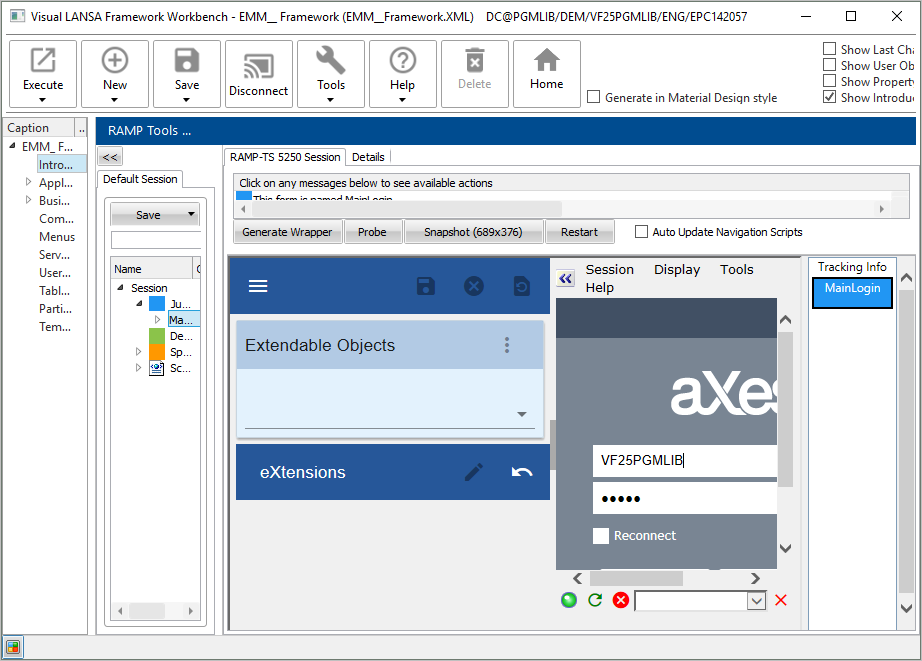
In the Tracking Info area you will notice that the login screen of your server is named by default MainLogin. This is the only screen that has a default RAMP name.
5. Click on the Un-pin button to hide the aXes tabs.
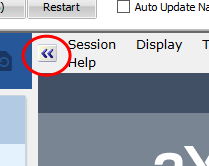
6. Outside the Framework, start a 5250-emulation session and sign in to the same machine using the user profile you are going to use in RAMP. This will cause a program message to be displayed when you sign into RAMP.
7. In the RAMP window, log in to your server system.
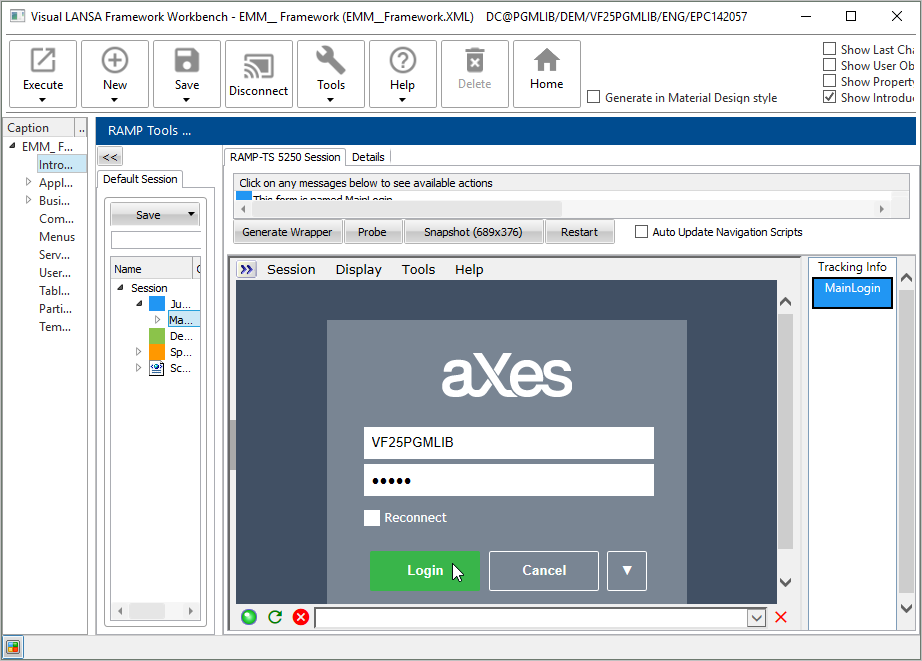
The first screen you encounter is a program message:
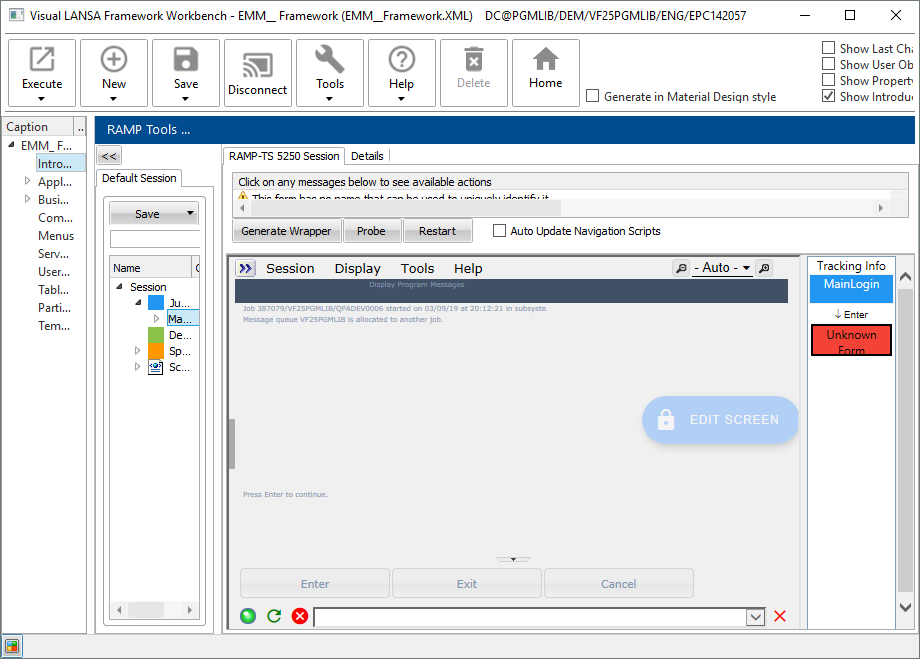
Notice that the Screen Tracking Area indicates the screen has no name (Unknown Form).
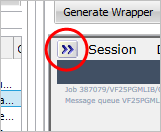
8. To name the screen, click on the Pin/Un-pin button in the top-left corner of the RAMP-TS 5250 window:
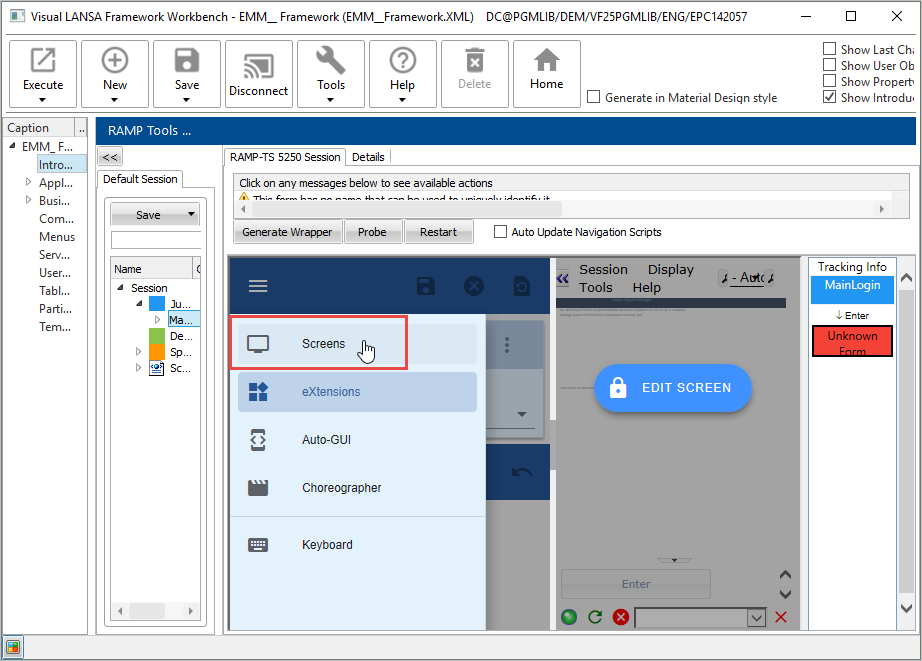
9. Select Screens in the menu that appears:
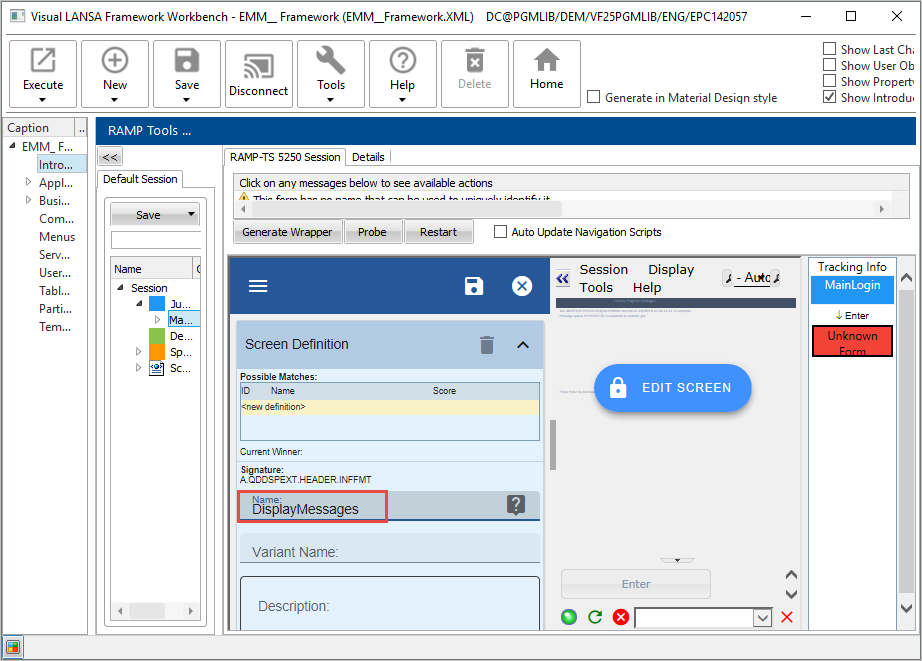
10. Name the screen DisplayMessages:
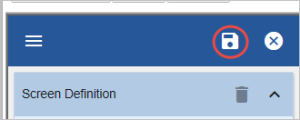
11. Click the Save button:
The tracking information now shows the name of the screen:

12. Move the focus to the Session window and press Enter to dismiss the message. The IBM i Main Menu is displayed. The tracking information indicates that the screen does not have a name.
13. Name it i5OSMainMenu in the same way as you named the messages screen.
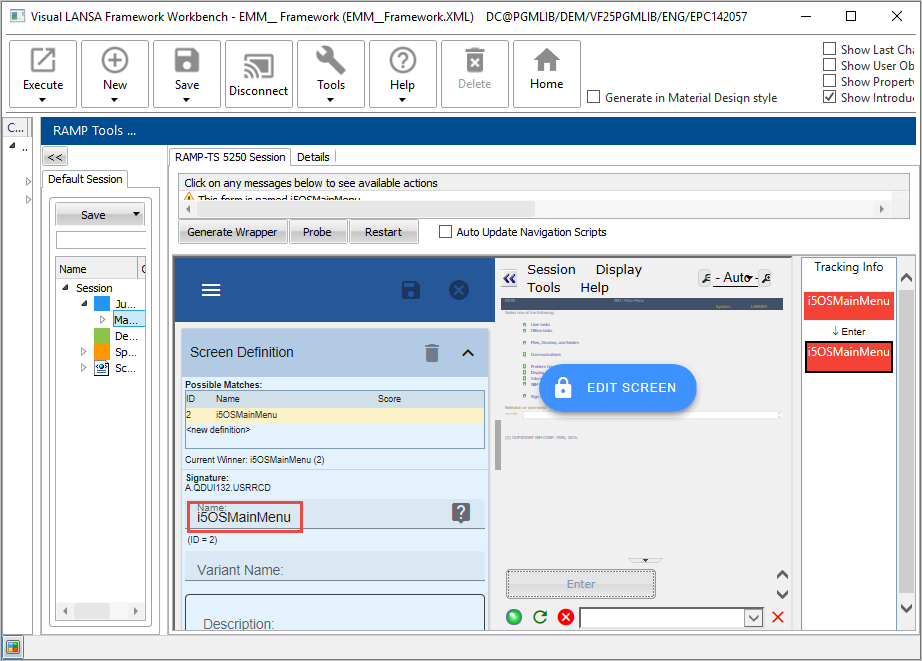
You will also need to name the command line field on this screen so that any commands entered can be tracked:
14. Scroll down the list of fields in the Screen tab.
15. Locate the command line field:
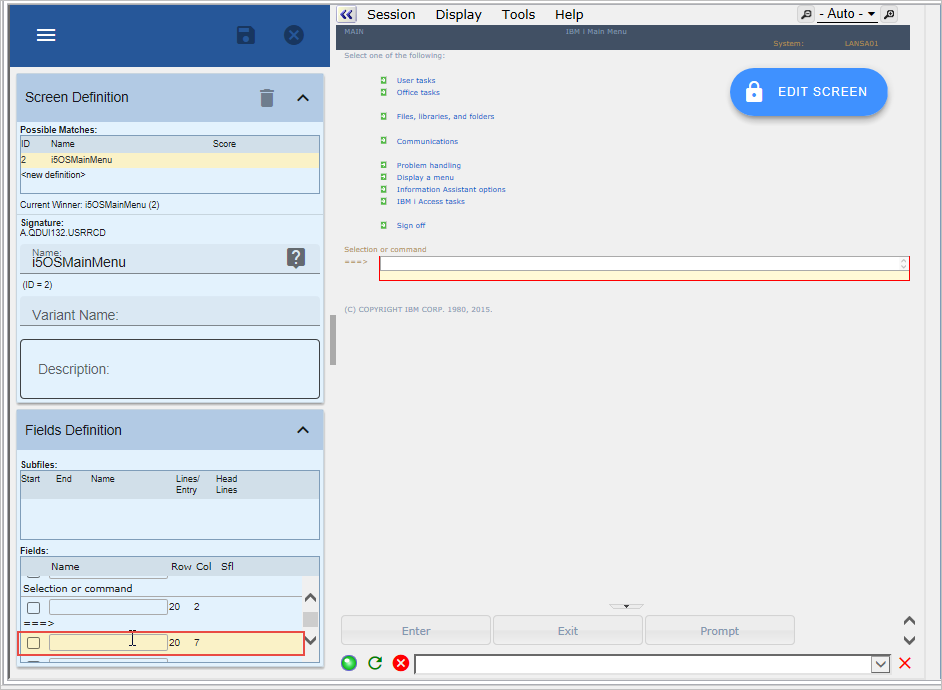
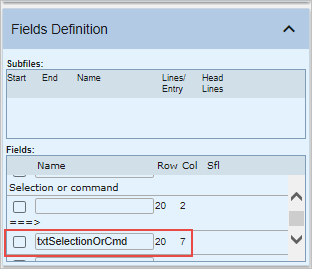
16. Name the field txtSelectionOrCmd and click Save.
17. Display the Personnel Table Main Menu by typing this command on the command line on the i5/O5 Main Menu screen:
lansa run psltab partition(dem)
18. Identify the screen with the name PSLTABMain.
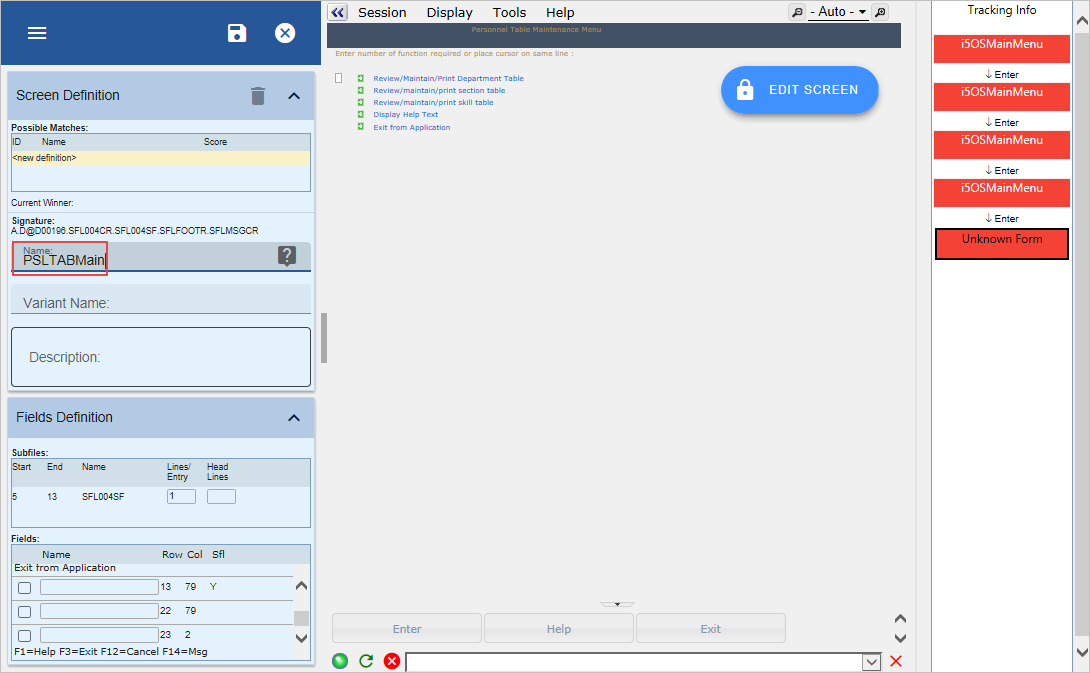
19. Click Save.
20. Click on the arrow button to hide the tab folder.
You have now finished naming the screens for this tutorial.