Use the Session Details to specify various settings for your 5250 Application Session:
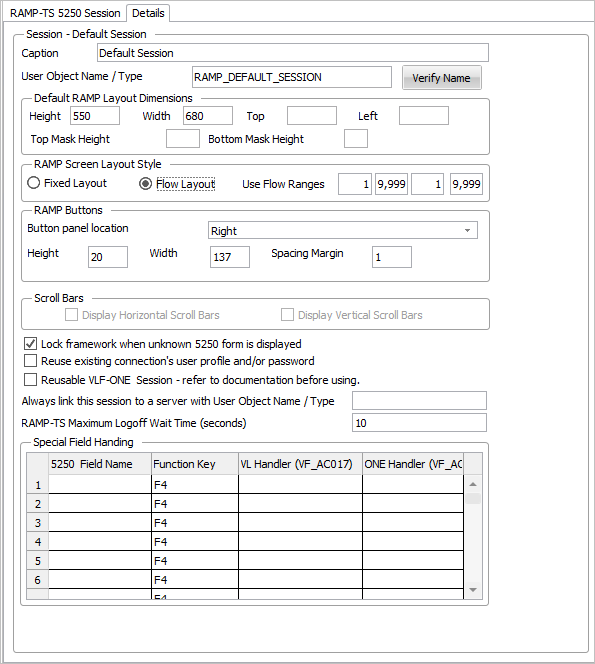

Caption | The caption of the RAMP 5250 Application Session. | ||||||||||||||||
User Object Name / Type | See User Object Name / Type in the Framework Guide. | ||||||||||||||||
Default RAMP Layout | Height - The default height of 5250 screens when displayed in the Framework. Width - The default width of 5250 screens when displayed in the Framework. Top - The default distance between the top of the RAMP screen tab and the 5250 screen. You can use this option to Hide screen titles in individual RAMP Screens. Left - The default left indentation of the 5250 screen when displayed in the Framework. Top Mask Height - The default height of a mask you can use to hide the top of the 5250 screen. You can use this option to Hide screen titles in individual RAMP Screens. Not applicable to RAMP Web. Bottom Mask Height - The default height of a mask you can use to hide the bottom of the 5250 screen.
| ||||||||||||||||
RAMP Screen Layout Style | Fixed means the RAMP screens are not resized to fit into the space available to display them. If RAMP Screen Layout Style is set to Flow, RAMP screens will be automatically resized to fit into the space available to display them. If Flow is used:
When you use a flow layout, you can specify a minimum and maximum height and width within which the flow layout style should operate. If the user sizes the 5250 screen to be outside the range, the layout style is swapped to fixed. This allows you to stop a flowing 5250 screen from becoming too small to read, or so large that it looks out of place | ||||||||||||||||
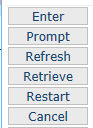
RAMP Buttons | Button panel location This is where on the RAMP screen the buttons will be displayed. Possible values are Left, Right, Top, Bottom and None. The default is Right. If None is selected, the buttons panel will not be displayed. If Left or Right is selected, the buttons will be arranged down the page in a column.
The sizing of the buttons will depend on which variant of Top and Bottom you choose. | ||||||||||||||||
Height This is the button height in pixels. The default is 20 pixels. Width This is the button Width in pixels. The default is 137 pixels. This is used as the button width for all button panel locations EXCEPT the Share Space button panel locations. In this case the button width become the maximum button width. Spacing Margin This is the margin in pixels assigned to each button, between buttons. So the spacing distance between two buttons will be twice the spacing margin. The default spacing margin is 1 pixel, so the default spacing distance between buttons will be 2 pixels. |

Scroll Bars | If the Display Horizontal Scroll Bars option is checked, VLF.WIN applications will display horizontal scroll bars when a Fixed size 5250 screen will not fit in the display area. VLF-WEB/NET applications always act as if the Display Horizontal Scroll Bars option is checked. If the Display Vertical Scroll Bars option is checked, VLF.WIN applications will display vertical scroll bars when a Fixed sized 5250 screen will not fit in the display area. VLF-WEB/NET applications always act as if the Display Vertical Scroll Bars option is checked. |
Lock Framework when unknown 5250 form is displayed | This option applies a lock to the Framework when an unknown 5250 screen is encountered. When a lock is applied, the user cannot move around within the Framework until they navigate to a defined 5250 screen. They can exit from (for example, shut down) the Framework when such a lock has been applied. Typically this option is used to trap unknown and/or unexpected 5250 screens. In highly defined and managed sessions, where every 5250 screen should have been defined to RAMP, set this option on. In unmanaged sessions always set this option off. |
Reuse existing connections user profile and/or password | Use this option to indicate that when this 5250 application session needs to connect to a server it should reuse the same user profile and/or password details as were used to establish the last successful server connection. This option can be used to prevent the user from being prompted to input their user profile and/or password repeatedly for each new 5250 application session that needs to be started. Typically they are only prompted for the first application session they establish. This option can be automatically overridden by individual user profile options or by SuperServer connection values. The Framework remembers the last user profile and/or password used to establish a server connection only until the user exits from the Framework, at which point the details are lost. |
Reusable VLF-ONE Session | The default VLF-ONE behaviour is to always open a new RAMP session when one is required. When you close the associated business object the RAMP session is terminated. Using the Reusable Session option stops the closure of the RAMP session when the business object is closed. Instead, the session is placed into an 'free' pool. When a subsequent business object that requires a RAMP session is opened VLF-ONE first looks to reuse an available existing session from the free pool, instead of opening a new session. This may result in faster opening times.
|
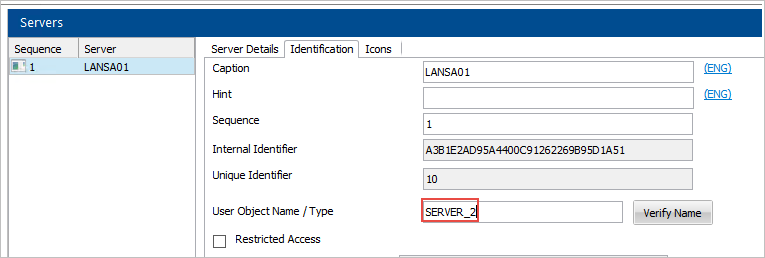
Always link this session to a server with User Object Name / Type | Normally when a user needs to connect a 5250 application session they will be asked to choose which server they want to connect to. Use this option to prevent the user from having to, or being allowed to, making this server connection choice. Using it unconditionally links a 5250 application session with a server. To use this option first assign an unique User Object Name / Type to the server. Display the Identification tab of the server in the workbench. For example, this server has been assigned the User Object Name / Type SERVER_2.
Now the 5250 application session and the server with user object name/type SERVER_2 are unconditionally linked. The user can no longer choose which server to associate the 5250 application session with. To remove this option from a session set it back to the default value of blank. |
RAMP-TS Maximum Logoff Wait Time (seconds) | When a RAMP-TS session needs to be logged off (signed off) this values specifies in seconds the maximum time that the framework should wait for asynchronous time log off operation to complete. The default value is 10 seconds. Specify any integral value in the range 0 to 120. The value is in seconds. In VLF-ONE this option only applies to controlled close downs. |
Special Field Handling | Advanced prompting facility for fields. You specify the name of the field to be prompted, the function key to be used and the Visual LANSA form that is used as the prompter. For more information refer to Advanced Prompting |