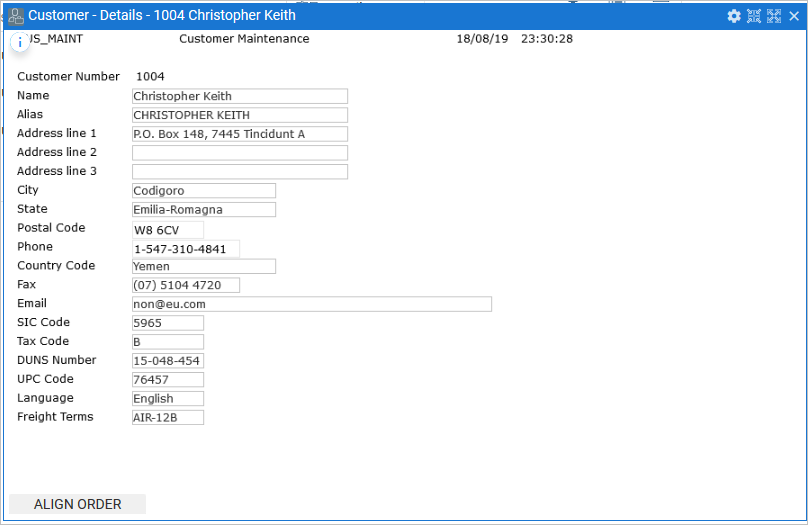
RAMP is shipped with a default set of styles and a jQueryTheme to make the screen appearance resemble a default VLF-ONE screen.
Here is the Customer Maintenance screen without the VLF-ONE styles: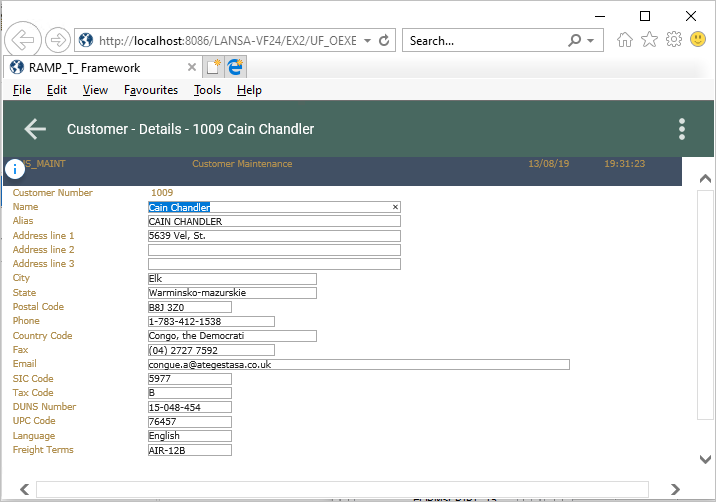
For a new aXes project to adopt the VLF-ONE styles, tick the VLF-ONE RAMP Project check box and the styles will be automatically copied to the project folder. See the tutorial Step 2. Create the Project Container for the RAMP Tutorial.
To manually apply the VLF-ONE styles to an existing project, execute these commands in an IBM i command line:
     CPY OBJ('<root>/ts/screens/.defaults/application_definition_vlfone.js') TOOBJ('<root>/ts/screens/<project folder>/application_definition.js') REPLACE(*YES)

     CPY OBJ('<root>/ts/screens/.defaults/application_definition_vlfone.css') TOOBJ('<root>/ts/screens/<project folder>/application_definition.css') REPLACE(*YES)

     CPY OBJ('<root>/ts/screens/.defaults/axautoguirules_VLFONE.json') TOOBJ('<root>/ts/screens/<project folder>/axautoguirules.json') REPLACE(*YES)

     CPY OBJ('<root>/ts/ts2/css/projectThemes/jqtheme_VLFONE/') TODIR('<root>/ts/screens/<project folder>/projectThemes/') SUBTREE(*ALL) REPLACE(*YES)

     CHGAUT OBJ('/axes/ts/screens/<project folder name>') USER(*PUBLIC) DTAAUT(*R) OBJAUT(*NONE) SUBTREE(*ALL)
Where:
- For aXes 4.20, <root> would be for example '/axesjsm/jsm/instance/www/instance/htdocs'.
- For earlier versions of aXes, <root> would be for example '/axes'.
Here the VLF-ONE styles have been applied to the screen: