Show Contents List
...
The Details area shows the details of the script selected in the Screen and Script List.
The scripts are generated automatically as you track your application, but sometimes it is necessary to edit the scripts.
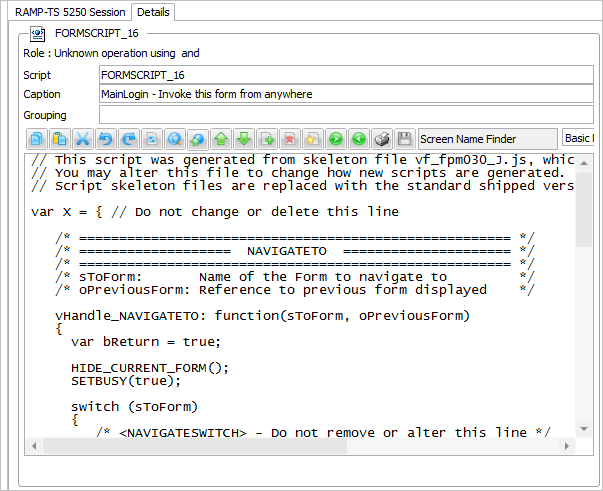 Image Added
  Image Removed
The scripting toolbar has buttons to assist you when working with scripts. From left the buttons are:
Image Removed  Image Added Image Added
| Copy |
Image Removed  Image Added Image Added
| Paste |
Image Removed  Image Added Image Added
| Cut |
Image Removed  Image Added Image Added
| Undo |
Image Removed  Image Added Image Added
| Redo |
Image Removed  Image Added Image Added
| Select All |
Image Removed  Image Added Image Added
| Find |
Image Removed  Image Added Image Added
| Replace |
Image Removed  Image Added Image Added
| Increase Font Size |
Image Removed  Image Added Image Added
| Reduce font size |
Image Removed  Image Added Image Added
| Show/Hide line numbers |
Image Removed  Image Added Image Added
| Comment out lines |
Image Removed  Image Added Image Added
| Uncomment out lines |
Image Removed  Image Added Image Added
| Indent lines |
Image Removed  Image Added Image Added
| Unindent lines |
Image Removed  Image Added Image Added
| Print Code |
Image Removed  Image Added Image Added
| Commit Changes |
Image Removed  Image Added Image Added
| Check Script |
Screen Name Finder
|
which you can use to rapidly locate a screen name, click on name to get the name of the screen pasted into your code at current insertion point. |
Editor type | If you are using RAMP-TS, the RAMP script editor allows you to optionally use the ACE script editor. When the ACE editor is in use, you can switch on its syntax helper to dynamically see warnings about your scripting. |
...
You can use the Scripting Pop-up Menu to help you to format and edit your scripts.
| Anchor |
|---|
_Ref224527913 | _Ref224527913 | Show Contents List