Page History
...
Save your Framework definition file | You need to create a save file for the Framework definition. See Generate VLF-ONE or VLF-Web Resources in the Framework guide for instructions of how to copy the DAT file to the IFS if it is not there already. | The Framework definition file will have the form XXXXXXXXX_LLLL_VLFONE_Definition.DAT where XXXXXXXXX is the Framework name and LLLL is the language. |
...
Create an IBM I Export List | Create a LANSA export list named Bnn_ALL. | Use the option Work with lists of objects to be exported of the LANSA Housekeeping menu to create the export list. Note that if your deployment package does not contain files, you can simply move your save files to the target system without using Import/Export. |
...
Include all the standard Framework objects in the export list | Use F8 to make generic selections when adding objects to the export list. | ||
Processes/functions: | VF_PR001/VFU0012 | ||
Other/non-LANSA: (Type *SRVPGM) | U_BIF985 | ||
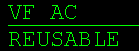
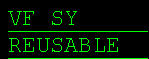
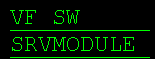
Visual LANSA components: | VF_AC* - filter by type REUSABLE: |

Include all your own LANSA objects in the export list | Add your objects (filters, command handlers etc.), multilingual text variables, system variables, message files, files, processes, functions and images used in the application. Make sure you include your custom snap-in components. For more information please refer to VLF-ONE Snap-In Points Summary in the Framework Guide. | ||
Review the export list and make sure included objects are exported compiled (if applicable). | Specify Y in the Comp Form column of processes, functions, VL components etc. Save the list (F19). |
Export the list |
| Create a save file Bnn_ALL for your export list using the CRTSAVF command. CRTSAVF Bnn_ALL Export your export list to the save file using option 7 (= Export) in the Work with Export Lists menu. |