This document provides troubleshooting steps for different issues related to Azkaban and the RED Scheduler.
Issues Starting the Windows Scheduler Services
Error: Azkaban windows service - Error 1053: The service did not respond to the start or control request in a timely fashion.
If your get this error from the WhereScape Scheduler Installer or when trying to start an existing service via Windows Services management, then you may be running into a sharing violation between other WhereScape Scheduler services which are running on the Local System account.
It is not recommended to run multiple WhereScape Scheduler services with combinations of Local System and User logins. This is a known issue which will be addressed in a later release of RED. The workaround is to turn off any WhereScape Scheduler services running as Local System and start the User based services first.
Running diagnostics on an Azkaban Executor
The below python script can be used to run a job against an Azkaban Executor that outputs diagnostic information and tests ODBC connectivity, useful for debugging and also for providing to support for analysis:
To use this script:
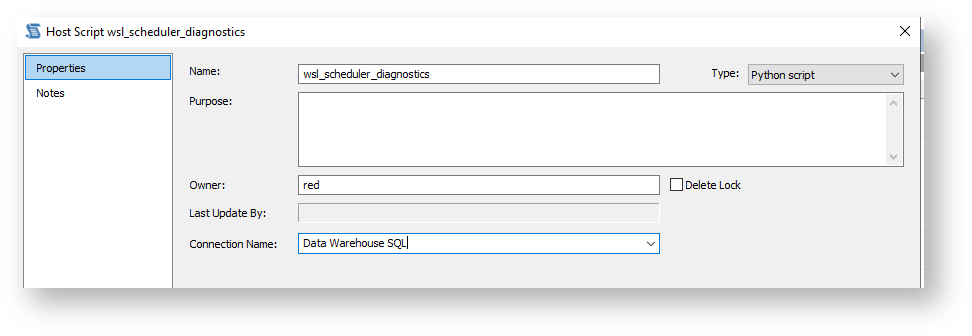
- Create a new Host Script object in RED
- Name it wsl_scheduler_diagnostics (or any name you like)
- Assign the 'Python Script' type to it
- Optionally assign an ODBC/Database connection to the script, this will enable ODBC tests against this connection
- Open the script in the Editor (double click the host script object in RED) and paste in the python code from above

- Create a New Job in RED including this script
- Include appropriate Scheduler Tags so the script will run against the correct Azkaban Executor
- Frequency = None - this will allow us to kick the job off ad-hoc as required.
- On the tasks screen select the script from the host scripts screen and click OK to publish the job


- Execute the job and view results
- Start the job from the RED Scheduler tab or by logging into the Azkaban Dashboard and running from there
- Example results below:

- To test other ODBC connections using the same script simply assign the script to another connection and re-run the job.
- To test Metadata, Source and Target in one go, then temporarily assign the script as the load script of a Load table and create a job to run the Load operation.
Adding Jobs Troubleshooting
This section provides troubleshooting steps for some issues that you could face while adding jobs.
Cannot load scheduler tags
A possible cause is the WsAzkabanWeb and WsAzkabanExec services are not running. Go to Services.msc in Windows and check if they are running. if they are not running, right click on a service and select start. Or for Linux, follow the diagnostics process mentioned in the linux scheduler installation for determining of the services are running.
In order for any tags to be retrieved you must have:
- Azkaban Web server running with at least one Azkaban Executor started and showing as connected in the Executors page of the Azkaban Dashboard.
- A valid Scheduler configuration in the Scheduler tab of RED UI including the URL, credentials for API user and correct wsl_scheduler_lookup script assigned.
Cannot Publish or Run a Job
In order for jobs to be published you must have:
- Azkaban Web server running
- A valid Scheduler configuration in the Scheduler tab of RED UI including the URL, credentials for API user and correct wsl_scheduler_publish script assigned.
- If you have a Web Server behind a proxy or setup with HTTPS then you will need to make adjustments to the out of the box wsl_scheduler_publish script to accommodate this.
Common publish failure causes:
- The WsAzkabanWeb and WsAzkabanExec services are not running. Go to Services.msc in Windows and check if they are running. if they are not running, right click on a service and select start. Or for Linux, follow the diagnostics process mentioned in the Linux scheduler installation for determining of the services are running.
- The job being run already exists in a Running or Pending state, check the Azkaban running tab to see if any jobs are stuck in Pending, this can happen if there are no Executors running or if there are no Executors with the matching tags of the Job config available. Either start a matching Executor or Cancel the job and republish with a tag that matches an executor. Note: tags are cases-sensitive.
- "Trigger will never fire" error - this means the job config you specified will never run since the schedule is in the past. Edit the job to adjust the schedule.